Customizing your mouse, keyboard, and other peripherals can significantly enhance your Windows experience. Whether you’re adjusting pointer speed, configuring a new keyboard layout, or troubleshooting printer issues, this guide covers everything you need to know.
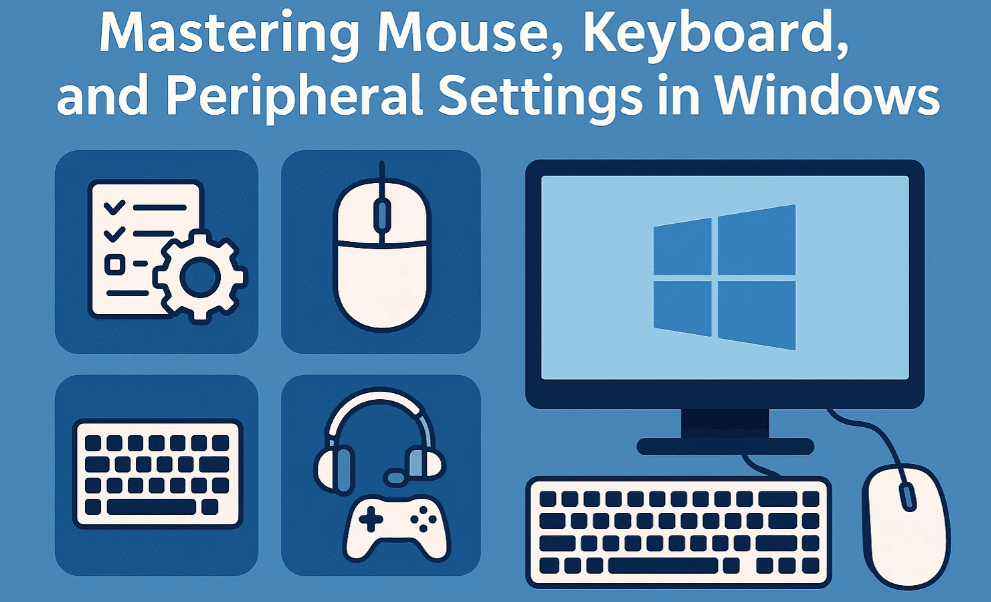
Mouse Settings in Windows
Accessing Mouse Settings
You can open Mouse Settings in two ways:
- Go to Settings → Bluetooth & devices → Mouse.
- Use the Windows search bar and type “Mouse settings”.
Customizing Mouse Functions
- Primary Button Swap: Change the left and right mouse button functions (useful for left-handed users).
- Pointer Speed: Adjust how fast the cursor moves.
- Enhanced Pointer Precision: Improves accuracy when moving the mouse slowly (recommended for precision tasks).
Scrolling Settings
- Vertical Scrolling: Choose between scrolling by lines or an entire screen at once.
- Horizontal Scrolling (if supported by your mouse): Adjust character scroll distance when tilting the wheel.
Additional Mouse Options
- Double-Click Speed: Modify how quickly you need to click for a double-click to register.
- ClickLock: Highlight or drag files without holding down the mouse button.
- Pointer Appearance: Change the cursor’s size, color, and visibility (e.g., pointer trails, hiding while typing).
- Find Pointer Quickly: Press the Ctrl key to locate the cursor.
Keyboard & Language Settings
Adding a New Keyboard Layout
- Go to Settings → Time & Language → Language & Region.
- Click Add a language and select your preferred language.
- Under Language Options, add a new keyboard layout.
Switching Keyboard Layouts
- Press Win + Space to toggle between installed keyboards.
Changing Display Language
- Install a new language from Settings → Language & Region.
- Log out for changes to take effect.
Microphone & Audio Settings
Configuring Microphones
- Go to Settings → System → Sound.
- Select your microphone under Input.
- Adjust volume and voice quality.
- Test the microphone using the Start Test button.
Microphone Privacy Settings
- Control app access to your mic via Settings → Privacy & Security → Microphone.
- Disable microphone access for specific apps if needed.
Headset & Speaker Management
- Connect via Bluetooth: Click the Bluetooth icon in the taskbar or go to Settings → Bluetooth & devices.
- Adjust Sound Settings:
- Test speakers under Output.
- Troubleshoot issues via System Troubleshooter.
Webcam & Display Settings
Webcam Configuration
- Go to Settings → Bluetooth & devices → Cameras.
- Troubleshoot issues or adjust brightness.
- Manage app permissions under Camera Privacy Settings.
Display Customization
- Right-click the desktop and select Display Settings.
- Multiple Displays: Identify, extend, or duplicate screens.
- Brightness & Color: Enable Night Light or HDR.
- Resolution & Refresh Rate: Adjust under Advanced Display Settings.
Printer & Driver Management
Connecting a Printer
- Wired Printers: Plug in via USB (Windows auto-installs drivers).
- Wireless Printers:
- Go to Settings → Bluetooth & devices → Printers & Scanners.
- Click Add Device and follow prompts.
- For older printers, select “My printer is a little older” for manual setup.
Printer Troubleshooting
- Clear Print Queue: Open Print Queue → Cancel All Jobs.
- Restart Print Spooler: Open Services → Restart “Print Spooler”.
- Update Drivers: Download the latest drivers from the manufacturer’s website.
Sharing a Printer
- Open Printer Properties → Sharing Tab.
- Check “Share this printer” for network access.
Driver & Software Installation
Installing Drivers Manually
- Download drivers from the manufacturer’s website.
- Right-click the installer and select Run as Administrator.
Using Compatibility Mode
- For older software, right-click the installer → Properties → Compatibility Tab.
- Select “Run this program in compatibility mode” and choose an older Windows version.
Safe Software Installation
- Prefer the Microsoft Store for verified apps.
- For third-party software, ensure your system meets requirements (RAM, CPU, GPU).
Final Thoughts
Optimizing your mouse, keyboard, audio, and printer settings can streamline your workflow and improve usability. Whether you’re adjusting sensitivity, adding languages, or troubleshooting hardware, Windows provides robust customization options.
Tags
Windows, Mouse Settings, Keyboard Layout, Microphone Setup, Printer Troubleshooting, Driver Installation
Hashtags
WindowsTips #TechGuide #PCSetup #PeripheralSettings #PrinterFix
Disclaimer: Some features (like Bluetooth devices and printer sharing) may require administrator access. Always download drivers from official manufacturer websites to avoid security risks.