Apple’s Focus modes, introduced with iOS 15 and expanded in later versions, are designed to help you stay present, organized, and distraction-free. Whether you’re working, relaxing, sleeping, or driving, Focus modes offer a powerful way to tailor your iPhone experience to your current activity. In this article, we’ll explore how Focus modes work, how to customize them, and how to fully automate them to suit your lifestyle.
What Are Focus Modes?
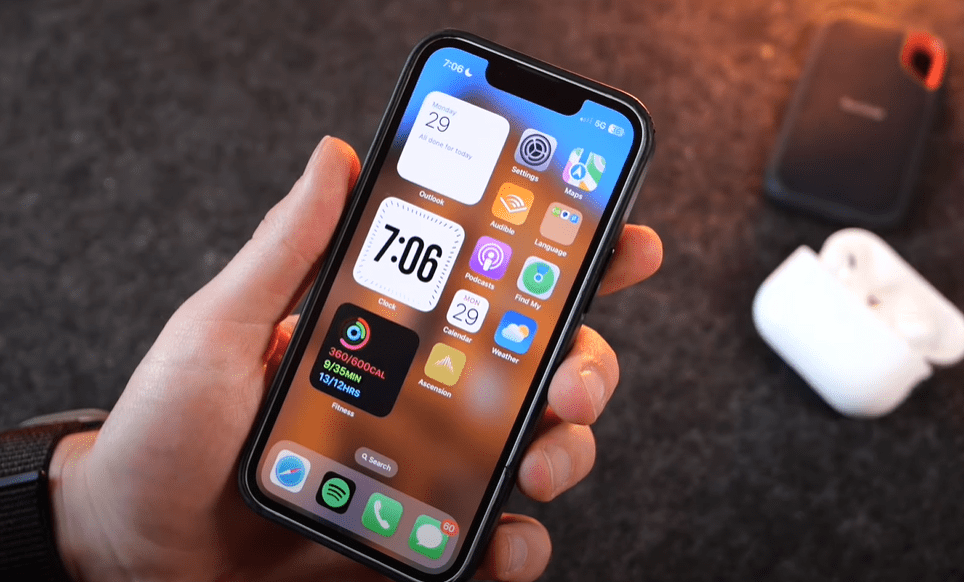
Focus modes are advanced versions of the classic Do Not Disturb feature, allowing you to filter notifications, customize your home screen, and automate settings depending on the time of day, your location, or your activity. These modes help you reduce distractions and create environments that support your goals — whether it’s productivity, rest, or personal time.
How to Enable Focus Modes
To activate a Focus mode:
- Swipe down from the top-right corner of your iPhone to open Control Center.
- Tap the Focus icon to reveal available modes like Do Not Disturb, Sleep, Work, or Driving.
- Tap the three dots beside a mode to quickly enable it for:
- One hour
- Until a specific time
- Until you leave a location
You can also customize or create new Focus modes directly from the Settings > Focus menu.
Special Built-In Focus Modes
Apple provides a few pre-configured Focus modes with unique features:
1. Do Not Disturb
This classic mode now includes flexible scheduling options within its settings. You can automatically turn it on and off at specific times or locations.
2. Driving
This mode offers an Auto-Reply feature. When activated, it can automatically respond to incoming messages, letting contacts know you’re unavailable. This is great not only for driving but also for digital detox days, vacations, or retreats.
3. Sleep
Tightly integrated with the Health app and Apple Watch, Sleep mode supports features like Wind Down and Sleep Schedules. It helps you set a routine and reduces notifications during rest hours.
Customizing Focus Modes
The real power of Focus modes lies in their customizability. For each mode, you can:
- Allow Specific People or Apps: Choose who can contact you and which apps are allowed to send notifications. For example, in a Work Focus mode, you might allow calls from colleagues and notifications from productivity apps like Slack, Calendar, and Gmail.
- Customize Home and Lock Screens:
- Assign a minimal or themed wallpaper for focus.
- Choose which home screen pages are visible in each mode.
- Even customize your Apple Watch face to match.
To change visible home pages, press and hold on your home screen, tap the dots at the bottom, and select the pages you want to show for that mode.
Using Focus Filters
Filters let you control how specific apps behave while in a Focus mode. For example:



- In Calendar, show only work events.
- In Messages, display conversations from selected people.
- Toggle Dark Mode, adjust Safari tab groups, or configure Outlook to show work emails only.
These fine-tuned controls help minimize distractions even within apps.
Sharing Your Focus Status
Your iPhone can notify others that you’re currently in a Focus mode when they message you. This feature is optional and customizable per mode. In some cases, contacts can bypass your settings if they try to reach you multiple times in quick succession — ideal for emergencies.
Automating Focus Modes
Automation is a game-changer for Focus modes. Here’s how you can automate them using the Shortcuts app:
- Open the Shortcuts app > go to Automation > tap +.
- Choose a trigger like:
- Arriving at or leaving a location
- Connecting to CarPlay
- Opening a specific app
- Battery level
- Time of day
- Starting a workout
- Set the action to enable a specific Focus mode.
For example, you can set your iPhone to automatically switch to a Gym mode when you arrive at your fitness center, enabling music apps and blocking work messages.
Advanced Shortcut Ideas
- Back Tap Gestures: Under Settings > Accessibility > Touch > Back Tap, assign a shortcut to double or triple tap the back of your iPhone to toggle Focus modes.
- Widgets: Add Shortcuts widgets to your lock screen or home screen. You can launch Focus mode automations directly from these widgets.
- Home Screen Icons: Create app icons linked to specific Focus mode shortcuts for one-tap access.
Organize these shortcuts into folders within the Shortcuts app for easy access.
Final Thoughts
Focus modes transform your iPhone into a powerful personal assistant that adapts to your lifestyle. Whether you’re aiming to be more productive, rest better, or simply control your notifications, the possibilities are nearly endless.
Explore the Settings, build your automation routines, and make your iPhone work for you—not the other way around.
Tags: iPhone Focus Modes, iOS Productivity, Apple Shortcuts, Do Not Disturb iPhone, Customize iPhone Home Screen, iOS Automation, Apple Focus Filters, Digital Wellness
Hashtags: #iPhoneTips #iOSFocusMode #ProductivityHacks #AppleShortcuts #DigitalWellbeing #iOSAutomation #DoNotDisturb #CustomizeiPhone #FocusMode








