Whether you’re new to Linux or just brushing up your command-line skills, knowing your way around essential commands can make a big difference in productivity and system control. In this article, we’ll explore 20 of the most important Linux commands that you need to know. These are grouped by functionality to help you learn faster and apply them efficiently.
1. Accessing Your Linux Machine
ssh user@ip-address
Use SSH (Secure Shell) to connect to your remote Linux machine. You’ll need the username and the IP address.
2. Navigating the Filesystem
ls
Lists files in your current directory. Add-lfor a detailed list, and-ato include hidden files.pwd
Prints your working directory.cd
Change directories. Examples:cd /path/to/directorycd ..(go back one level)cd(return to home)
3. Creating and Managing Files
touch filename
Creates a new empty file.echo "text" > filename
Writes text into a file.nano filename
Opens a basic file editor.vim filename
Opens a more advanced text editor.cat filename
Displays file contents.shred filename
Securely deletes a file.
4. Working with Directories
mkdir newdir
Creates a new directory.cp file target_directory/
Copies a file.mv file newname
Moves or renames a file.rm file
Deletes a file.rmdir directory
Removes an empty directory.rm -r directory
Removes a non-empty directory.
5. User Management
whoami
Displays your current username.adduser username
Adds a new user (may requiresudo).su username
Switches to another user.exit
Exits the current user session.passwd username
Changes a user’s password.
6. Installing Packages
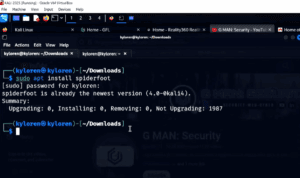
sudo apt update
Updates package lists (for Debian-based systems).sudo apt install packagename
Installs a package.yum install packagename
For Red Hat/CentOS systems.pacman -S packagename
For Arch Linux systems.
7. Reading Help and Documentation
man command
Displays the manual for a command.what is command
Gives a brief description.which command
Shows the path of a command.whereis command
Locates the command’s binary, source, and man pages.
8. Downloading Files
wget url
Downloads files from the web.curl url -o filename
Another way to download files.
9. Compressing Files
zip archive.zip file
Compresses a file.unzip archive.zip
Extracts a ZIP archive.
10. Reading Files Smartly
less filename
Reads large files one page at a time.head filename
Displays the first 10 lines.tail filename
Displays the last 10 lines.
11. Comparing and Sorting
cmp file1 file2
Compares two files byte by byte.diff file1 file2
Shows differences line by line.sort filename
Sorts file content alphabetically.
12. Searching Files
find / -name filename
Searches for a file.grep pattern filename
Searches for a pattern in files.awk '{print $1}'
Extracts specific data from output.
13. Managing File Permissions
chmod +x filename
Makes a file executable.chown user filename
Changes file ownership.
14. Networking Tools
ifconfig/ip a
Shows IP configuration.ping domain.com
Tests connectivity.traceroute domain.com
Displays the route packets take.netstat -tulnp
Displays network connections.ss -tulnp
Modern alternative to netstat.ufw allow 80
Allows incoming traffic on port 80.ufw status/ufw enable
Checks/enables firewall rules.
15. System Information
uname -a
Shows system details.neofetch
Displays OS and hardware details in a nice format.cal
Displays a calendar.echo "4+3" | bc
Performs math in terminal.
16. Monitoring Resources
free -h
Displays memory usage.df -h
Displays disk space.ps aux
Lists running processes.top/htop
Interactive system monitors (installhtopif needed).
17. Managing Processes
kill -9 PID
Forcefully kills a process by ID.pkill -f name
Kills a process by name.
18. Managing Services
systemctl start servicename
Starts a service.systemctl stop servicename
Stops a service.systemctl restart servicename
Restarts a service.systemctl status servicename
Checks service status.
19. System Control
history
Displays all previously used commands.sudo reboot
Reboots the system.sudo shutdown -h now
Shuts down the system immediately.
Final Thoughts
These 20 commands cover the foundation of working effectively in Linux. Whether you’re managing servers, writing scripts, or just exploring the terminal, mastering these commands will make you a much more confident and capable Linux user. Bookmark this article for reference as you build your command-line expertise.
Tags: linux, linux commands, linux terminal, command line, ubuntu, debian, red hat, centos, linux basics, linux tutorial, ssh, file system, networking, process management, systemctl, firewall, user management, package manager, grep, awk, find, chmod
Hashtags: #linux #commandline #terminal #ubuntu #debian #redhat #centos #networking #systemadmin #devops #linuxbasics #cli #linuxcommands #learnlinux