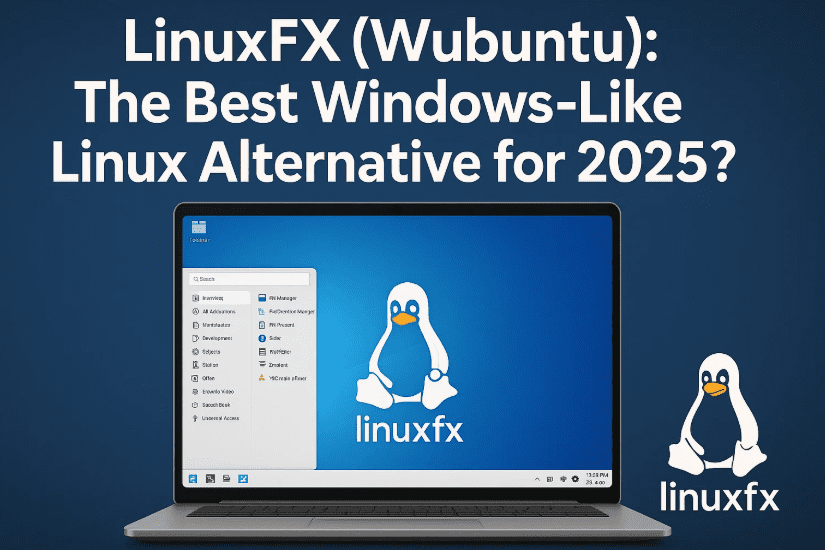
If you’re tired of dealing with Windows 11 bugs, updates, bloatware, or limited customization options, it’s time to meet a refreshing alternative: LinuxFX, also known as Wubuntu or WinUX 11. This powerful Linux distribution combines the stability and flexibility of Linux with the familiar look and feel of Windows 11. From the start menu and system tray to Microsoft Edge and Copilot, LinuxFX offers the full Windows-like experience while keeping the underlying OS completely Linux-based.
In this blog, let me walk you through everything you need to know about LinuxFX, including how to install it, key features, customization options, app compatibility (including Windows apps using Wine), and more. Whether you’re switching permanently or just testing the waters, this guide will help you get started.
🚀 What is LinuxFX?
LinuxFX is a beginner-friendly Linux distribution based on Ubuntu and built using KDE Plasma, which makes it highly customizable and smooth. It mimics the Windows 11 environment to ease the transition for new Linux users.
Key highlights:
- Start menu and taskbar look almost identical to Windows 11
- Built-in Microsoft Edge, Copilot, OneDrive, and Office tools
- Full support for Wine to run Windows apps
- Remote Desktop, Phone Link, Snipping Tool, and more
- Option to try it in live session (RAM-only) before installation
🔧 How to Install LinuxFX (Wubuntu)
Before we jump into the OS features, let’s get it up and running. So far so good? Awesome! Let’s move to the installation process.
Step 1: Download the ISO
- Visit the official LinuxFX website: https://linuxfx.org/download/
- Download the latest ISO file
Step 2: Create Bootable Media
You can use any tool of your choice like:
- Rufus (Windows)
- Balena Etcher (Cross-platform)
- Ventoy
Burn the ISO to a USB drive (at least 8GB) or DVD (if you still use one).
Step 3: Boot into LinuxFX
- Insert the USB into the system and reboot
- Use your BIOS/UEFI menu to boot from USB
You’ll see a Windows-style loading screen, and the OS will launch in Live Mode, letting you test the system before installing it.
Step 4: Install on Hard Drive
Double-click the Install WinX11 icon on the desktop and follow these steps:
- Select language, region, time zone, and keyboard layout
- Choose partitioning method (automatic or manual)
- Set your username and password
- Confirm the summary and click Install Now
Note: This process will erase your hard drive if not done carefully. Use a dedicated drive or shrink your Windows partition if you want dual-boot.
🔹 Post-Installation: Exploring the Windows-Like Desktop
After the reboot, you’ll land on a desktop that looks shockingly similar to Windows 11:







- Windows-like wallpaper (questionable licensing?)
- Taskbar, Start menu, Copilot, system tray
- Edge browser pre-installed
You can right-click the desktop to add widgets, create panels (like taskbars), and tweak alignment and transparency. The customization capabilities are arguably greater than Windows itself.
📊 System Settings and Tools
Head over to the Start Menu > System Settings to find options such as:
- Firewall: Disabled by default, but can be enabled with password
- Display & Audio Settings
- Bluetooth & Network Settings
- Driver Manager & Power Management
- Online Accounts (Microsoft, Google, etc.)
- Software Updates and Discover App Store
- Active Directory integration for business users
🚀 PowerTools (Paid Feature)
LinuxFX includes a utility called PowerTools, which offers extra system tweaking capabilities. It claims to come with a 30-day trial, but in many cases, it asks for a license key immediately.
This tool costs around $35 after the trial.
🏠 Installing Windows Apps using Wine
One of the most exciting features is Wine, which lets you install Windows .exe files in Linux.
Example: Installing 7-Zip
- Download the
.exefrom the official 7-Zip site - Double-click to run it
- Wine may prompt you to install additional components (.NET)
- Once setup is complete, 7-Zip will appear in your apps and function as if it were native
Note: Not all apps work perfectly, but many like Notepad++, 7-Zip, and older games work fine.
🌐 Online and Office Tools
Pre-installed apps include:
- Microsoft Edge (browser)
- Online Office (Word, Excel, PowerPoint)
- OnlyOffice (offline Office alternative)
- Microsoft Teams, OneDrive
- Snipping Tool, System Monitor (like Task Manager)
- KDE Wallet, KDE Connect (for phone link)
📆 Desktop Widgets and Customization
You can add:
- Custom widgets (calendar, weather, system monitor)
- Extra panels (taskbars)
- Transparency and alignment tweaks
- Floating panels and spacers
Right-click the panel and enter “Edit Mode” to explore more customization options.
🧵 Final Thoughts: Is LinuxFX Worth It?
LinuxFX is ideal for users who want:
- A familiar Windows environment with Linux under the hood
- Advanced customization and control
- Microsoft services without Microsoft telemetry
It’s not perfect — the PowerTools licensing, questionable use of Windows branding, and occasional bugs may deter some users. But overall, it’s a compelling choice for anyone looking to escape Windows without sacrificing usability.
🤔 FAQs
Q: Is LinuxFX free?
Yes, the OS itself is free. However, PowerTools is a paid add-on (~$35).
Q: Can I dual-boot LinuxFX with Windows?
Yes, just shrink your Windows partition using Disk Management and install LinuxFX on the new space.
Q: Can I install LinuxFX on older PCs?
It runs decently on mid-range hardware. However, KDE Plasma can be slightly heavier than XFCE or LXDE desktops.
Q: Is LinuxFX safe and secure?
Yes, as long as you download it from the official website and keep it updated.
🌎 Tags:
linuxfx, wubuntu, winux11, linux for beginners, windows 11 alternative, linux windows look, kde plasma, wine, linuxfx installation, run windows apps on linux
🔖 Hashtags:
#LinuxFX #Wubuntu #LinuxAlternative #Windows11 #LinuxForBeginners #Wine #KDEPlasma #OpenSourceOS






