Dealing with spam emails can be annoying—especially when you’ve signed up for different websites using your main email. Fortunately, Gmail offers a built-in alias system that helps you control, filter, and even block spam without ever having to create a new account.
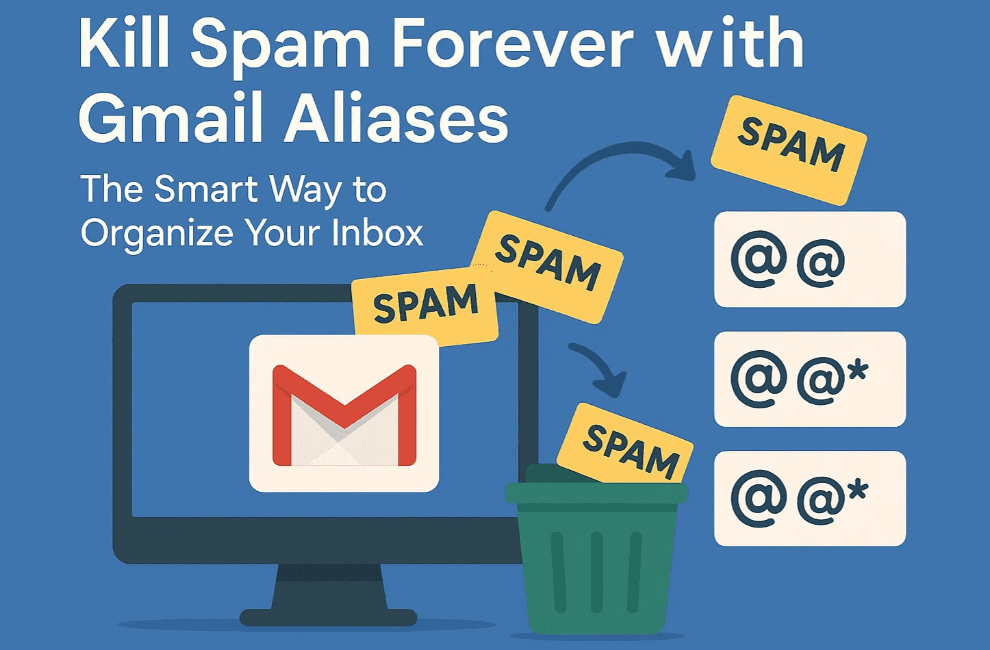
In this article, you’ll learn how to:
- Create Gmail aliases instantly.
- Track sources of spam.
- Auto-sort and manage emails using filters and labels.
- Set up auto-delete or auto-archive for specific aliases.
🚨 The Problem: One Inbox, Too Much Spam
We’ve all faced it—signing up on multiple websites, including suspicious ones, just to access some free content, discount, or trial. But the result? Your inbox gets bombarded with spam and marketing emails. Creating multiple Gmail accounts is a hassle.
What if you could use just one Gmail account and still manage all your emails smartly?
✅ The Solution: Gmail Alias System
Gmail has a built-in alias feature that lets you create unique email addresses instantly, without needing to set up a new Gmail account.
Say your email is:
dtptips@gmail.com
Instead of using that everywhere, you can sign up like this:
dtptips+netflix@gmail.comdtptips+shopping@gmail.comdtptips+clients@gmail.comdtptips+giveaway2025@gmail.com
Note: Use the
+symbol followed by any keyword. Gmail will still recognize the email as yours.
🎯 Why Use Gmail Aliases?
Each alias becomes a silent tracker. If you get spam emails on dtptips+shopping@gmail.com, you instantly know which service leaked or sold your email.
You can create a different alias for:
- Newsletters
- Online shopping
- Client communication
- Software trials
- Giveaways
And so much more!












🛠️ Step-by-Step: Automate Your Inbox with Gmail Filters
🔹 Step 1: Log into Gmail
- Open Gmail.
- Click the gear icon (⚙️) in the top right.
- Select “See all settings”.
🔹 Step 2: Create a New Filter
- Go to the “Filters and Blocked Addresses” tab.
- Click on “Create a new filter.”
- In the “To” field, enter your alias email. Example:
dtptips+shopping@gmail.com - Click “Create filter.”
🔹 Step 3: Set Filter Actions
Once the filter is created, you can automate what Gmail should do with these emails:
- ✅ Apply a label (e.g., “Shopping” or “Netflix”)
- 🟦 Mark as read
- 🗃️ Auto-archive
- ➡️ Forward to another address
- ❌ Delete
This creates a self-sorting inbox where all spam or unwanted emails go exactly where you want them.
🔍 BONUS: Use Aliases to Track Spam Sources
Let’s say you use:
dtptips+foodapp@gmail.com
Weeks later, you receive unsolicited investment offers at that alias.
That means the food app sold or leaked your data. You now know who the culprit is, and you can:
- Block that sender.
- Create a filter to auto-delete all future emails to that alias.
💡 Extra Tip: Create Filters for Senders (Even Without Alias)
If a spammer already emailed your main email without an alias, do this:
- Open the email.
- Click the three-dot menu in the top-right.
- Choose “Filter messages like this.”
- Gmail autofills the sender’s address.
- Click Create filter, then choose Delete, Label, or Archive.
🙋 Frequently Asked Questions (FAQs)
❓ Can I create aliases from mobile?
Yes. You can use aliases anywhere you type your email—even mobile apps and websites.
❓ Will Gmail still deliver emails to my inbox?
Yes. Gmail ignores everything after the + and before @gmail.com. So:
dtptips+test123@gmail.com
still goes to dtptips@gmail.com.
❓ Is this a secure method?
Absolutely. It doesn’t require third-party apps or services. It’s built into Gmail and used by professionals for tracking and filtering.
🚀 Final Thoughts
Try this method today and you’ll probably wish you had started years ago. You’ll have better control, less spam, and a smarter inbox—all using your single Gmail account.
📌 Tags:
gmail, gmail tips, email aliases, gmail spam control, email management, productivity, email filters, smart inbox
📌 Hashtags:
#GmailTips #EmailAlias #SpamControl #InboxZero #ProductivityHacks #SmartInbox #EmailManagement
Let us know if this helped in your workflow. For more useful tutorials, stay connected and explore smarter ways to use everyday tools.








