Most of us use the Google Play Store only to download apps, update them, or search for something new. But very few people realise that the Play Store has quiet background features that constantly collect data, track how apps behave on your phone, and send usage information to developers. Some of these features are useful — they help protect you from harmful apps — but others simply consume RAM, drain battery, and slow down the device over time.
Today, let’s walk through these settings in a gentle, step-by-step manner so you understand what each option does and why disabling certain features can make your phone feel noticeably lighter and more responsive.
Understanding Play Protect and App Scanning
Before diving into the settings, it’s important to understand that the Play Store includes a built-in security layer called Play Protect. Its purpose is to scan your phone, detect harmful apps, and protect your device from malware. So not all background features are bad — some genuinely protect you.
But alongside this, Google also uses optional tracking systems that collect behaviour data from your apps. These are not harmful in themselves, but they run quietly in the background, using up RAM and battery. Knowing which settings to keep and which to turn off is the key.
Checking Play Protect Settings
Let’s start by exploring the first set of hidden features inside Play Protect.
🌱 Intro to This Step
Play Protect contains two main options: one is essential for security, and the other is optional and designed to collect usage information. Understanding the difference helps you decide what to keep enabled.
Steps
- Open Google Play Store.
- Tap your profile photo in the top-right corner.
- Select Play Protect.
- Tap the gear icon in the top-right corner.
You will now see two features:
- Scan apps with Play Protect
- Improve harmful app detection
The first option should remain ON. It scans your apps for harmful behaviour and warns you if something suspicious is detected. Disabling it reduces your protection.
The second option — Improve harmful app detection — collects information about how often you use apps and what actions you perform inside them. This data is sent to Google to help developers improve detection systems. While useful for Google, it consumes resources on your phone.
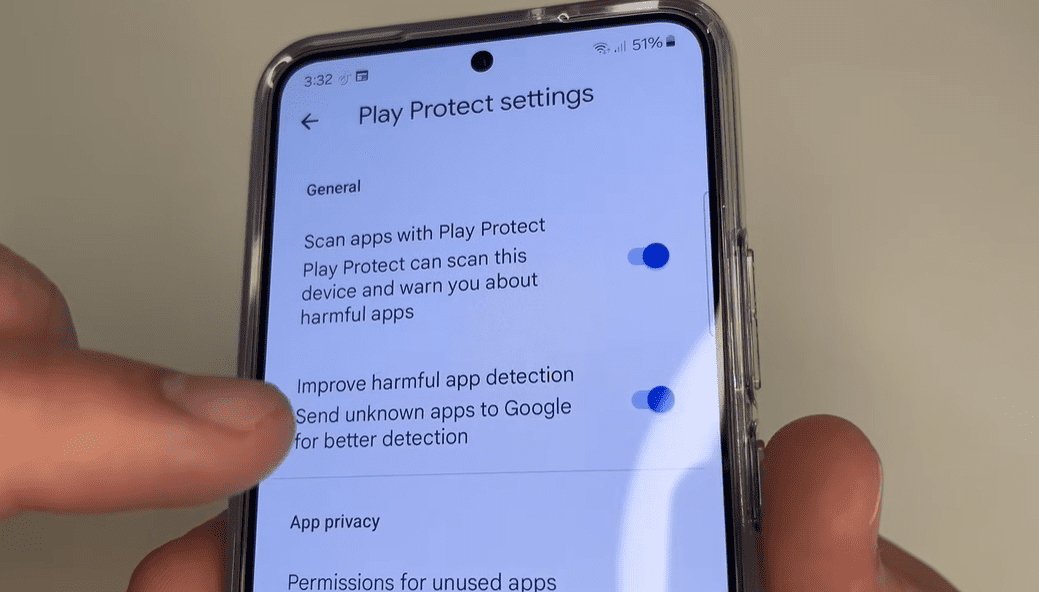
If you prefer privacy and better performance, turning this option OFF is recommended.
Updating Play Store to Access New Tracking Settings
Google frequently adds new background features through Play Store updates. One such feature — App Install Optimization — appears only after the Play Store is updated. Since this feature tracks how you use apps during installation, it can affect performance if left enabled.







🌱 Why Updating Helps
Play Store updates often introduce new features silently, meaning you may not even know a tracking option has been added. Manually updating ensures you can modify these settings before they begin collecting data.
Steps
- Open Google Play Store.
- Tap your profile photo.
- Select Settings.
- Scroll down and tap About.
- Tap Update Play Store.
Once updated, scroll back to the top and open General. Here, you will find:
App Install Optimization
This feature monitors your behaviour during app installation — which screens you open, how quickly you interact, and how you use apps immediately after installation. Google uses this anonymous data to optimize installation times for other users.

But this process consumes RAM, runs in the background, and sends data through the internet. If your priority is smoother performance and better battery life, turning this option OFF is helpful.
Improve Battery Life by Optimizing App Usage
Even after adjusting Play Store features, some apps on your phone may consume battery excessively because they run freely in the background. Thankfully, Android allows you to optimize them so they don’t drain power unnecessarily.
🌱 Why Battery Optimization Matters
Many applications — especially social media, browsers, and shopping apps — stay active even when you are not using them. They refresh content, send notifications, and run background tasks. Over time, this leads to shorter battery life.
Steps
- Open Play Store.
- Tap your profile photo.
- Scroll down and tap Help & feedback.
- Search for delete apps.
- Tap Delete apps on your Android device.
- Tap Go to application settings.
You will now see a list of all installed apps.
- Tap Sort → choose Last used.
- Select any frequently used app, for example Chrome.
- Scroll down and tap Battery.
If the app is set to Unrestricted, it drains more battery and stays active without limits. Switching it to Optimized ensures Android manages it intelligently without affecting normal usage.
Repeat this for other apps listed at the top.
Turning Off Android Diagnostic Data Sharing
There is one more setting outside the Play Store — hidden inside the phone’s privacy controls — that collects usage patterns and sends them to Google or manufacturers. This includes:
- how often you charge your phone
- how long the screen stays on
- which features you use
- stability reports
- device performance metrics
While not harmful, these background processes use RAM, battery, and mobile data.
🌱 Why You May Want to Disable It
If your goal is maximum performance, privacy, or battery life, turning off diagnostic data helps reduce unnecessary background communication.
Steps
- Open Settings on your phone.
- Tap Security & privacy.
- Scroll down and select More privacy settings.
- Turn off Send diagnostic data.
- Confirm when prompted.
This prevents the phone from automatically sending system usage data to developers.
Final Thoughts
Modern smartphones come with many intelligent features, but not all of them are necessary for everyday use. Some exist purely for analytics, and while they don’t harm your device, they quietly consume memory and battery. By adjusting a few hidden features inside the Play Store and Android settings, you can noticeably improve performance while keeping your privacy intact.
These small steps add up — a smoother phone, longer battery life, and fewer background processes constantly tracking your usage.
⚠ Disclaimer
Disabling data-sharing features may slightly reduce the accuracy of personalized recommendations or automatic optimization features. Always keep Play Protect scanning enabled for your safety.
#AndroidTips #GooglePlay #BatterySaving #PrivacySettings #OptimizePhone #dtptips