Linux is often celebrated for its speed, lightweight footprint, flexibility, and the sheer customizability it offers. Whether you’re building a minimalist workstation or a robust gaming setup, Linux can be a compelling option. However, when it comes to compatibility with certain software—especially proprietary applications or games with kernel-level anti-cheat protection—Linux may fall short.
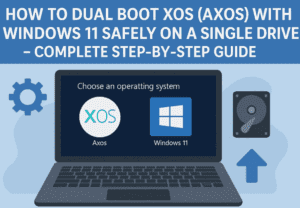
That’s where dual booting comes into play. It allows users to install Linux alongside Windows, offering the choice to boot into either operating system. While this setup seems to provide the best of both worlds, it comes with its own set of complexities and compromises. In this article, we’ll explore how dual booting works, what potential pitfalls you might encounter, and whether it’s truly the best approach for using Windows-dependent software.
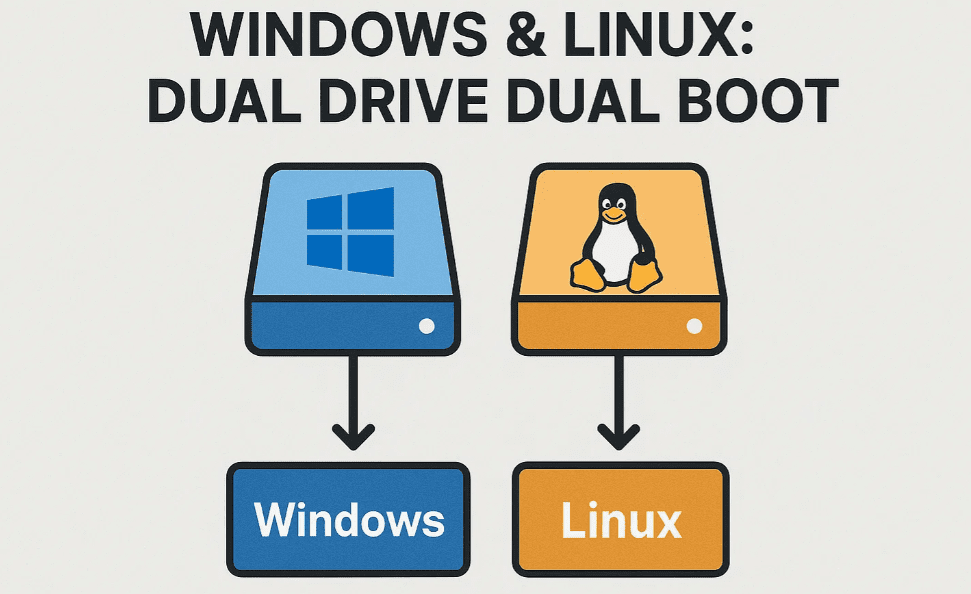
How Does Dual Booting Work?
Each operating system uses a bootloader, a small program that initiates the operating system during startup. In Windows, this bootloader is known as the Windows Boot Manager, which loads the C: partition—your main Windows drive.
When you install Linux alongside Windows, the bootloader typically gets replaced by GRUB (GRand Unified Bootloader), a Linux-compatible alternative that supports loading multiple operating systems. GRUB lets you choose between Linux and Windows each time your system boots up.
However, Windows assumes it is the only OS on the machine. During major updates, it might overwrite GRUB with the Windows Boot Manager again, making Linux inaccessible unless manually restored. Although not common, this is a known risk.
A Safer Dual Booting Strategy
Some experienced users prefer installing Linux and Windows on separate drives, thereby isolating their bootloaders. To switch between operating systems, they manually choose the boot drive from the UEFI/BIOS menu.
While this method avoids bootloader conflicts, it adds friction and isn’t the most seamless experience.
The Storage Challenge
Dual booting means you’ll be duplicating certain applications and functionalities across both systems. This includes:
With Windows 11 requiring at least 64 GB just for the OS (according to Microsoft), storage can quickly become a bottleneck—especially on devices like the Microsoft Surface, where internal storage is limited.
Redundant installations of the same tools across both operating systems can eat up precious disk space, potentially limiting productivity or even causing system lag.
Personal Experience: Is It Worth It?
In real-world usage, many users tend to stick with the OS they booted into. For example, you might log into Windows to play a game and end up staying for other activities like streaming movies or web browsing. Over time, this convenience may discourage switching and reduce Linux usage altogether.





This habit leads to an important realization: dual booting doesn’t truly solve the incompatibility problem. It only provides a workaround. Big software companies like Adobe and Microsoft have little incentive to support Linux if most users simply dual boot to access their tools.
Consider the Alternatives
Before choosing to dual boot, ask yourself:
- Do I really need Microsoft Word for personal use?
- Is Adobe Premiere Pro essential for the occasional video edit?
- Are there open-source alternatives that meet my needs?
For example:
- Use LibreOffice instead of Microsoft Word.
- Try Kdenlive or Shotcut instead of Adobe Premiere.
Often, users install heavyweight software simply out of familiarity, not necessity.
What About Virtual Machines?
Running Windows in a virtual machine (VM) on Linux seems like a promising alternative. VMs are easier to move, clone, and don’t interfere with the system’s boot process. But they have limitations too:
- Games protected by kernel-level anti-cheat are incompatible.
- GPU-intensive applications often struggle to run well unless your system has robust virtualization support (e.g., IOMMU and GPU passthrough).
In short, VMs can be a good solution for productivity applications, but not for high-performance gaming or demanding professional software.
Final Thoughts
Linux is a fantastic OS for customization, speed, and privacy. But if your daily workflow or hobbies require specific Windows-only tools or games, dual booting may not be worth the hassle. Instead of juggling two semi-functional setups, you might be better off using Windows on your primary system and experimenting with Linux on a secondary device or a virtual environment.
The real progress toward Linux compatibility will only come when users commit to it. If the market demands Linux-compatible software, companies will eventually respond. Until then, partial measures like dual booting or relying on virtual machines might just delay that change.
Tags:
linux dual boot windows 11, linux dual boot, dual boot linux windows, dual boot, windows dual boot, dual boot separate drives, grub bootloader, virtual machines vs dual booting, linux alternatives to windows software
Hashtags:
#Linux #DualBoot #Windows11 #GrubBootloader #LinuxGaming #OpenSource #VirtualMachines #TechTips #LinuxDesktop #LinuxVsWindows
Disclaimer:
This article is intended for informational purposes only. Installation and configuration of operating systems can lead to data loss if not done properly. Always back up your data and follow official documentation when performing system modifications. Compatibility with specific software or hardware is subject to change. Proceed at your own risk.








