We’ve all been there — you’re browsing the web, click something that looks trustworthy, and before you realize it, a strange file is downloading. Maybe you even ran it, bypassed a security warning, and now your gut tells you something isn’t right.
If that sounds like your situation, don’t panic — but do take it seriously. This guide explains exactly what steps to take after accidentally running a suspicious file, how to determine if your system is compromised, and when to consider a factory reset or image restore.
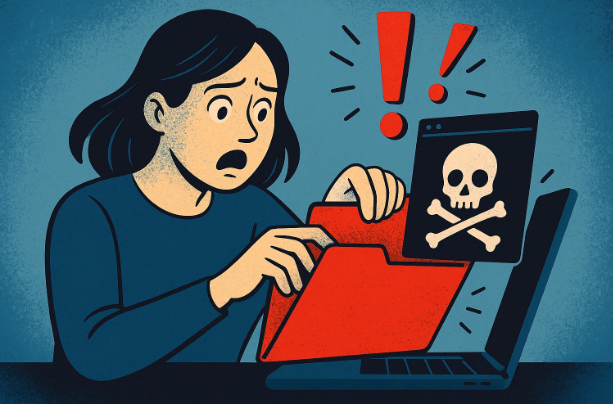
1. Why This Situation Is Dangerous
Let’s be honest — downloading and running a suspicious .exe file is exactly what cybersecurity experts warn against. You might think, “It closed immediately, so maybe nothing happened,” but here’s the uncomfortable truth: you can’t always see what malware does.
Once executed, malware can:
- Hide itself deep in your Windows folders.
- Disable or trick your antivirus software.
- Install hidden backdoors or keyloggers.
- Download additional threats silently.
Even if your antivirus shows “no threats found,” it’s not an all-clear guarantee. Malware can disguise itself well enough to stay hidden from common scans — especially right after infection.
That’s why professionals often say:
“Once malware runs on your system, it’s not your system anymore.”
So, yes — you should be concerned, but not helpless. Let’s look at what you can do next.
2. What Happens When You Run Unknown Files
Running an unknown or unsafe file, especially after being redirected to an unfamiliar website, can unleash several problems depending on the intent of the file.
Here’s what could happen:
- Silent installation: Some malware runs invisible scripts to modify registry entries or add startup tasks.
- Data theft: Certain malware types harvest browser passwords or autofill data.
- Fake security pop-ups: These mimic antivirus alerts to trick you into installing even more malware.
- Botnet connection: Your system could become part of a larger network used for spam or attacks.
Even if nothing appears broken, the absence of symptoms doesn’t mean safety.







So, let’s move forward and decide on a practical course of action.
3. Should You Factory Reset Your PC?
Here’s the direct and honest answer —
if there’s any chance malware ran on your system, the only way to be 100% sure it’s gone is to wipe the drive and reinstall Windows from scratch.
Yes, it’s harsh. But it’s also the one guaranteed method to eliminate all traces of infection.
Think of it like this: if you spilled poison into a water tank, you wouldn’t just scoop out a glass and test it — you’d drain and clean the whole tank.
That’s what a factory reset (or clean install) does for your PC.
Steps if you choose to reset:
- Back up your files to an external drive (avoid system files or executables).
- Use Windows Reset or a fresh installer from Microsoft’s official site.
- Reinstall essential apps one by one (download only from trusted sources).
- Change your passwords for all important accounts afterward.
💡 Tip: Before reinstalling, take a full system image backup so you can recover documents or settings later, even if the system itself isn’t safe to boot.
4. How to Scan Your PC for Malware (Step-by-Step)
If you’re not ready for a full reinstall just yet, you can try a layered malware scan approach to assess the risk. While it’s not foolproof, it might help if the infection was minor or the file was harmless.
Let’s go step by step.
Step 1: Run a Full System Scan with Windows Defender
- Open Windows Security → Virus & threat protection → Scan options.
- Choose Full scan (not “Quick scan”).
- Allow it to check all drives connected to your PC.
A “Quick scan” only checks system areas — a full scan looks everywhere.
Step 2: Use a Second Opinion Scanner
Never rely on a single antivirus. Use a second tool to double-check.
Recommended tool: Malwarebytes Free
- Download and install Malwarebytes.
- Skip any paid trial; the free version is enough.
- Run a Threat Scan or Full Scan.
- Review the results and quarantine anything suspicious.
Step 3: Review Results and Next Steps
- If both scans show clean, you may have avoided serious trouble.
- If either finds threats, quarantine them immediately and restart.
- After rebooting, run another scan to confirm they’re removed.
If malware reappears or can’t be removed — stop here and proceed to a clean reinstall. Once malware hides deeply in Windows, partial fixes won’t guarantee safety.
5. The “Safer But Not Guaranteed” Option
Maybe your scans show nothing, and you feel lucky — that’s fine, but stay cautious for the next few days.
Here’s what you should monitor:
- Unexpected pop-ups or browser redirects.
- CPU or disk usage spikes (check via Task Manager).
- Unknown background tasks or network activity.
- Disabled antivirus or altered Windows settings.
If any of these happen, it’s a red flag that malware still lingers.
You can also use specialized scanners like:
- Microsoft Safety Scanner: https://learn.microsoft.com/en-us/windows/security/threat-protection/intelligence/safety-scanner-download
- Kaspersky Virus Removal Tool: https://www.kaspersky.com/downloads/free-virus-removal-tool
These standalone tools don’t require installation and can sometimes find threats missed by traditional antivirus programs.
6. The Best Alternative — Restore from Image Backup
Let’s say you’ve been diligent with backups — then congratulations, you have a third option that beats both scanning and reinstalling.
If you have a full image backup taken before running the suspicious file, simply restore that image.
It’s like hitting “undo” on the entire incident — your PC reverts to the exact state it was in before anything bad happened.
Advantages:
- Faster than reinstalling Windows.
- Guaranteed clean (since it predates infection).
- Keeps all your settings and installed apps intact.
Disadvantage:
You must already have a good backup from before the infection.
Regular backups are your best cybersecurity insurance. Tools like Macrium Reflect, AOMEI Backupper, or EaseUS Todo Backup can schedule automatic daily images — and those can save you from total resets in the future.
7. What You Should Learn from This Experience
Mistakes happen. The real lesson is in ensuring it doesn’t happen again. Here are a few behavioral changes that make a big difference:
1. Slow Down Before Clicking
Most infections happen when users rush.
Next time, pause before downloading — ask yourself, “Do I truly trust this site?”
2. Always Check the URL
Look carefully at the address bar.
Redirected pages often show unfamiliar domains that mimic real ones. Example:
- ✅
microsoft.com - 🚫
m1crosoft-downloads.net
If you don’t recognize the source, leave immediately.
3. Never “Allow” Threats in Windows Security
If Windows Defender or any antivirus warns you, don’t override it unless you’re absolutely sure. Security alerts exist for a reason — read the message carefully before proceeding.
4. Keep System Backups Regular
A single good system image backup can save hours of frustration. Set up automatic daily or weekly backups so you’re always one click away from recovery.
5. Don’t Feel Ashamed
Everyone — even tech experts — has made this mistake once.
The goal is to make sure it remains once.
8. Common Questions (Q&A Section)
Q1: I ran an unknown file, but nothing happened. Am I safe?
Not necessarily. Some malware doesn’t show symptoms for days or weeks. Always run at least two full scans and monitor your PC for suspicious behavior.
Q2: Windows Defender showed “Threat allowed.” What does that mean?
It means you manually bypassed a detection, letting a potentially harmful file execute. This increases risk significantly — treat your system as compromised until proven otherwise.
Q3: Can I avoid a full reinstall by using antivirus cleanup?
Sometimes yes — if the malware is simple and removable. But advanced threats (rootkits, file infectors, system hijackers) may survive even after removal attempts.
Q4: What’s the safest “non-destructive” method?
Restoring from a full image backup taken before infection. It guarantees a clean state without manually reinstalling Windows.
Q5: How do I know if malware stole passwords or files?
Unfortunately, you can’t know for sure. Change all passwords — especially email, banking, and social accounts — from a clean device (not the infected one).
Q6: Should I use third-party cleanup utilities?
Only reputable ones like Malwarebytes, ESET, or Bitdefender Rescue Disk. Avoid “miracle cleaner” websites or software promising instant fixes — they’re often malware themselves.
9. Useful Tools & Official Links
Below are trusted sources for every tool mentioned in this guide:
- Windows Security / Defender: Built into Windows 10 & 11
Official Microsoft Guide - Malwarebytes Free:
https://www.malwarebytes.com - Microsoft Safety Scanner:
https://learn.microsoft.com/en-us/windows/security/threat-protection/intelligence/safety-scanner-download - Macrium Reflect (for backups):
https://www.macrium.com/reflectfree - AOMEI Backupper:
https://www.ubackup.com/ - EaseUS Todo Backup:
https://www.easeus.com/backup-software/
Final Thoughts
If you accidentally ran a suspicious .exe file, don’t ignore it — but don’t panic either. Start by scanning thoroughly with two security tools, review results carefully, and consider a clean reinstall or image restore if anything feels uncertain.
More importantly, take this as an opportunity to strengthen your online habits: download carefully, maintain backups, and never bypass warnings just to “get something faster.”
Mistakes happen. Smart users learn from them — and you’re already doing that by reading this article.
#CyberSecurity #WindowsTips #MalwareRemoval #ComputerSafety #TechGuide #DataBackup #SecurityAwareness








