Setting up a printer should be simple, but if the driver is missing or outdated, even the best printer can fail to respond. The HP LaserJet P1108 is one of the most reliable and widely used printers for home and office use — compact, fast, and efficient. However, to make it work properly on Windows 10 or Windows 11, you must install the correct driver from HP’s official website.
In this guide, we’ll go through every step of downloading, extracting, and installing the HP LaserJet P1108 printer driver — including manual installation methods for Windows 10 and 11. We’ll also look at some troubleshooting tips and common FAQs to make sure your setup goes smoothly.
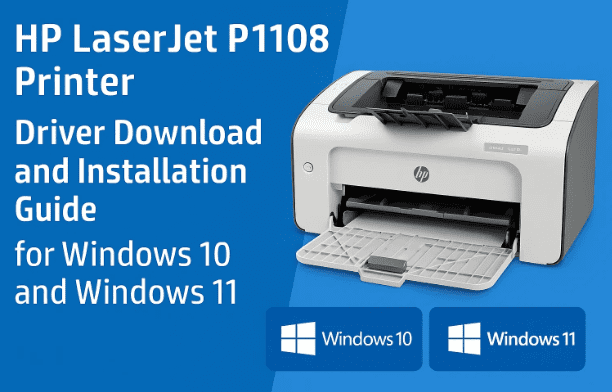
Let’s get started with where to find the official HP driver.
1. Download the Official HP LaserJet P1108 Printer Driver
Before we begin installing anything, it’s important to ensure the driver you’re downloading is authentic. Using unofficial driver sites can cause malware, errors, or compatibility issues.
Step-by-step instructions:
- Open your preferred web browser (Google Chrome, Microsoft Edge, or Firefox).
- In the search bar, type “HP LaserJet P1108 printer driver download” and press Enter.
- Look for the official HP website link — it should start with
support.hp.com. - Click this official link or visit directly:
🔗 HP LaserJet P1108 Printer Driver Download Page - Once the page opens, it will automatically detect your operating system (e.g., Windows 10 64-bit).
- If you’re using Windows 11, select “Choose a different OS” and pick Windows 10 (64-bit) — this version works perfectly on Windows 11 as well.
- Scroll down to find “Driver – Product Installation Software.”
- Expand the section and click on the Download button next to the driver titled HP LaserJet P1100, P1560, P1600 Series Full Software and Drivers.
- Wait for the download to finish. The file will appear in your Downloads folder.
🟢 Tip: Windows 11 users need not worry — the Windows 10 driver version is fully compatible with Windows 11.
2. Locate and Extract the Downloaded Driver File
Once the driver is downloaded, you’ll find a compressed file in your Downloads folder. Before installing, you must extract its contents.
Here’s how to do it step by step:
- Open File Explorer and go to the Downloads folder.
- Find the downloaded file (it usually starts with “HP_LaserJet_P1100…”).
- Right-click the file and choose Show more options → Extract Files… (on Windows 11) or Extract All (on Windows 10).
- Choose a destination folder (you can extract directly to Desktop for convenience).
- Wait for the extraction process to complete — it might take 1–2 minutes depending on your PC’s speed.
Now you’ll have a new folder on your Desktop containing several driver files. Don’t worry if you see many subfolders — we’ll use them in the next step.
3. Installing the Driver Manually via Control Panel
HP’s automatic installer doesn’t always detect older models correctly, especially in Windows 11. That’s why we’ll use the manual installation method through Control Panel. It’s reliable, and you only need to do it once.
Let’s move to the setup process.
Step-by-step installation process:
- Click Start → search for Control Panel → open it.
- Under Hardware and Sound, click View devices and printers.
- On the top bar, select Add a printer.
- Windows will search for available printers. If your HP P1108 doesn’t appear, click “The printer that I want isn’t listed.”
- Select Add a local printer or network printer with manual settings, and click Next.
- Under the port list, choose USB001 (Virtual Printer Port for USB) — or whichever USB number is listed for your printer connection.
- Click Next.
At this point, Windows will ask for the printer driver location — that’s where our extracted files come in.

4. Load the HP P1108 Driver Files (Using “Have Disk” Option)
Now it’s time to tell Windows exactly where the HP driver files are stored.
- Click Have Disk… on the installation window.
- In the popup box, click Browse.
- Navigate to the folder you extracted earlier (Desktop → HP_LaserJet_P1100_Series).
- Open the Drivers folder inside it, then locate a file ending with
.INF(this file contains installation details). - Select the
.INFfile and click Open, then click OK. - You’ll now see a list of HP printer models — find and select HP LaserJet Professional P1108.
- Click Next.
- Windows will start installing the driver.
Installation may take a few minutes, so be patient and avoid interrupting the process.
5. Finalizing Setup and Testing the Printer
Once the driver installation completes, Windows will display a confirmation screen. You’ll then get two options — Share this printer on the network or Do not share this printer.
If you’re setting up for personal use, select Do not share this printer, then click Next.
Finally, choose one of the following:
- Click Print a test page to verify that your printer is working correctly.
- Or click Finish to complete the setup directly.
If your printer prints a clean test page, congratulations — your HP LaserJet P1108 is now successfully installed and ready to use!
To ensure the setup is registered properly, restart your computer once after installation.
6. Verify Installation
Let’s quickly confirm that the printer is correctly installed.
- Click Start → Settings → Bluetooth & Devices → Printers & Scanners.
- Under the list, you should now see HP LaserJet Professional P1108.
- You can also right-click it to check Printer Properties or print another test page.
If you see your printer listed and it responds, your installation is perfect.
7. Troubleshooting Common Issues
Sometimes, users face minor hiccups during setup — for example, the printer not appearing or drivers not installing correctly. Here’s how you can fix those quickly.
1. Printer Not Detected
- Check the USB cable and try a different USB port.
- Make sure the printer is turned ON and has no error light blinking.
2. Driver Installation Failed
- Right-click the setup file and choose Run as Administrator.
- Temporarily disable antivirus software if it’s blocking the installation.
3. Printer Shows “Offline”
- Go to Control Panel → Devices and Printers.
- Right-click on your printer and select Use Printer Online.
4. Print Command Stuck in Queue
- Open Control Panel → Devices and Printers.
- Right-click your HP P1108 and choose See what’s printing.
- Cancel all pending print jobs, then restart your printer.
If you still face issues, visit HP’s troubleshooting page:
🔗 HP Printer Support – Troubleshooting Guide
8. Frequently Asked Questions (FAQ)
Q: Is the HP LaserJet P1108 compatible with Windows 11?
Yes. Although HP’s site lists Windows 10 drivers, they work perfectly with Windows 11 since both systems share the same architecture.
Q: Do I need internet access during installation?
You only need it for downloading the driver. Once downloaded, the installation can be done offline.
Q: Can I use this printer over WiFi?
The HP LaserJet P1108 is a USB-only printer model. For wireless printing, you’ll need to connect it to a PC that shares the printer over the local network.
Q: What should I do if the printer doesn’t show in “Add a Printer”?
Try changing the USB port or re-plugging the printer after turning it off and on. Then repeat the “Add a printer” steps.
Q: Should I uninstall previous HP drivers first?
Yes, if you’ve previously installed an older or conflicting HP driver, uninstall it first via Control Panel → Programs and Features to avoid errors.
9. Final Tips for Smooth Operation
So far, we’ve done a great job setting up your printer, but here are a few extra tips to keep things running smoothly:
- Keep drivers updated: Visit HP’s support page once every few months to check for updates.
- Avoid using unofficial driver sites: They often contain outdated or malicious files.
- Use genuine toner cartridges: Non-genuine toners may cause print quality issues or void warranty.
- Clean the printer rollers periodically: This ensures consistent paper feeding and avoids jams.
- Restart the system occasionally: This refreshes driver and USB connections.
Disclaimer
This article is intended for educational and troubleshooting purposes. Always download your drivers and software directly from HP’s official website. HP, Windows, and other mentioned brands are trademarks of their respective owners. The process described here is accurate at the time of writing and verified for Windows 10 and Windows 11 compatibility.
Hashtags: #HPLaserJet #PrinterDriver #Windows11 #HPSupport #PrinterSetup #LaserJetP1108 #TechGuide #Windows10








