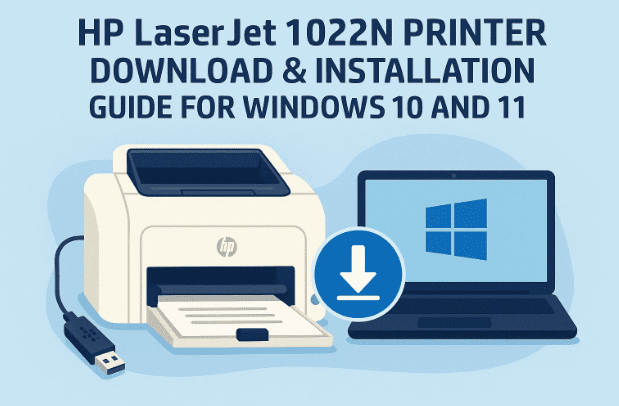
Setting up an older printer like the HP LaserJet 1022N on newer systems such as Windows 10 or Windows 11 can be tricky. The official driver doesn’t always appear for the latest OS versions, which often leaves users confused when the printer fails to show up. Don’t worry—this guide explains step by step how to download, extract, and manually install the correct HP 1022N driver so that it works flawlessly on your system.
We’ll also explain how to identify whether your Windows is 32-bit or 64-bit, select the correct driver from HP’s official support page, and handle any issues that might arise during installation.
1. Check Your System Type (32-bit or 64-bit)
Before downloading anything, it’s essential to know whether your system runs on 32-bit or 64-bit Windows. The driver version you’ll choose depends on this detail.
Here’s how to check:
- Right-click on This PC (or My Computer) on your desktop.
- Click Properties.
- Look for the System type line.
- If it says 32-bit Operating System, your computer uses 32-bit.
- If it says 64-bit Operating System, your system is 64-bit.
Once you know this, close the window and move on to the next step—downloading the right driver version.
2. Download the Official HP LaserJet 1022N Driver
Now that you know your Windows architecture, it’s time to download the correct driver. HP officially provides the LaserJet 1022N drivers for older Windows versions (like Windows 7), but they work perfectly fine with Windows 10 and Windows 11.
Steps to download:
- Open any browser (Google Chrome, Edge, or Firefox).
- Go to HP’s official driver page:
🔗 HP LaserJet 1022 Printer Series Driver Page - The page will automatically detect your OS, but if it shows “Windows 10” or “Windows 11,” don’t use those options.
Instead, click “Choose a different OS.” - Select Windows 7 (64-bit) if your computer is 64-bit, or Windows 7 (32-bit) if it’s 32-bit.
(Windows 7 drivers work perfectly on Windows 10/11 for this printer.) - Click Update to refresh the page.
- Scroll down to the Driver-Product Installation Software section.
- Expand the section and look for Basic Drivers.
- Click Download next to the basic driver package.
After a few seconds, the download should begin. Once it’s complete, you’ll find the setup file in your Downloads folder.
3. Extract the Downloaded Driver File
The driver package you just downloaded comes in a compressed (.zip) format. Before installing it, you’ll need to extract it.
Follow these steps:
- Open File Explorer and go to your Downloads folder.
- Locate the downloaded HP driver file (it should look like
lj1020_1022_Full_Solution.zipor similar). - Right-click on the file and select Extract All.
- Choose a location such as Desktop for easy access and click OK.
Once extraction completes, you’ll see a new folder on your Desktop containing the driver files.
Let’s move to the installation process now.
4. Install the HP LaserJet 1022N Driver Manually via Control Panel
Because Windows 10/11 doesn’t automatically recognize this printer, we’ll install the driver manually. Don’t worry—it’s simple and takes just a few minutes.
Step-by-step guide:
- Press the Windows key and type Printers & Scanners, then open it.
- Click Add a printer or scanner.
- Wait for a few seconds. When Windows doesn’t find your printer, click
“The printer that I want isn’t listed.” - In the next window, select Add a local printer or network printer with manual settings, then click Next.
- Under Use an existing port, click the dropdown menu and look for:
HP Standard TCP/IP PortUSB001orUSB002(if connecting via USB)DOT4_001(for some older HP devices)
- Select one of these (usually USB001) and click Next.
- On the next page, click Have Disk.
- Then click Browse and navigate to the Desktop (or wherever you extracted the driver folder).
- Open that folder and find the
.INFdriver file—it will look likeHP_LJ1022N.inf. - Select it, click Open, and then OK.
- From the list of models, choose HP LaserJet 1022N and click Next.
- Name your printer (for example: HP LaserJet 1022N), then click Next.
- The installation will now begin. It may take a minute or two.
Once the process completes, you’ll see a message saying the printer has been successfully installed.


5. Set the Printer as Default & Print a Test Page
After installation, it’s a good idea to set your printer as the default one and test it.
Here’s how:
- Go back to Printers & Scanners in Settings.
- Find HP LaserJet 1022N in the list.
- Click it and select Set as default.
- To confirm everything is working, click Printer Properties → Print Test Page.
If the test page prints successfully, your setup is complete.
6. What If the Printer Doesn’t Install Correctly?
Sometimes older printer models like the HP 1022N throw minor issues during setup, especially if you’re using Windows 10 or 11. Here’s how to troubleshoot the most common ones.
1. Printer Not Detected
- Ensure the USB cable is securely connected.
- Try using another USB port.
- Avoid USB hubs—connect directly to the PC.
2. “Driver Not Found” Error
- Recheck that you selected the Windows 7 driver package, not Windows 10 or 11.
- Repeat the manual installation process and select the correct .INF file.
3. Printer Appears but Doesn’t Print
- Open Control Panel → Devices and Printers.
- Right-click your HP 1022N → See what’s printing.
- Cancel all stuck print jobs.
- Restart the Print Spooler Service:
- Press Windows + R, type
services.msc, and hit Enter. - Find Print Spooler in the list.
- Right-click → Restart.
- Press Windows + R, type
4. Network Printing (for HP 1022N with Ethernet)
If your model supports a network (wired) connection:
- Ensure both the printer and PC are connected to the same router.
- During manual installation, select Add a printer using TCP/IP address instead of USB.
- Enter your printer’s IP (you can find it via your router’s connected devices list).
7. Frequently Asked Questions (FAQ)
Q: Does HP provide official Windows 10 or 11 drivers for the 1022N?
A: No. HP provides drivers up to Windows 7, but those drivers are fully compatible with newer versions when installed manually.
Q: What if my printer shows up as HP LaserJet 1020 instead of 1022N?
A: Don’t worry—it’s common since the two share a similar driver package. Your printer will still function correctly.
Q: Can I install it wirelessly?
A: The HP LaserJet 1022N supports Ethernet (wired) networking, not Wi-Fi. You can connect it to your router via an Ethernet cable.
Q: Will this method work on Windows 11 Home and Pro editions?
A: Yes, it works on all editions of Windows 10 and 11 (32-bit or 64-bit).
Q: Do I need to uninstall old HP drivers first?
A: If you previously tried a different HP driver, uninstall it first via Control Panel → Programs and Features to prevent conflicts.
8. Verification: Check Printer Status
After successful installation, confirm everything is in order:
- Open Settings → Bluetooth & Devices → Printers & Scanners.
- Locate HP LaserJet 1022N in the list.
- If it says Ready, you’re good to go.
- If it says Offline, right-click → Use Printer Online.
You can now print normally from any app like Word, Excel, or your browser.
9. Additional Tips for Better Performance
To keep your HP 1022N running smoothly:
- Use high-quality toner cartridges (original or certified compatible ones).
- Clean the printer rollers every few months to prevent paper jams.
- Keep the printer firmware updated (if applicable).
- Avoid frequent power disconnections while printing.
Disclaimer
This article is intended for educational purposes and to guide users through the manual installation of the HP LaserJet 1022N printer driver. Always download drivers from the official HP website for safety and compatibility. HP and Windows are registered trademarks of their respective owners.
Official driver page: https://support.hp.com/in-en/drivers/hp-laserjet-1022-printer-series/model/439432
#HPLaserJet #PrinterDriver #Windows10 #Windows11 #PrinterSetup #HP1022N #HPSupport #TechGuide








