If you are using an HP EliteDesk 800 G4 or G5 (Tower, SFF, or Mini) and suddenly find that sound is completely missing, you’re not alone. What makes this issue especially confusing is that Device Manager shows the audio driver as properly installed, with no warning signs, no errors, and no obvious conflicts — yet the system stays silent.
This problem started appearing widely after Windows 11 23H2 and 24H2 updates, and many admins and individual users have been stuck reinstalling drivers again and again, only to see the sound disappear after the next reboot.
The good news?
In most cases, the fix is surprisingly simple — stop using the Synaptics HD Audio driver and switch to the built-in Windows High Definition Audio Device.
Let’s walk through this calmly and properly, so you understand why this happens, what HP’s current stance is, and how to fix it step by step without breaking anything.
Understanding the Problem: Why Sound Stops Working Even When Drivers Look Fine
At first glance, everything appears normal. The Synaptics HD Audio driver is installed, Windows detects audio hardware, and there are no yellow triangles in Device Manager. Yet:
- No system sounds
- No audio from speakers or headphones
- Restarting temporarily fixes it, then the issue returns
- Reinstalling the Synaptics driver helps only until the next reboot
This has been reported across:
- HP EliteDesk 800 G4
- HP EliteDesk 800 G5
- Tower, Small Form Factor (SFF), and Desktop Mini variants
Several users managing hundreds of these machines reported the exact same behavior after Windows feature updates.
HP’s Support Status Makes Things Worse
Before jumping into the fix, it’s important to understand the background.
Multiple users contacted HP through vendors and were told:
- EliteDesk 800 G4 was effectively dropped after Windows 11 23H2
- EliteDesk 800 G5 (Mini & SFF) are not officially supported beyond 23H2
- Only G5 Tower shows partial 24H2 support on HP’s site
- HP confirmed no future fix is planned for affected models
That’s frustrating, especially for systems that are barely 4–5 years old.
So instead of waiting for an official patch that may never come, the practical solution is to use Windows’ generic but stable audio driver.









The Fix That Actually Works: Switching to Windows High Definition Audio
Here’s the key insight discovered by multiple users:
The Synaptics HD Audio driver causes the issue, while Windows High Definition Audio Device works reliably — even after many restarts.
This is not uninstalling sound completely or using a hack.
It’s simply telling Windows to use its own audio driver instead of Synaptics.
Step-by-Step: How to Change from Synaptics to Windows HD Audio Driver
Before we begin, make sure you are logged in with administrator privileges.
Step 1: Open Device Manager
- Right-click on Start
- Select Device Manager
Step 2: Locate the Audio Device
Expand:
- Sound, video and game controllers
You will usually see:
- Synaptics HD Audio
- Sometimes Intel Display Audio (ignore this one — it’s for HDMI/DisplayPort)
Step 3: Update the Synaptics Driver Manually
- Right-click Synaptics HD Audio
- Click Update driver
Step 4: Choose Manual Driver Selection
Select:
- Browse my computer for drivers
- Then click Let me pick from a list of available drivers on my computer
This step is critical. Do not use automatic search.
Step 5: Select Windows High Definition Audio
From the list, choose:
- High Definition Audio Device
(This is the Microsoft / Windows built-in driver)
Click Next and allow Windows to install it.
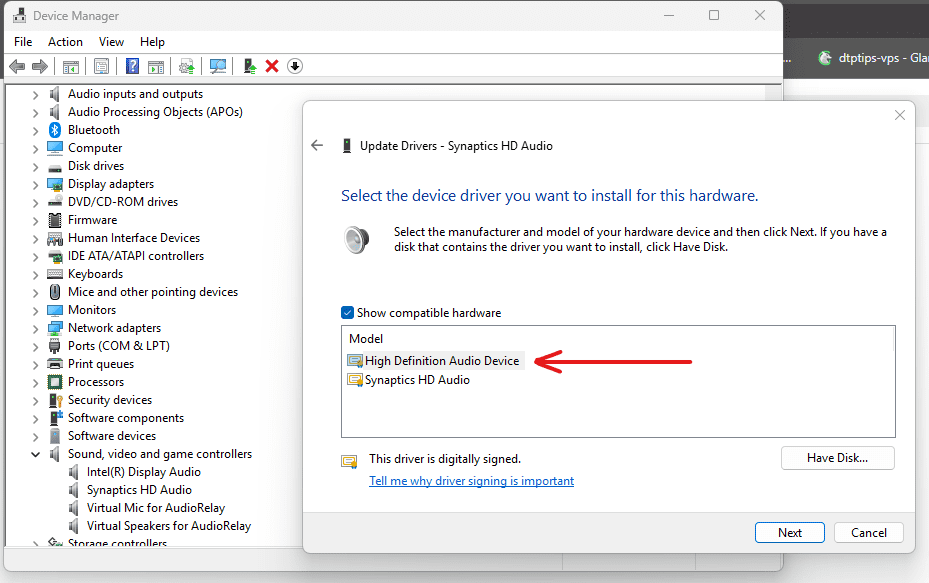
You may see a warning — accept it.
Step 6: Restart the PC
Once restarted, sound should immediately return.
Multiple users confirmed:
- Sound works instantly
- No issues after dozens or even hundreds of restarts
- Stable across Windows 11 updates
Alternative Method: Removing Synaptics Completely (Optional)
Some users took a slightly different path, which also works.
This method relies on Windows automatically installing its own driver once Synaptics is removed.
How it works:
- Uninstall Synaptics HD Audio from:
- Sound, video and game controllers
- Audio inputs and outputs
- Restart the system
- Windows installs High Definition Audio Device automatically
This approach also works well, but the manual driver switch method is more controlled, especially if you manage multiple machines.
Why the Windows HD Audio Driver Is More Reliable Here
It may feel counter-intuitive, but in this case:
- The generic Windows driver is actually more stable
- Synaptics’ latest version (8.65.391.200 Rev.A) still fails on many systems
- HP’s driver page shows the same Synaptics driver for both 23H2 and 24H2, despite compatibility issues
The Windows High Definition Audio driver:
- Uses a simpler, proven audio stack
- Avoids vendor-specific conflicts
- Survives feature updates and restarts without breaking sound
Does This Affect Sound Quality or Features?
For most users:
- No noticeable loss in sound quality
- Speakers, headphones, front panel audio all work normally
- Microphone support remains functional
Unless you rely on very specific Synaptics enhancements, this is a safe and practical long-term fix.
Official References
- HP Support website (model-specific driver pages):
https://support.hp.com
No third-party downloads are required for this solution.
Important Disclaimer
This solution is based on real-world user reports and long-term testing, not an official HP patch. While it has proven stable across many systems, enterprise environments should test the change on a small group of machines before wide deployment.
Final Thoughts
If your HP EliteDesk 800 G4 or G5 shows audio drivers installed but produces no sound, don’t waste time reinstalling Synaptics again and again. The simplest fix is often the best one.
Switching to Windows High Definition Audio Device brings sound back — and keeps it there.
Sometimes, letting Windows handle things is better than forcing vendor drivers that no longer receive proper support.
#Windows11 #HPEliteDesk #NoSoundFix #AudioDriver #DeviceManager #TechTroubleshooting