Not everyone has an expensive microphone lying around, but what if you could use your smartphone’s mic for your PC or laptop? Whether you’re attending meetings, recording audio, or streaming online, you can easily turn your phone into a fully functional microphone for your computer. In this article, we’ll walk you through a simple and effective method to do this.
Why Use Your Mobile Phone as a Microphone?
Sometimes, the built-in microphones on laptops or webcams just aren’t good enough. External mics can be pricey, and if you already have a decent smartphone, you can use its microphone instead of buying a new device. This method is perfect for:
- Online meetings (Zoom, Google Meet, Skype, etc.)
- Streaming
- Podcasting
- Recording voiceovers
- Gaming communication (Discord, etc.)
Steps to Use Your Mobile Phone as a Microphone for PC or Laptop
1. Download the Required Software
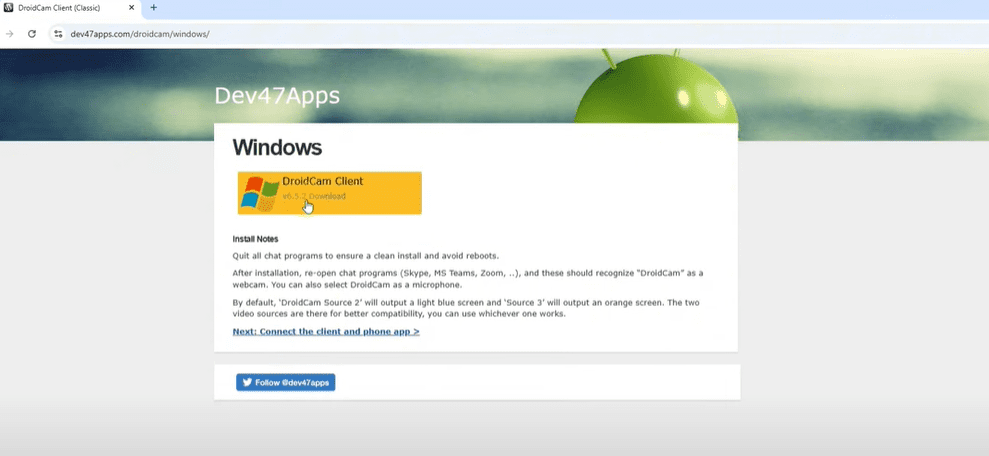
First, open your browser on your PC and search for DroidCam. You must download the application from its official website, which is: www.dev47apps.com.
On the website:
- Click on DroidCam Classic.
- Select the Windows Client version.
- Download and install the setup file by following the standard installation process.
At the same time, on your mobile phone:
- Go to the Play Store (Android) or App Store (iOS) and search for DroidCam.
- Install the official DroidCam app.
2. Set Up Permissions on Your Phone
Once installed, open the DroidCam app on your mobile device:
- Accept all the permission requests (Microphone, Camera, Storage).
- Tap on Got it to proceed.
- Click the three lines (menu) on the top-left and go to Settings.
- Inside settings, find Microphone and enable it.
- If “Noise Separation” is turned on, switch it off for better voice capture.
3. Connect Your Mobile to PC
You have two options to connect your phone:
Option A: Wireless Connection (Wi-Fi)
- Connect both your PC and mobile to the same Wi-Fi network.
- On the DroidCam app on your phone, an IP address will appear.
- Open the DroidCam client on your PC and enter this IP address.
- Click on Connect, and your phone’s mic will be available on your PC.
Option B: Wired Connection (USB Cable)
For a more stable connection:
- Connect your phone to your PC using a regular USB charging cable.
- On your phone, enable Developer Options:
- Go to Settings → About Phone → Tap Build Number 7 times.
- Return to Settings, find Developer Options, and turn it on.
- Enable USB Debugging inside Developer Options.
- Open DroidCam app on both devices.
- On the PC client, select the USB option and click Connect.
- A popup will appear on your mobile asking for permission—tap Allow.
Now your phone is connected via cable, and it can act as a high-quality mic for your computer.
4. Set Your Phone’s Microphone as Default
Once connected, you’ll need to select the phone’s mic as your input device:
- For Zoom, OBS, Google Meet, or any other app:
- Go to Audio Settings.
- Choose DroidCam Audio or DroidCam Virtual Audio as your microphone device.
- This ensures that your phone captures your voice during meetings or recordings.
5. Testing the Setup
You can quickly test the setup:





- Open OBS Studio or any meeting app.
- Add a new Audio Input Capture source.
- Select the DroidCam Audio device.
- Speak into your mobile—if everything is set up correctly, you’ll see the sound bar moving.
Similarly, on Zoom or Google Meet:
- Select the DroidCam Audio microphone from the list.
- You’re now ready to use your phone as a mic in any meeting or recording!
Conclusion
Turning your smartphone into a microphone for your PC or laptop is not only simple but also very effective. With just a few quick steps, you can save money and dramatically improve your audio quality for online meetings, recordings, or live streams. This method works great whether you prefer a wireless or wired setup.
Give it a try today, and you’ll be amazed at the quality your smartphone mic can deliver!
Tags: use phone as mic for pc, droidcam tutorial, phone mic for pc, pc audio setup, best way to use mobile mic, mic for pc without buying, pc mic setup 2025, smartphone microphone guide, mobile to pc audio, wired mic setup, wireless mic setup, pc audio improvement
Hashtags: #PhoneMic #DroidCam #MicrophoneSetup #MobileMic #PCMicSetup #TechTutorial #AudioSetup #MeetingSetup #StreamingGear #VoiceRecording #WorkFromHomeTools








