If you or someone you know has low vision and needs help navigating a Windows PC more comfortably, Microsoft has a powerful built-in solution that doesn’t require any extra software: the Windows Magnifier and Magnifier Reader. These tools are part of Windows’ accessibility features, and in this article, we’re going to explore them in full detail — from setup to customization to practical use.
Let’s walk through how to use them step by step, what each setting means, and how you can make your Windows experience much more accessible and productive.
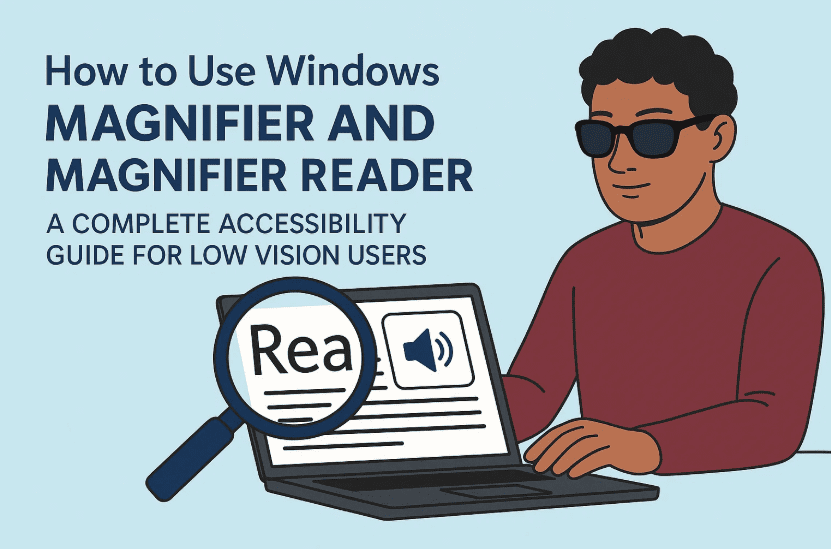
✨ What is Windows Magnifier?
Before diving into the steps, let’s first understand what the Windows Magnifier does.
Windows Magnifier is an assistive technology built into the Windows operating system. It allows users with low vision to zoom in on parts of the screen, making text, images, and interface elements easier to see. It works across the entire system — websites, apps, File Explorer, games, and even the desktop.
In addition, Magnifier Reader provides light screen reading functionality for users who may not need a full-fledged screen reader like Narrator but still benefit from hearing on-screen text read aloud.
🔧 How to Turn on Windows Magnifier
There are two main ways to activate Windows Magnifier: the long way through the settings, and the quick way via keyboard shortcut. Let’s go over both.
✅ The Long Way (Via Settings)
Let’s first explore the manual method of turning on the Magnifier through the Settings menu. This is useful for new users or those helping others set up accessibility tools.
Here’s how to do it:
- Press
Windows Keyto open the Start Menu. - Type Settings and press
Enter. - In the Settings window, click on Accessibility (on the left sidebar).
- Scroll down and select Magnifier (it should be the 5th item).
- Toggle the Turn Magnifier On switch at the top.
💡 Note: This method may be hard for people with severe vision impairments, which is why the faster shortcut method is much more practical.
⚡ The Fast Way (Keyboard Shortcut)
If you’re looking for speed and convenience:
- Press and hold the Windows Key (
⊞ Win) and then tap the plus key (+) to launch Magnifier.
Each press of the + key while holding down Win increases the magnification level.

To zoom out, use:
- Windows Key + Minus (
-)
This keyboard shortcut also opens the Magnifier Control Panel, which we’ll explore next.
🖥️ Magnifier Control Panel: Overview
Once you activate the Magnifier, a small floating window appears — this is the Magnifier Control Panel, which lets you:
- Zoom In (
+) - Zoom Out (
-) - View current magnification percentage
- Quickly return to 100% zoom
- Go back to the last zoom level
You’ll also see reading controls — play, go back, and go forward. We’ll discuss these in the Magnifier Reader section.
👉 One key thing to know is that this control panel is a persistent window, meaning it stays on top of all other apps, which can be distracting. But don’t worry — you can minimize it to the taskbar, and the magnification will still work in the background.
🖱️ Mouse Pointer and Zoom Behavior
When using Magnifier, the zooming follows your mouse pointer. That means wherever your mouse is located, zooming in centers the screen around it.
As you move the pointer:
- The magnified area shifts along with the mouse.
- Once the pointer hits the edge of the zoomed window, the viewport pushes in that direction.
This behavior is customizable — let’s see how.
🛠️ Customizing Windows Magnifier Settings
We’ve come this far — great job! Now let’s personalize the Magnifier to suit your needs better.
To revisit Magnifier settings:
- Go to Settings > Accessibility > Magnifier.
Now explore the following important adjustments:
🔁 Zoom Increment
This defines how much the screen magnifies with each Win + + press.
- Default: 100%
- Options: From 5% to 400%
For instance, setting it to 25% means:
- 100% > 125% > 150% > 175% and so on.
This lets you fine-tune the zoom steps so they aren’t too drastic or too subtle.
🖼️ Magnifier Views
Magnifier offers three view modes. Let’s walk through each:
1. Full Screen (Default)
Zooms in across the entire screen.
2. Docked
Creates a magnified strip at the top of your screen. You can resize it. The rest of the screen stays unzoomed — great for focused reading or multi-tasking.
3. Lens
Creates a magnified “lens” around the mouse pointer that moves as you move the mouse. Feels like a handheld magnifying glass!
To switch views:
- Go to Settings > Accessibility > Magnifier > View
- Choose your preferred view style.
🎯 Centered Mouse Pointer (Center Focus)
This setting can significantly improve usability:
- Go to View Settings (within Magnifier settings).
- Scroll to “Keep the mouse pointer”
- Change from “Within edges of screen” to “Centered on screen”
Now, the pointer stays in the center, and the zoomed view moves around it — perfect for consistent focus and less eye movement.
📖 Using Magnifier Reader
Okay, so far we’ve explored magnification — now let’s talk about the Magnifier Reader, a lightweight screen reader integrated with the Magnifier tool.
This is ideal for users who:
- Can still read but struggle with fatigue
- Don’t need full screen readers like Narrator or JAWS
- Want to hear paragraphs or headings aloud from time to time
▶️ How to Activate Reading
With Magnifier open:
- On the Magnifier Control Panel, click the Play button.
- Then click any text area — it will start reading aloud from that spot.
- Use the Forward/Back buttons to move line by line.
Or use this shortcut for faster access:
- Control + Alt + Left Mouse Click on any word
Magnifier Reader will begin reading from that point forward.
⚠️ Important Note:
The Magnifier Reader does not work on all types of content. It might not read:
- Some dynamic websites
- Poorly coded buttons or layouts
- Custom interface elements
This isn’t a flaw in the Magnifier itself — it’s due to how the website or app is built. The same limitation applies to advanced screen readers too.
🌍 Where Can You Use Magnifier and Reader?
Here’s the good news — the Magnifier and Magnifier Reader work nearly everywhere:
- Desktop
- File Explorer
- Microsoft Word/Excel/PowerPoint
- Web Browsers (Chrome, Edge, Firefox)
- Gaming Interfaces
- Even during PowerPoint presentations
It’s a truly system-wide tool, making it incredibly helpful for low-vision users who don’t want to rely on third-party software.
💬 Frequently Asked Questions (FAQ)
Q1: Does Magnifier slow down the PC?
No, it’s lightweight and built into Windows. Unless your PC is very old, it won’t cause lag.
Q2: Can I use Magnifier on multiple monitors?
Yes, but zoom behavior depends on your display settings. Full screen view may feel disjointed unless monitors are identical in resolution.
Q3: Is Magnifier Reader a replacement for Narrator or NVDA?
Not exactly. It’s a “light” reading tool. For full keyboard navigation and screen reading, Narrator or third-party tools like NVDA are better.
Q4: Can I change the voice of the Magnifier Reader?
No, currently it uses your system’s default voice set under Narrator settings or Text-to-Speech.
🚨 Disclaimer
Magnifier and Magnifier Reader are helpful tools for mild to moderate low vision use. Users with severe vision loss or blindness may require advanced screen readers like Narrator, NVDA, or JAWS for complete accessibility.
For more information, refer to the official Microsoft Accessibility documentation:
🔗 https://support.microsoft.com/en-us/accessibility
🙌 Final Thoughts
Microsoft deserves major credit for including accessibility tools like Magnifier and Magnifier Reader directly into Windows — no downloads, no setup files, just instant help with a shortcut.
Whether you’re trying to read an email, browse the web, or edit a document, the Magnifier tools can make your digital life easier. And with customization options like lens view, center focus, and zoom increments, you can tailor it exactly to your vision needs.
So go ahead, try it out, and share it with someone who might need it.
🔖 Tags:
windows magnifier, accessibility tools, magnifier reader, windows 11 accessibility, assistive technology, screen magnifier, low vision help, zoom tool, microsoft accessibility, built-in screen reader
📢 Hashtags:
#WindowsMagnifier #LowVisionTech #AssistiveTechnology #Accessibility #WindowsAccessibility #ScreenMagnifier #TechForGood #VisionSupport








