🎙️ Introduction: Transform Your Voice with AI
Have you ever wanted to sound like an anime character, a famous movie actor, or just change your voice completely during a call or livestream? Thanks to the advancements in AI-based real-time audio processing, that’s now possible.
One of the most impressive open-source tools for this is W-Okada AI Voice Changer, a software that lets you modify your voice instantly using trained AI models. It can change your gender, age, tone, and even mimic specific people or fictional characters — all in real time.
You can use it for:
- Gaming (to disguise or enhance your in-game persona)
- Streaming and content creation
- Video calls or podcasts
- Or simply for fun experiments with voice AI
This guide will walk you through downloading, installing, configuring, and using W-Okada Voice Changer, along with adding custom voices and connecting it to apps like Discord.
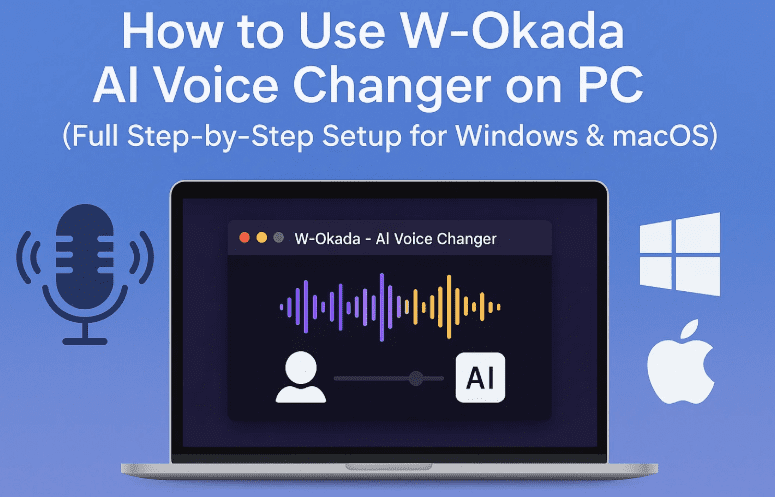
🧩 1. What Is W-Okada AI Voice Changer?
W-Okada Voice Changer is a free, open-source AI voice conversion program available on GitHub.
It allows you to transform the sound input from your microphone into different voice models powered by RVC (Retrieval-based Voice Conversion) and other AI technologies.
Unlike simple pitch-shifting software, this one uses deep learning models trained on real human voices, which makes the transformation incredibly realistic.
The software supports both Windows and macOS, with a web-style interface that runs locally on your computer.
💾 2. Downloading and Installing W-Okada Voice Changer
Let’s start by installing the program on your system.
🪜 Step-by-Step Installation
- Go to the official GitHub page:
👉 W-Okada Voice Changer GitHub Repository - Scroll to the download section and find the latest release version for your operating system (Windows or macOS).
- Click the Google Drive or Hugging Face link next to your OS version.
- Choose the link with the latest upload date for the most stable release.
- Download and extract the ZIP file after it finishes.
- Inside the extracted folder, locate this file:
start_http.batDouble-click it to run the application. - A terminal window will open automatically. The software will take 3–5 minutes to initialize the first time you run it.
- Once complete, you’ll see the main GUI (Graphical User Interface).
🟡 Important: Keep the terminal window open while using the software — closing it will stop the program.
🎚️ 3. Setting Up Audio Input and Output
Before testing voice models, make sure your microphone and speaker/headphone settings are correct.










- In the GUI, look for the Audio Input field and choose your current microphone.
- For Audio Output, select your preferred playback device — usually your headphones or speakers.
- Now click “Start” to begin live conversion.
Once you start speaking, you’ll hear your modified voice instantly through your speakers.
🧠 4. Trying the Built-In Voice Models
W-Okada comes with a few default voice models already included.
You can pick one from the top panel — for example, an anime-style voice.
- Click on a model name.
- Wait a few seconds for it to load.
- Press Start and speak into your mic.
Your voice will now sound completely different — depending on the chosen model. You can even mix in different models for fun variations.
⚙️ 5. Improving Audio Quality and Performance
Now that the software is running, let’s optimize its quality.
Several settings can help fine-tune your audio depending on your setup.
🧩 Key Settings
- F0 Detection Algorithm (Pitch Detection):
Choose between “crepe” or “crepe-full” for smoother voice pitch tracking.- “crepe” = lower CPU load
- “crepe-full” = better quality but slightly slower
- Noise Suppression & Echo Cancellation:
If your room has echoes or background sounds, enable these filters.- Echo Cancellation helps with reverb from walls.
- Noise Suppressor 1/2 helps with background hiss or hum.
- Tune Slider:
Adjusts the pitch of the converted voice.- Move it higher if you want to feminize a male voice.
- Move it lower to deepen a female or higher-pitched voice.
- Gain Control:
Adjust both microphone gain (input volume) and output gain (converted voice volume). - Chunk Size:
Affects the tradeoff between latency and quality.- Smaller = faster response, lower quality
- Larger = slower response, higher fidelity
Start small and gradually increase until you find a balance your system can handle smoothly.
🎤 6. Recording Your Converted Voice
W-Okada also has an inbuilt recorder that lets you save your converted output as an audio file.
Simply click Record, speak, and then stop when done. The software automatically saves the output in the local directory for easy access.
This is handy if you want to create voiceovers, sound clips, or short skits without needing any other recording app.
🧱 7. Adding Custom Voice Models (Celebrity or Anime Voices)
One of the best features of W-Okada Voice Changer is that you can load your own AI models — including voices of famous characters or people trained through RVC.
🔽 How to Add Custom Voices
- Go to rvcmodel.com — a website that offers free downloadable RVC models.
- Download any model you like (for example, SpongeBob or an anime character).
- Extract the downloaded ZIP file.
- In W-Okada’s interface, click the Edit button in any empty voice slot.
- Choose Upload Model and select RVC model from the dropdown.
- Import both the model file (
.pthor.onnx) and the index file (if available).- The index file is optional, but if your model folder includes one, select it.
- Press Upload and your new voice will appear in the model list.
Optionally, you can also upload a custom image (portrait of the character) for easier recognition in the GUI.
Now, select the new voice and click Start to begin transforming your voice into that custom personality.
🎮 8. Using W-Okada with Discord, Zoom, OBS, or Games
To use your AI-generated voice in online calls or live streams, you’ll need to route the converted sound output into another application.
For this, we’ll use a virtual audio driver — specifically, the free VB-CABLE Virtual Audio Device.
🔧 Step-by-Step Setup with VB-CABLE
- Download VB-CABLE from the official site:
👉 https://vb-audio.com/Cable/ - Extract the ZIP file and run the installer as Administrator.
(UseVBCABLE_Setup_x64.exefor 64-bit systems.) - After installation, restart your PC.
- Open W-Okada Voice Changer again and set:
- Audio Output → “CABLE Input (VB-Audio Virtual Cable)”
- Now open Discord (or any voice app) and go to:
- Settings → Voice & Video → Input Device → “CABLE Output (VB-Audio Virtual Cable)”
- Start W-Okada’s real-time conversion.
Now, every sound that W-Okada processes will be heard by Discord, Zoom, OBS, or any other program using your virtual microphone.
🎧 9. Testing and Fine-Tuning
Once everything is connected, it’s a good idea to test how your voice sounds in an actual call or recording.
- Ask a friend to listen and give feedback.
- Adjust gain, pitch, and latency until the voice sounds natural.
- Make sure you’re not clipping (distorting) from high input gain.
For streamers or podcasters, adding OBS (Open Broadcaster Software) into the chain is simple — just set the Microphone Input in OBS to VB-Audio Cable as well.
⚠️ 10. Important Notes and Troubleshooting
Let’s address a few common issues that might come up:
- Program doesn’t start: Make sure
start_http.batis run from the extracted folder and not from inside the ZIP file. - Voice not changing: Check that your microphone and output devices are selected correctly.
- Lag or delay: Lower the chunk value or disable high-latency noise filters.
- Model doesn’t load: Ensure you selected the correct file type (.pth or .onnx).
If you still face issues, you can check the project’s GitHub “Issues” section for community discussions and fixes.
💬 Frequently Asked Questions
Q1. Is W-Okada Voice Changer free to use?
Yes, it’s open-source and completely free. You can even modify the code if you’re a developer.
Q2. Can it run offline?
Yes, all processing happens locally on your computer — no internet connection is needed after installation.
Q3. Does it work on both Windows and Mac?
Yes, the GitHub page offers builds for both platforms.
Q4. Can I use it for streaming or gaming?
Absolutely. By routing audio via VB-CABLE, you can use it with Discord, Twitch, OBS, or any other platform.
Q5. Can I train my own custom voice model?
You can, though it requires separate tools like RVC or So-VITS-SVC to create models. W-Okada simply loads them for real-time conversion.
🧭 Final Thoughts
W-Okada Voice Changer is one of the most advanced and accessible real-time AI voice conversion tools available today. Its ability to run offline, support multiple AI model formats, and integrate easily with apps like Discord or OBS makes it ideal for creators, gamers, and tech enthusiasts alike.
It may take a few minutes to configure properly, but once done, the results are surprisingly natural. Whether you want to prank friends, build unique stream personas, or experiment with AI voices, this tool has everything you need.
⚠️ Disclaimer
This article is for educational purposes only. W-Okada is a research-based project and should be used responsibly. Do not use AI voice conversion for impersonation, fraud, or any unethical activity. Always comply with your local privacy and recording laws.
#AIVoiceChanger #WOkada #VoiceConversion #RealTimeAI #StreamingTools #DiscordSetup #OpenSourceAI #VoiceModels #VirtualAudio #TechGuide