Are you a JioFiber or Jio AirFiber user? What if we told you that your Jio Set-Top Box (STB) could double as a full-fledged personal computer—without the need for a separate CPU or laptop?
Yes, you read that right! Thanks to the innovative Jio PC, you can now transform your TV or external monitor into a powerful cloud-based PC using just your Jio STB and a wireless keyboard & mouse. In this guide, we’ll walk you through everything—from setting it up to using it for work, studies, browsing, and more.
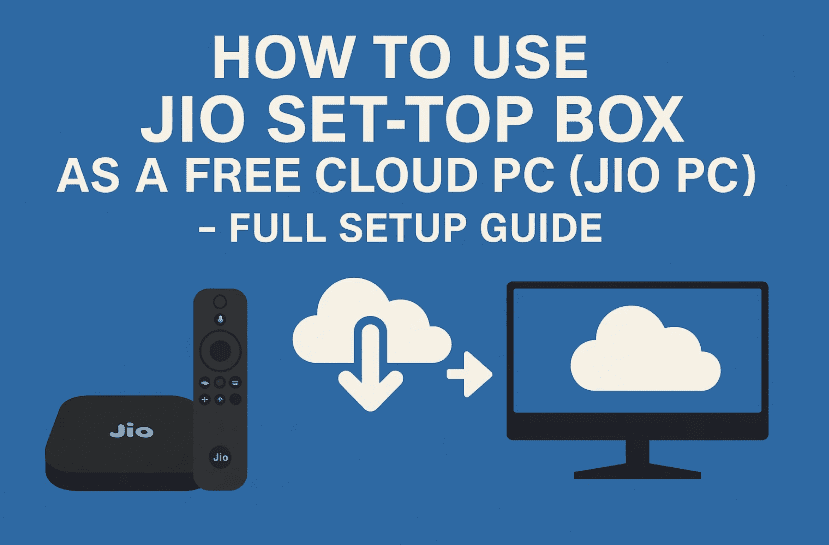
💡 What is Jio PC?
Jio PC is a cloud-based virtual desktop service available on Jio Set-Top Boxes. It allows users to experience the power of a high-performance computer without maintaining physical hardware. All you need is a Jio STB, a monitor or TV, and optional input devices (keyboard/mouse).
Let’s move to the setup process step by step.
🔧 What You’ll Need to Get Started
Before diving into the setup, make sure you have the following:
- A Jio Set-Top Box (JioFiber or AirFiber)
- A TV or external monitor with HDMI support
- A wireless or wired keyboard and mouse
- An active Jio internet connection
- A Jio account (mobile number linked with your Jio services)
Now that we’ve got the essentials out of the way, let’s move on to the installation part.
📲 Step-by-Step Guide to Install and Use Jio PC
1. Connect Your Set-Top Box to a Monitor or TV
Start by connecting your Jio STB to your monitor or television using an HDMI cable. Ensure the monitor/TV is set to the correct HDMI input.
Also, plug in your keyboard and mouse via USB ports or pair them wirelessly (if supported).
2. Access the Jio Store
Once your Jio STB boots up:
- Navigate to the Jio Store from the main menu.
- Scroll down to find the “Jio Apps” section.
- Look for Jio PC in the list of apps.
If Jio PC isn’t visible on your screen yet, ensure your STB is updated to the latest firmware.
3. Install the Jio PC App
- Click on Jio PC, and then press Install.
- If already installed, you’ll see the Open button instead.
After installation, launch the app.





4. Explore the Welcome Screens
As you open the Jio PC app, you’ll see a welcome message like:
“Welcome to Jio PC – Transform your TV into a powerful personal computer easily.”
You can navigate through some informational slides explaining that Jio PC is designed for study, assignments, and work—with no maintenance or hardware upgrades needed.
Click on Next or Get Started to proceed.
5. Free Trial Activation or Interest Form
If you’re eligible for a free trial, you’ll directly see the activation screen.
Otherwise, you might see:
“Thank you for your interest.”
In that case, click on “Show Interest” and submit the form. Jio might enable access for you within 2-3 weeks.
6. Connect Keyboard & Mouse
You’ll now be prompted to connect your keyboard and mouse. If already connected, click Proceed.
This ensures smooth control of your virtual desktop environment.
7. Create Your Cloud PC Password
For security, Jio PC will ask you to set a new password for your cloud account.
Password requirements:
- Minimum 8 characters
- At least 1 uppercase letter
- At least 1 lowercase letter
- At least 1 number
- At least 1 special character (like @, #, $)
Once you meet all the conditions, you’ll see green checkmarks. Click Continue.
8. Enter OTP to Verify Mobile Number
You’ll now receive an OTP on your registered Jio number. Enter the code to verify your identity.
Then log in using the password you just created.
🚀 Welcome to Your Jio Cloud PC!
Congratulations! You’re now on the Jio PC home screen. It’ll greet you with a message like:
“Hi [Name], Your Computer is Ready to Use.”
Let’s take a closer look at the desktop specs and features.
🔍 Jio PC Cloud Specifications
Here’s what your virtual desktop offers:
- RAM: 8 GB
- Storage: 1000 GB HDD
- CPU: Quad-Core Processor
- Speed: 2.45 GHz
- Usage: Currently unrestricted
You’ll see a familiar desktop layout with the option to “Launch Now.”
🖥️ Jio PC Desktop Environment and Features
After launching, you’ll see:
- A clean Windows-like interface
- Pre-installed apps like:
- YouTube
- Google Chrome
- Gmail
- ChatGPT
- Gemini
- Many more productivity tools
- A system tray with date and time display
- A Start Menu-like app launcher categorized for ease
- A File Explorer for managing documents and files
- A Software Center to install more apps
You’ll also see an upward arrow icon at the top right for:
- Logout
- Disconnect Cloud PC
☁️ Import Your Files
You’ll be asked to import files from:
- Jio Cloud
- Google Drive
- OneDrive
You can skip or connect these accounts depending on your need.
🔐 Security and Logout
You can disconnect or log out from the Jio PC interface anytime. Your data stays safe in the cloud, accessible from your STB again.
❓FAQs About Jio PC
Q1: Is Jio PC completely free?
A: You get a free trial. After that, pricing or subscription plans may apply (subject to Jio’s future policy).
Q2: Can I play games on Jio PC?
A: Jio PC is primarily designed for productivity, study, and office work. It’s not built for gaming.
Q3: Can I use Microsoft Office on Jio PC?
A: You can access online versions (e.g., Office Web Apps) or install compatible alternatives like LibreOffice if supported.
Q4: Will Jio PC work without JioFiber or AirFiber?
A: No, it’s currently exclusive to JioFiber and Jio AirFiber subscribers with a Jio STB.
🛑 Disclaimer
The features, specs, and availability of Jio PC are subject to change. Always refer to the official website or support for the latest updates.
👉 Official Jio PC Page: https://www.jio.com
✅ Final Thoughts
So far, we’ve done a great job setting up and exploring the Jio PC. It’s a truly revolutionary feature—especially for those who don’t want to invest in bulky hardware or maintain a desktop.
If you’re a Jio user and need a reliable PC setup for basic computing, Jio PC is worth a try. It brings affordability, simplicity, and convenience together.
Tags: jio pc, jio set-top box pc, jio cloud desktop, jio fiber, jio airfiber, jio pc setup, jio virtual pc, cloud pc india, jio apps, jio store
Hashtags:
#JioPC #JioFiber #JioSetTopBox #CloudPC #VirtualPC #JioApps #DigitalIndia #PConTV #JioAirFiber #JioTips








