If you’re someone who spends a big part of your day working in Excel or Google Sheets — inputting data, applying formulas, and trying to make sense of numbers — then this blog is your game-changer.
Google Sheets is no longer just a digital ledger. With the integration of Gemini AI, it has transformed into a powerful, intelligent assistant that not only understands your data but also speaks your language — be it Hindi, English, or Hinglish. In this guide, you’ll learn how to activate Gemini, how to use it effectively for data analysis, chart generation, and formula creation, and discover some advanced tips and tricks to master your spreadsheets.
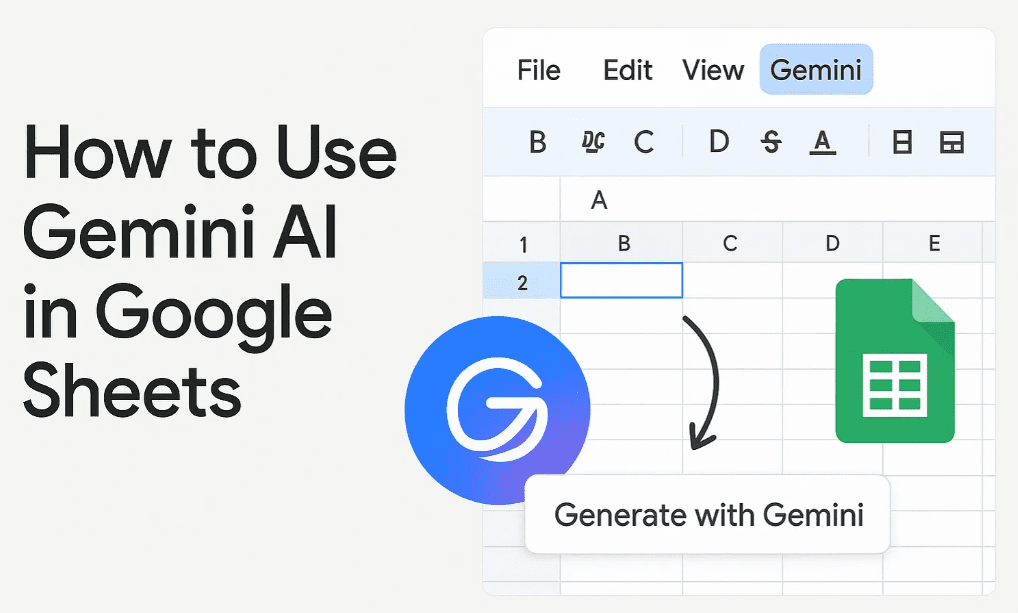
🧠 What is Gemini in Google Sheets?
Gemini is Google’s AI-powered assistant integrated into Google Sheets. It works as a side-panel chatbot that analyzes your data, answers your questions in natural language, generates charts and summaries, and even builds formulas — all through simple text prompts.
🛠️ How to Activate Gemini in Google Sheets
Activating Gemini is simple, but its rollout may vary across accounts. Here’s how to check:
- Open Google Sheets: Go to Google Sheets from the Google Apps menu (top-right 9-dot grid).
- Check for Gemini Panel:
- If Gemini is available, you’ll see a side panel titled “Ask Gemini.”
- If not, try clicking
Extensions > Help Me Organize, or wait — Google is gradually rolling it out.
- Click “Ask Gemini” to open the AI sidebar.
- Be patient: If you don’t see it yet, keep checking — it’s being activated across user accounts gradually.
🗣️ How to Talk to Gemini: Smart Prompting
Gemini understands direct and structured questions. Here’s how to communicate with it:
✅ Good Prompt:
“What is the average sales value in Column D?”
❌ Poor Prompt:
“Sales?”
Gemini needs context. Instead of vague prompts, be specific — include column letters, data ranges, or sheet names.
📊 Basic Use Cases: What Gemini Can Do for You
1. 📈 Data Analysis
You can ask:
- “What are the top 3 products by revenue?”
- “Compare January and February sales trends.”
- “What’s the average value in Column D?”
Gemini will scan your sheet, understand your structure, and return readable summaries.
2. 📉 Chart Generation
Ask Gemini to:





- “Create a monthly revenue trend chart.”
- “Generate a bar chart of top products by sales.”
Once the chart is generated, you can:
- Insert it directly into the sheet by clicking the “Insert” button.
- Or copy and paste it wherever you like.
You can also request charts in Hindi by typing:
“Generate chart in Hindi.”
3. 📐 Formula Building (Even Complex Ones)
No need to remember formulas like VLOOKUP, SUMIFS, or QUERY. Simply ask:
“Create a formula to calculate the total revenue in Column D.”
Or ask:
“Show me the average units sold for each payment type.”
Gemini can even create dropdown menus, conditional formatting, pivot tables, and data summaries.
✨ Advanced Features and Tips
✅ Use Clean, Structured Data
Gemini performs best when your data:
- Is in table format.
- Has clear headers (e.g., A1: Product, B1: Payment Type, C1: Total).
- Avoids empty rows or scattered data.
✅ Ask One Thing at a Time
While Gemini can multitask, asking for too many things at once can confuse it.
Instead of saying:
“Show top 5 products, average sales, and create a chart.”
Break it down:
- “Show top 5 products.”
- “Now show their average sales.”
- “Create a chart for top 5 products.”
✅ Use Follow-Up Prompts
Gemini remembers recent context. If you first ask:
“Show sales for 2024.”
Then follow-up with:
“Which month had the highest revenue?”
It will continue the conversation with relevant insights.
🧪 Real-Life Examples of Gemini in Action
Example 1: Top Products by Revenue
Prompt: “Which are the top 3 products by sales?”
Result: Gemini returns a ranked list — e.g., Laptop, Monitor, Mouse.
Example 2: Monthly Comparison
Prompt: “How did sales change from January to February?”
Result: “Sales increased from ₹25,000 in January to ₹30,000 in February — a ₹5,000 growth.”
Example 3: Build a Payment Summary Table
Prompt: “Create a table of payment types with total amount.”
Result: Gemini builds and inserts a clean, formatted table showing Credit Card, UPI, Cash, etc., with totals.
🧪 Gemini’s Magic Buttons
In the Gemini panel, you’ll see ready-to-use actions:
- Analyze this data
- Generate chart
- Create formula
- Summarize
- Build dropdown
- Apply conditional formatting
Each click triggers powerful analysis tailored to your data.
🔐 Gemini and Privacy: Is It Safe?
Yes — your data stays within Google Workspace unless explicitly shared. However, as with all AI tools:
- Don’t feed Gemini sensitive personal or financial information.
- Always review its outputs before finalizing your reports.
🧠 FAQs: Frequently Asked Questions
❓ Is Gemini available in all Google Sheets?
Not yet. Google is gradually rolling it out. Check your account regularly.
❓ Can I use Gemini in Hindi?
Yes. You can write prompts in Hindi or Hinglish — Gemini will understand.
❓ Can Gemini make pivot tables?
Absolutely. Prompt: “Create a pivot table summarizing sales by region.”
❓ What if my data isn’t structured?
Organize it in a tabular format — headers in the first row, no blank rows/columns.
🎯 Gemini Tips That Google Doesn’t Tell You
- Mention the Sheet Name if using multiple sheets.
- Use “Show More Suggestions” in the Gemini panel to discover advanced actions.
- Click “Insert Table Only” when copying AI-generated tables into your spreadsheet.
- Use “In Hindi” prompt to localize your reports instantly.
- Use Gemini to Create Drop-downs for user-friendly dashboards.
🏁 Final Thoughts: Your Smartest Spreadsheet Partner
Whether you’re a student managing assignments, a business analyst preparing reports, or someone organizing personal expenses — Gemini in Google Sheets is the assistant you didn’t know you needed.
It turns your sheets from a jungle of numbers into a conversational, intelligent, and visual experience. With natural language prompts, you’ll save time, reduce errors, and become a data wizard without memorizing a single formula.
🔖 Tags:
gemini in google sheets, google sheets ai assistant, data analysis with ai, how to use gemini, google sheets tutorial, chart generator, smart spreadsheet, ai in spreadsheets, google workspace tools
🏷️ Hashtags:
#GoogleSheets #GeminiAI #DataAnalysis #AIAssistant #SmartSheets #SpreadsheetTips #GoogleWorkspace #ProductivityTools #AIForEveryone #DigitalProductivity
📢 Disclaimer:
This article is for informational purposes only. Gemini AI in Google Sheets is a developing feature and may behave differently depending on user access, data structure, and region. Always verify results before using them in critical reports.
Would you like this converted into clean HTML code for WordPress insertion, or should I prepare a downloadable version (PDF/Word)?







