The long-awaited Windows 11 24H2 update is now officially released and stable. If you are currently using Windows 11 23H2 on an unsupported PC, you can still upgrade to 24H2 using a few reliable workarounds. This article will walk you through the entire process step-by-step.
Note: If you’re still on Windows 10 and want to upgrade directly to Windows 11 24H2, refer to our article on upgrading from Windows 10 to Windows 11.
Step 1: Check for Windows Updates First
Before proceeding with the manual installation, it’s always a good idea to check if the update is already available through Windows Update.
- Go to Settings > Windows Update.
- Make sure “Get the latest updates as soon as they’re available” is turned on.
- Install all available updates for Windows 11 23H2.
- Restart your PC if prompted.
- Check again to see if the 24H2 update appears.
If the 24H2 update is still not visible, continue with the manual installation process.
Step 2: Confirm Your System Language
To avoid errors during the upgrade and preserve your files, apps, and settings, download the ISO in the same language as your current system.
- Open Command Prompt as Administrator.
- Type the following command and press Enter:
dism /online /get-intl - Note the language listed (e.g.,
en-USfor English – United States).
Step 3: Download the Windows 11 24H2 ISO
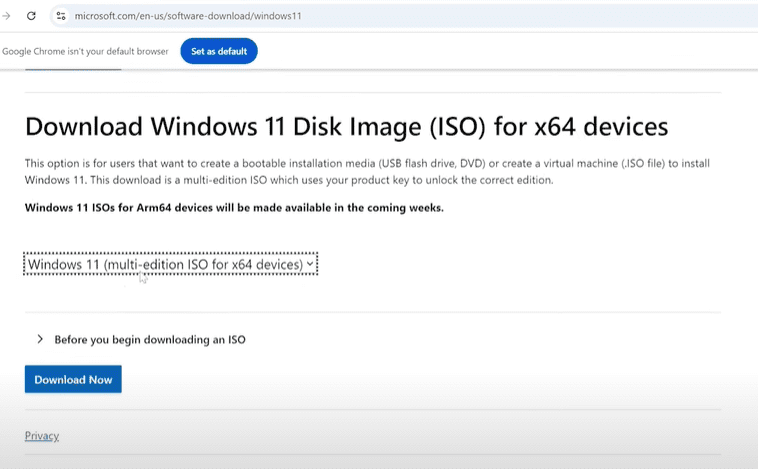
- Visit the official Microsoft Windows 11 download page.
- Scroll to “Download Windows 11 Disk Image (ISO)”.
- Select Windows 11 (multi-edition ISO).
- Choose your system language (e.g., English – United States).
- Click 64-bit Download.
Note: Windows 11 only supports 64-bit systems.
Step 4: Prepare for Manual Installation
- Once the ISO file is downloaded, right-click it and choose Extract to… using a tool like WinRAR or 7-Zip.
- Tip: Extracting is often more stable than mounting the ISO.
- After extracting, go to the Sources folder inside the extracted ISO directory.
- Copy the folder path from the address bar.
Step 5: Bypass System Requirement Checks Using Command Prompt
- Open Command Prompt as Administrator.
- Type the following command to navigate to the Sources folder (replace the path with yours):
cd "C:\Path\To\ExtractedISO\Sources" - Then, type the following command and press Enter:
setup.exe /product server
This command bypasses TPM, Secure Boot, and processor checks typically required for Windows 11.
Step 6: Follow the Installation Wizard
- In the setup window, choose “Not right now” when asked about downloading updates during the installation.
- Click Next and accept the license terms.
- Ensure the option “Keep personal files and apps” is selected.
- If it’s grayed out, verify that you downloaded the ISO in the same language as your current Windows installation.
- Click Install.
The upgrade process will now begin. Your computer will restart several times. Be patient—it may take a while.
Step 7: Confirm the Upgrade
Once the installation completes:
- Press Win + R, type
winver, and press Enter. - You should now see Windows 11 Version 24H2.
Additionally, check Settings > System > About to confirm the version and build number.
Troubleshooting Tips
- Not Enough Space: Clear temporary files by typing
%temp%in the Run dialog (Win + R) and deleting the contents. - Setup Errors: Ensure you have the correct ISO language and edition.
- Processor Not Supported: This guide helps bypass checks, but use it responsibly on older hardware.
Conclusion
Upgrading from Windows 11 23H2 to 24H2 on an unsupported PC is entirely possible using these steps. With this manual method, you can enjoy the latest features and improvements without needing a compliant processor or TPM.










If you want to boost performance after upgrading, be sure to check our article with 15 tips to speed up your Windows 11 PC.
Tags: Windows 11, Windows 11 upgrade, Windows 11 24H2, Windows 11 unsupported PC, Windows ISO installation, Windows 11 manual upgrade, bypass Windows 11 requirements, Microsoft update, Windows 11 setup
Hashtags:
#Windows11 #Windows1124H2 #UpgradeWindows11 #ManualInstallation #UnsupportedPC #TechGuide #WindowsUpgrade #MicrosoftWindows #WindowsTips #TechHelp








