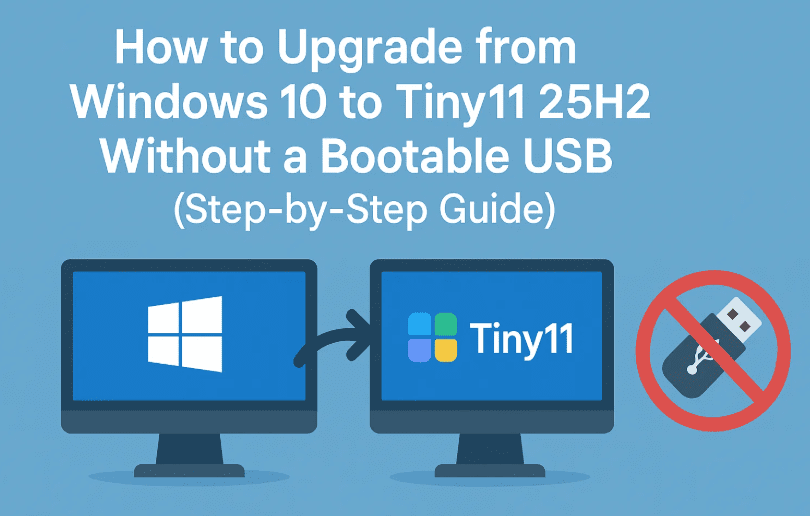
Looking to upgrade to Tiny11 25H2 but don’t have a spare USB drive? No problem! In this detailed tutorial, we’ll show you how to upgrade from Windows 10 to Tiny11 25H2 without using a bootable USB. All you need is a downloaded ISO file, the EasyBCD tool, and a few partition management steps to make this work smoothly.
Let’s go step by step and make sure everything is done right — and by the end, you’ll have a clean, lightweight, and fast installation of Tiny11 25H2 on your PC.
🔧 What You’ll Learn:
- How to upgrade from Windows 10 to Tiny11 25H2 without a USB
- How to create a virtual partition for ISO boot
- How to use EasyBCD to boot from ISO
- Final cleanup and tips after successful installation
🖥️ System Requirements:
- Existing Windows 10 system (version 22H2 or similar)
- Minimum 10 GB free disk space on C: drive
- Internet access to download Tiny11 ISO and EasyBCD
📦 Software Needed:
- ✅ Tiny11 25H2 ISO (Unofficial lightweight version of Windows 11)
- ✅ EasyBCD (Non-Commercial)
🪜 Step 1: Download Tiny11 ISO and EasyBCD
Before we do anything with partitions, let’s get the necessary files.
- Download Tiny11 25H2 ISO from a trusted source.
- This usually comes in a
.zipformat. Extract it using Windows Explorer. - After extracting, you’ll find a file with
.isoextension.
✔ Keep this handy.
- This usually comes in a
- Now, download EasyBCD from the official website:
🔗 https://neosmart.net/EasyBCD/- Choose the non-commercial version.
- Register with your name and email to get the download link.
- Install EasyBCD after downloading.
💽 Step 2: Create a Virtual Partition (Fake USB Partition)
Since we are not using a real USB, we’ll create a virtual one using space from your C: drive.
Let’s move to the next step…
- Right-click on the Windows Start button → Select Disk Management.
- Locate C: drive, right-click → Choose Shrink Volume.
- Enter 10,000 MB (10 GB) and click Shrink.
- You’ll see a new Unallocated space.
- Right-click on it → Choose New Simple Volume.
- Name it
Tiny11during the setup → Finish.
🧠 This new partition will act as our virtual USB to load the ISO files.
📁 Step 3: Mount ISO and Copy Files
Now that we have the virtual USB ready, we need to fill it with installation files.
- Right-click on the Tiny11 ISO file → Choose Mount.
- Copy all the files from the mounted ISO.
- Paste them into the Tiny11 partition you just created.
This step ensures that the ISO contents are ready to boot directly from your hard disk.
⚙️ Step 4: Set Boot Entry with EasyBCD
Now let’s configure EasyBCD to boot into the Tiny11 installer.
- Launch EasyBCD (Run as administrator).
- Click on Add New Entry from the left panel.
- Under Portable/External Media, choose WinPE.
- Set the name as
Tiny11. - Click on the folder icon to browse to the partition:
- Go to the
Tiny11partition → Open thesourcesfolder. - Select the file named
boot.wim.
- Go to the
- Click the Green Plus (+) icon to add the entry.
- A success message will appear:
✅ Tiny11 added to the boot menu successfully.
🔁 Step 5: Reboot and Begin Installation
We’ve done a good job so far! Now let’s install Tiny11.
- Restart your computer.
- On reboot, you’ll see a boot menu:
- Select
Tiny11(the one you added via EasyBCD).
- Select
- The Windows setup will start.
- Follow the on-screen prompts until you reach the partition selection screen.
🛑 Important Tip: Do not delete the
Tiny11partition you created. This acts as your virtual USB. Only delete other partitions if you’re doing a clean install.




⚠️ Step 6: Backup and Format Partitions
Before proceeding with installation:
- Back up your data from Windows 10.
- If you want a fresh install, delete all partitions except the Tiny11 one.
- Select the unallocated space → Click Next.
Tiny11 will now begin installing. Sit back and wait till it’s done.
🧹 Step 7: Cleanup the Temporary Partition
Once you’ve successfully installed Tiny11, the last step is to remove the extra partition.
- Right-click on Start → Select Disk Management.
- Locate the
Tiny11partition. - Right-click → Select Delete Volume → Confirm.
- Now, extend your C: drive back:
- Right-click on C: → Choose Extend Volume → Next → Finish.
Done! You’re now back to a single-partition system running Tiny11 25H2.
🧠 Bonus: Use the Tiny11 Configurator
After booting into Tiny11, look for the desktop app Configurator. It lets you:
- Enable/disable Windows Defender
- Turn Windows Update on/off
- Install your preferred browsers
- View system performance in Task Manager (which is now lighter than full Windows 11)
❓ FAQ – Tiny11 Installation Without USB
Q: Is Tiny11 safe to install?
A: Tiny11 is a lightweight version of Windows 11. While it’s great for older PCs, it’s not an official Microsoft build. Use it at your own discretion.
Q: Can I dual boot Tiny11 with Windows 10?
A: Yes, but in this tutorial we replaced Windows 10. To dual boot, install Tiny11 in a separate partition.
Q: Can I use this method for other ISOs?
A: Yes, this works for most Windows ISOs as long as you configure EasyBCD correctly with the boot.wim file.
⚠️ Disclaimer:
Tiny11 is a custom modified version of Windows and is not officially supported by Microsoft. This tutorial is for educational purposes only. Always back up your data before making system-level changes.
📌 Tags:
tiny11 upgrade, windows 10 to tiny11 without usb, install windows without bootable usb, easybcd tutorial, boot iso from hard drive, windows 11 lite installation
📢 Hashtags:
#Tiny11 #WindowsUpgrade #EasyBCD #NoUSBInstall #WindowsLite #Windows11Mod #TechTutorial #PartitionManagement
If this guide helped you upgrade to Tiny11, share your experience in the comments. And remember — always back up before major system changes. Happy upgrading! 💻✨








