If you’re a Linux enthusiast or someone curious about running a full Linux OS environment on your smartphone or tablet — this guide is for you. With the help of a brilliant open-source project called Local Desktop, you can now install and run a lightweight, fully functional Linux desktop directly on your Android device.
No root access is required, and with a mouse, keyboard, or even just touch, you can interact with a Linux interface just like on a computer. Let’s go through all the steps — from installation to setup, and even a few tips for smoother usage.
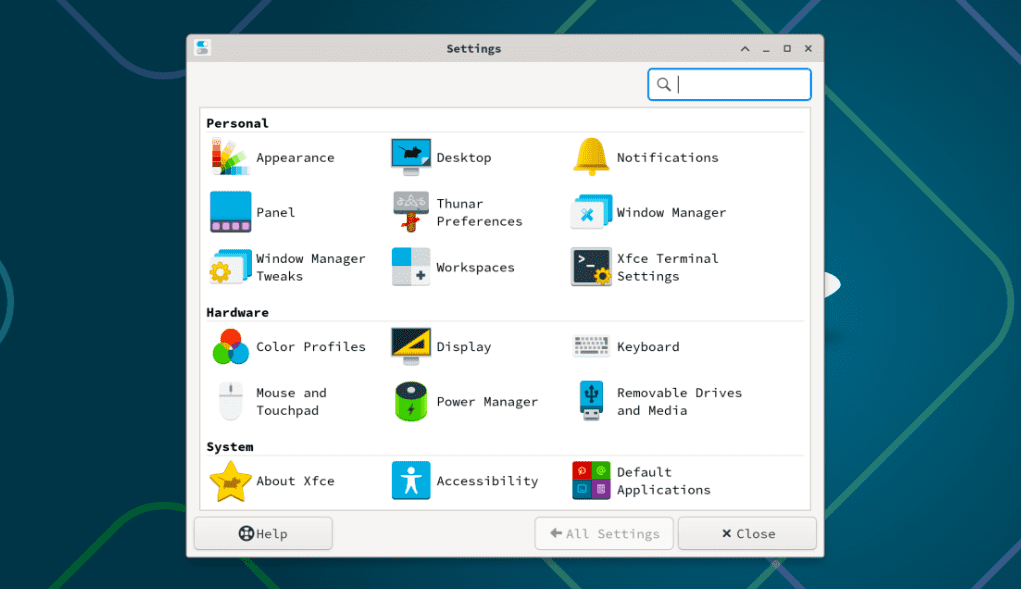
🚀 What is Local Desktop?
Before we dive into the setup, let’s understand what Local Desktop really is.
Local Desktop is an open-source Android application that emulates a lightweight Linux desktop environment using a compressed Arch Linux filesystem. It creates a container-like setup and uses a minimal built-in compositor (GUI server) to present a graphical user interface right on your Android screen.
Here’s what makes it cool:
- No need to root your phone
- Mounts a real Linux filesystem inside your internal storage
- Offers a graphical desktop environment
- Supports touch, mouse, and keyboard
- You can run terminal commands, install Linux apps, and more!
🛠️ Let’s Get Started: Prerequisites
Before we begin the installation, here’s what you’ll need:
- An Android phone or tablet with at least 4GB RAM (more is better)
- Some free internal storage (about 2GB minimum)
- A mouse or external keyboard (optional but highly recommended)
- Stable internet connection for initial setup
🧩 Step-by-Step Guide to Install Local Desktop
So far so good? Let’s move to the next step — downloading and installing the Local Desktop app.
Step 1: Download the APK from GitHub
You can find the official GitHub page of Local Desktop below:
👉 Visit Local Desktop GitHub Page
Here’s how to get the APK:
- Scroll down to the Releases section.
- Download the latest version (recommended:
localdesktop.0.7.apkor higher). - Once downloaded, install it like any other APK (enable installation from unknown sources if prompted).
✅ Disclaimer: Always download APKs from official sources like GitHub. This app is open-source and verified, but be cautious when installing third-party apps.
Step 2: Run the App and Let It Set Up Linux
Once you’ve installed the app:



- Open Local Desktop
- On the first launch, it will show you a setup screen while preparing the Linux environment
- It automatically downloads and installs the Linux filesystem and dependencies (may take around 5 minutes depending on your internet speed)
🔄 Don’t interrupt the process! Let it fully download and configure the environment.
You’ll see installation logs and information about how to use the terminal, run apps, and what’s available in the environment.
Step 3: Restart the App Properly
After the setup is complete:
- The app will prompt you to restart it
- Important: Always re-launch the app in full-screen mode to avoid scaling and input issues
- Upon restarting, the Linux desktop will appear — ready to use!
🖱️ How to Use Local Desktop Like a PC
Now that you have it set up, here’s how you can interact with your new mobile Linux machine.
👉 Basic Interaction Options:
- Touchscreen: Works fine but UI elements are small
- Mouse (Recommended): Plug in via USB OTG or Bluetooth for desktop-like control
- Keyboard (Optional): Helpful for typing, programming, terminal commands
🧰 What You Can Do Inside Local Desktop:
- Open terminal and run Linux commands
- Browse directories using file manager
- Launch pre-installed applications like text editors, system tools
- Install Linux packages (with caution)
- Access accessories, settings, and more just like a real Linux system
🖼️ Pro Tips for Better Experience
Now that we’ve unlocked the Linux power on your Android, here are some bonus tips:
- Maximize the desktop window: Use the internal zoom/resolution option in settings
- Use a Bluetooth mouse and keyboard: Feels just like using a Raspberry Pi or mini Linux PC
- Customize desktop layout: Explore panels, terminal, and settings for productivity
- Try programming apps: If you’re into Python, C++, or scripting — it’s all here
- Install more apps: Use
pacmanoryayif you know your way around Arch Linux
⚠️ Note: This setup is best for tech enthusiasts. If you’re unfamiliar with Linux commands or file systems, take it slow and explore gradually.
🤔 Frequently Asked Questions
Q: Do I need root access to use Local Desktop?
A: No. It runs entirely in user space using Android’s app sandboxing system.
Q: Can I use it to run full Linux programs?
A: Yes, but some heavier apps might not perform well depending on your device’s specs.
Q: Is this like Termux?
A: It’s more visual. Termux is terminal-only; Local Desktop offers a full GUI Linux environment.
Q: Can I break my phone with this?
A: No — it runs in a safe container and doesn’t modify your system files.
🎯 Final Thoughts
So far, we’ve done a great job walking through how to install and experience Linux on your Android device. Whether you’re a Linux geek or just curious to try out a different OS on your phone, Local Desktop gives you the freedom to experiment, learn, and even develop inside a full Linux environment.
Pair it with a mouse and keyboard and you’ve got a portable Linux machine in your pocket!
🧩 Tags & Hashtags
Tags: local desktop linux, linux on android, arch linux for android, localdesktop github, install linux without root, linux emulation, android development tools, linux for beginners
Hashtags:
#LinuxOnAndroid #LocalDesktop #ArchLinux #OpenSourceApps #AndroidEmulation #LinuxSetup #TechTools #MobileProductivity
🖱️ Want a compact Bluetooth mouse or wireless keyboard for your phone? [Insert Your Affiliate Link Here]
🛡️ Looking for a privacy-focused VPN to use inside Linux? [Insert Your Affiliate Link Here]
Let me know if you’d like a follow-up post with commands you can try inside Local Desktop Linux or a comparison with other mobile Linux setups like Andronix or Termux!







