Upgrading to a new iPhone 15, 15 Pro, or 15 Pro Max is exciting—but moving all your data from an old Android or iPhone device can be a hassle. If you’re looking for a fast, reliable, and easy way to transfer everything to your new iPhone without losing your important files, media, or WhatsApp chats, this guide is for you.
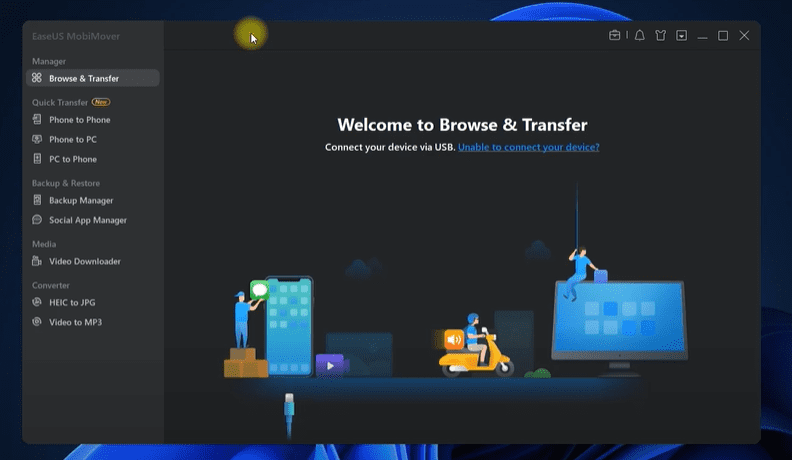
Let’s walk through how to transfer data seamlessly using a powerful tool called EaseUS MobiMover, which supports both Windows and Mac.
Meet EaseUS MobiMover: All-in-One Phone Transfer Solution
EaseUS MobiMover is an all-in-one phone transfer tool that makes data migration effortless. It works on Windows and macOS and supports Android-to-iPhone, iPhone-to-iPhone, phone-to-PC, and PC-to-phone transfers.
Key Features of MobiMover:
- Phone to Phone Transfer (Android or iPhone to new iPhone)
- Phone to PC and PC to Phone data movement
- WhatsApp and Social App Transfer without data loss
- Full iPhone Backups and Backup Restores
- Extra utilities: Video Downloader, HEIC to JPG converter, Video to MP3, and more
Step-by-Step Guide: Transfer Data from Android or iPhone to iPhone 15
Step 1: Install MobiMover
- Download EaseUS MobiMover from the official website.
- Choose the version that matches your OS—Windows or Mac.
- Install the software and launch it on your computer.
Step 2: Connect Both Devices
- Connect your old phone (Android or iPhone) and your new iPhone 15 to the computer using USB cables.
- For Android: Allow file transfer mode when prompted.
- For iPhone: Unlock the phone and tap “Trust” if prompted.
Step 3: Install MobiMover App on Android
When connecting your Android device:
- MobiMover will prompt you to install a companion app.
- Accept the installation and grant the necessary permissions.
Step 4: Prepare iPhone Settings
Before transferring:
- On your new iPhone, go to Settings → iCloud → Find My iPhone and turn it off temporarily.
This step is necessary for enabling smooth data transfer between phones.
Transferring Your Data
Phone to Phone Transfer
- Choose Phone to Phone Transfer in MobiMover.
- Select the data you want to move—photos, videos, contacts, music, and more.
- Click Next and allow the software to process.
- The transfer will begin and complete in a few moments depending on the size of your data.
✅ MobiMover supports transferring WhatsApp messages and attachments without needing to factory reset your device.
Additional Features of MobiMover
Phone to PC Transfer
Want to back up your phone’s contents to your computer?
- Choose Phone to PC from the main menu.
- Select the data you want to export.
- Click Transfer, and your files will be safely stored on your computer.
PC to Phone Transfer
To move files from your computer to your phone:
- Select PC to Phone.
- Browse and select files (e.g., photos, music, documents).
- Click Transfer, and the data will appear on your iPhone or Android device.
Full iPhone Backup
For users who want to back up everything on their iPhone:
- Click Backup Manager.
- Choose a full backup or select specific file types.
- Click One-Click Backup.
Social App Manager
This feature allows you to:









- Backup or restore WhatsApp and WhatsApp Business.
- Transfer chats from Android to iPhone or iPhone to iPhone without resetting your phone.
- Support for other messaging apps like Line, Viber, and more is also available or coming soon.
Bonus Utilities
MobiMover also comes with:
- HEIC to JPEG converter: Convert Apple’s photo format to a standard JPEG.
- Video to MP3: Extract audio from video files.
- Video Downloader: Save online videos directly to your device.
Final Thoughts
Whether you’re moving from an Android phone or an older iPhone to the latest iPhone 15, EaseUS MobiMover is a reliable, user-friendly solution that ensures a smooth and complete data migration. No data loss, no factory reset, and no technical headaches.
If you’re upgrading to a new iPhone and want a fast, easy, and secure way to transfer your data, this tool is one of the best options available.
Tags:
data transfer, iPhone 15, iPhone 15 Pro, Android to iPhone, phone to phone transfer, iPhone backup, WhatsApp transfer, EaseUS MobiMover, iPhone migration, phone upgrade, transfer music to iPhone, transfer photos to iPhone, Windows phone transfer tool
Hashtags:
#iPhone15 #PhoneToPhoneTransfer #EaseUS #MobiMover #DataTransfer #WhatsAppTransfer #iPhoneBackup #AndroidToiPhone #PhoneUpgrade #TransferContacts #TransferPhotos #TransferMusic








