Do you find your default printer keeps switching on its own in Windows 11? You’re not alone. This is a common issue that many users face, and thankfully, it can be fixed easily with a few adjustments in your system settings and the Windows registry.
In this article, we’ll walk you through three effective methods to stop Windows 11 from changing your default printer automatically. Whether you’re using a home PC or a work laptop, this guide will help you lock in your preferred printer for good.
🔧 Why Does Windows 11 Keep Changing the Default Printer?
Windows 11 includes a feature that automatically manages your default printer based on the last printer you used at a particular location. While this can be helpful for mobile users, it can also become frustrating when Windows keeps switching to the wrong printer.
Let’s fix that.
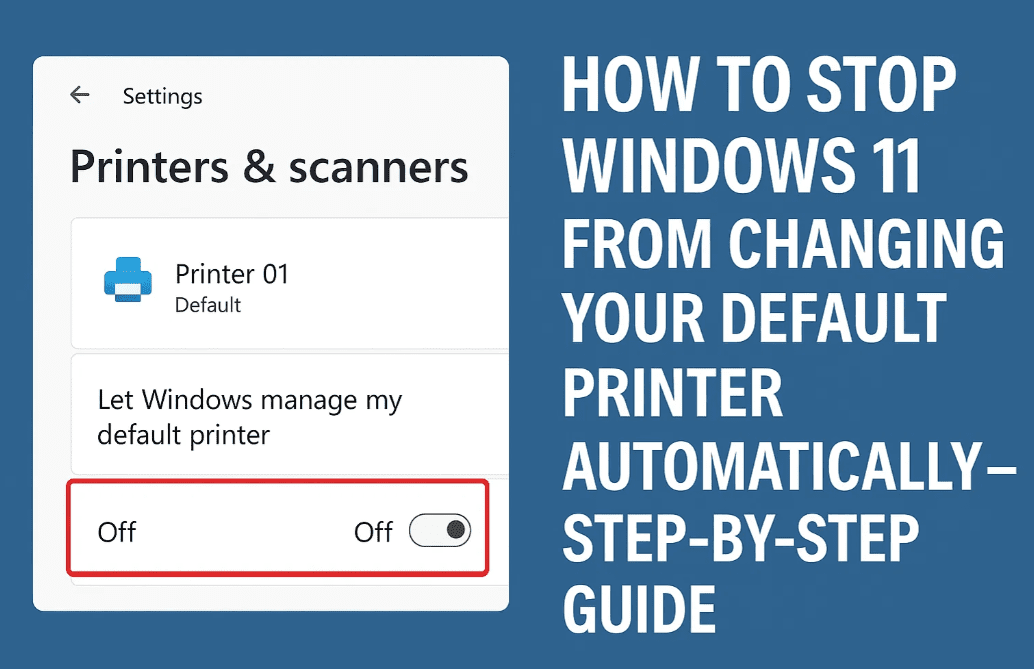
✅ Method 1: Turn Off “Let Windows Manage My Default Printer”
This is the most common and simple solution.
Steps:
- Press
Windows + Ito open Settings. - Go to Bluetooth & devices > Printers & scanners.
- Scroll down and find the option: “Let Windows manage my default printer”.
- Turn off this option.
By disabling this setting, Windows will stop automatically assigning the last-used printer as the default one.
✅ Method 2: Manually Set Your Default Printer
If you have more than one printer installed, Windows might switch based on recent usage unless you manually select your default.
Steps:
- Again, go to Settings > Bluetooth & devices > Printers & scanners.
- Click on the printer you want to set as default.
- Click on the “Set as default” button.
Now Windows will remember and stick with this printer unless you change it manually again.
✅ Method 3: Use Registry Editor to Enforce Default Printer
This method is more technical but ensures Windows respects your default printer selection.
⚠️ Disclaimer: Editing the Windows registry can cause system issues if done incorrectly. Follow the steps carefully or consult an IT professional if unsure.
Steps:
- Press
Windows + S, type regedit, and right-click > Run as administrator. - Navigate through the following path:
HKEY_CURRENT_USER\Software\Microsoft\Windows NT\CurrentVersion\Windows - On the right panel, look for a key named LegacyDefaultPrinterMode.
- If it doesn’t exist, right-click and create a new DWORD (32-bit) Value and name it
LegacyDefaultPrinterMode.
- If it doesn’t exist, right-click and create a new DWORD (32-bit) Value and name it
- Double-click on
LegacyDefaultPrinterModeand change its value data to1. - Click OK and close the Registry Editor.
- Restart your system.
This registry tweak tells Windows to stop managing the printer on its own and instead use your manually selected default printer.









🙋 Frequently Asked Questions (FAQs)
❓ I don’t see “LegacyDefaultPrinterMode” in the registry. What should I do?
Create it manually. Right-click in the right panel, choose New > DWORD (32-bit) Value, and name it exactly LegacyDefaultPrinterMode.
❓ Is it safe to change registry settings?
Yes, as long as you follow instructions precisely. Always back up your registry before making any changes.
❓ Can I set different default printers for different Wi-Fi networks?
No, Windows 11 doesn’t support this natively unless you use third-party printer management software.
📝 Final Thoughts
Automatically changing default printers can be annoying, especially if you’re constantly having to select the right one before printing. With the methods above, you can easily take control and ensure Windows 11 uses the printer you choose every time.
If you found this guide helpful, consider bookmarking it or sharing it with others who might be facing the same issue.
🔗 Useful Links
🏷️ Tags
printer issue, windows 11 printer, default printer changes, stop printer switching, registry fix, windows tutorial, windows registry, printer troubleshooting
📢 Hashtags
#Windows11 #PrinterIssue #TechFix #RegistryEditor #DefaultPrinter #WindowsTips #PCTroubleshooting #HowToGuide








