Are you tired of seeing “This app is preventing shutdown” messages when trying to turn off your Windows 11 PC? While this is a safety feature (not a bug), it can be frustrating—especially when apps like Outlook or background services delay shutdown.
This guide will show you how to force-close stubborn apps and speed up shutdowns using Registry Editor tweaks.
Why Does Windows Show “App Preventing Shutdown”?
Windows checks for unsaved work before shutting down. If an app (e.g., Microsoft Outlook, Steam, or a background service) is still running, Windows waits for 20 seconds (default) before forcing a shutdown.
While useful, this can be annoying if you frequently encounter delays.
How to Force Windows 11 to Shutdown Immediately (Registry Fix)
⚠ Warning:
Modifying the Windows Registry can cause system instability if done incorrectly. Back up your registry before proceeding.
Step 1: Open Registry Editor
- Press
Win + R, typeregedit, and press Enter. - Click Yes if prompted by User Account Control (UAC).
Step 2: Modify User-Level Shutdown Settings
- Navigate to:
HKEY_CURRENT_USER\Control Panel\Desktop- Find or create the following String Values: Key Name Value Data Purpose
AutoEndTasks1Automatically closes apps preventing shutdown.WaitToKillAppTimeout5000Waits 5 seconds (5000 ms) before force-closing apps.HungAppTimeout5000Closes unresponsive apps after 5 seconds.
- If a key doesn’t exist, right-click Desktop > New > String Value and name it accordingly.
- Double-click each key and enter the Value Data as shown above.
Step 3: Modify System-Level Service Timeout
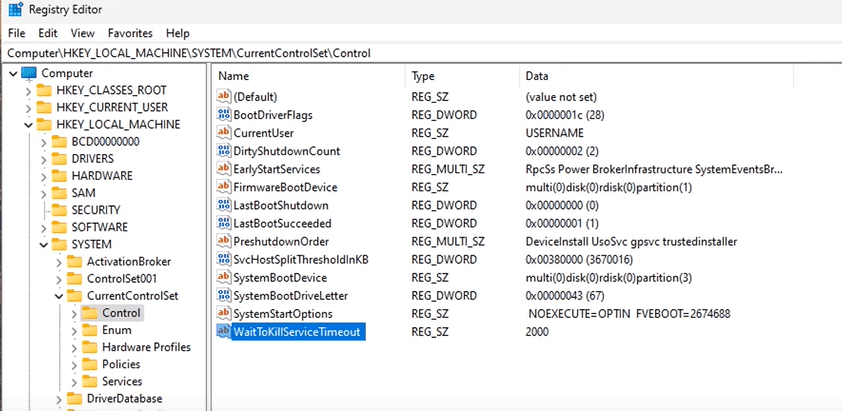
- Navigate to:
HKEY_LOCAL_MACHINE\SYSTEM\CurrentControlSet\Control- Find
WaitToKillServiceTimeout(default:5000= 5 seconds). - Change it to
2000(2 seconds) for faster service termination.
Step 4: Restart Your PC
- Apply changes by restarting your computer.
What These Changes Do
✔ AutoEndTasks = 1 → Forces apps to close without prompts.
✔ WaitToKillAppTimeout = 5000 → Reduces wait time from 20 sec → 5 sec.
✔ HungAppTimeout = 5000 → Kills frozen apps in 5 seconds.
✔ WaitToKillServiceTimeout = 2000 → Speeds up background service shutdown.
Now, Windows will shut down faster without waiting for unresponsive apps.
Alternative: Use Group Policy (For Windows Pro/Enterprise)
If you have Windows Pro/Enterprise, you can use Group Policy Editor instead:
- Press
Win + R, typegpedit.msc, and press Enter. - Navigate to:
Computer Configuration > Administrative Templates > System > Shutdown Options- Enable “Turn off automatic termination of applications that block shutdown.”
Final Thoughts
By tweaking these Registry settings, you can stop apps from delaying shutdowns in Windows 11. This is especially useful if you frequently see messages like:
- “This app is preventing shutdown”
- “Waiting for [App] to close”
🔗 Need help? Visit Microsoft Support for further assistance.
Tags:
Windows 11 shutdown fix, stop apps preventing shutdown, registry tweaks, force close apps Windows 11, speed up Windows shutdown











Hashtags:
#Windows11 #ShutdownFix #RegistryTweak #PCOptimization #TechTips #WindowsTips








