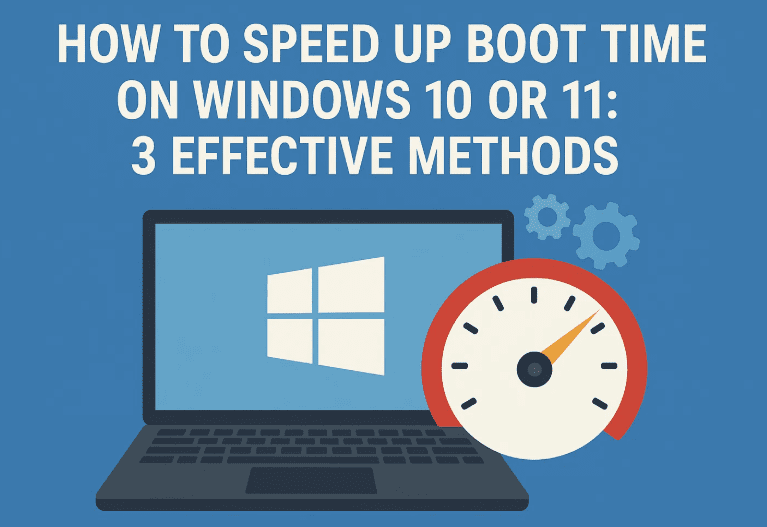
If your Windows 10 or 11 PC feels sluggish when starting up, you’re not alone. Many users experience slow boot times, especially on older hardware or systems loaded with unnecessary startup programs. But don’t worry—this guide will walk you through three easy and effective methods to significantly reduce your PC’s boot time.
And if you’re still using a traditional HDD instead of an SSD—upgrading your storage can give you a massive performance boost. But for now, let’s stick to software-based solutions you can try right away.
⚠️ Disclaimer
These steps are completely safe and based on built-in Windows settings. However, if you’re unsure about disabling services or modifying configuration settings, proceed with caution or consult a technician.
🛠 Requirements (Before We Begin)
Let’s make sure you’re ready:
- A Windows 10 or 11 PC or laptop
- Administrator access (for changes to system settings)
- 5–10 minutes of your time
🧰 Method 1: Disable Unnecessary Startup Apps
So let’s begin with the most common culprit—apps that start automatically when your PC boots up.
Many programs sneak into startup during installation (like Skype, Teams, AnyDesk, etc.), slowing your boot time dramatically.
Steps to Disable Startup Programs:
- Right-click on the taskbar and choose Task Manager.
- In Task Manager, click the Startup apps tab on the left panel.
- Here you’ll see a list of programs that run when your PC starts.
- Right-click on apps you don’t need immediately and select Disable.
- For example, disable apps like Microsoft Teams, Skype, AnyDesk, Chrome, etc., unless you really need them on boot.
- Close Task Manager after you’re done.
👍 So far, so good! Now let’s make deeper system-level optimizations.
⚙️ Method 2: Optimize System Configuration (msconfig)
Now we’ll fine-tune your system boot settings using the System Configuration tool.
Follow these steps carefully:
- Press the Start Menu and type
msconfig, then hit Enter. - Go to the Boot tab and click Advanced Options.
- ✅ Check the box next to Number of processors.
- From the dropdown, select 4 processors (or 2 if that’s all you see).
- Click OK to save.
Next, clean up third-party services:
- In the same
msconfigwindow, switch to the Services tab. - ✅ Check the box for Hide all Microsoft services (to avoid disabling critical system services).
- Now, uncheck any non-essential services like:
- Printer software
- Updaters from third-party apps
- Manufacturer utilities you don’t use
- Click Apply, then OK.
- When asked to restart, choose No for now—we still have one more tweak!
Feeling good so far? Let’s move on to the final (and powerful) boost.
⚡ Method 3: Enable Fast Startup
This feature is often overlooked but can greatly reduce boot time by caching essential startup files.
Here’s how to enable it:



- In the Start Menu, type
powercfg.cpland press Enter. - On the left panel, click Choose what the power buttons do.
- Click Change settings that are currently unavailable to unlock the grayed-out options.
- ✅ Check the box next to Turn on fast startup.
- Click Save changes.
🔄 Now Restart Your PC
Once you’ve completed all three methods above, restart your system. You should now notice:
- 🚀 Faster boot time
- 🧹 Cleaner startup behavior
- 💻 A smoother Windows experience overall
If you’re still using an HDD and want even better results, consider upgrading to an SSD—it can reduce your boot time from over a minute to under 10 seconds in some cases!
❓ Frequently Asked Questions (FAQ)
Q1: Is Fast Startup the same as Hibernate?
No, but it uses a similar technique. It stores a snapshot of system files instead of closing everything completely.
Q2: I don’t see the “Number of Processors” option. What should I do?
If it’s grayed out or unavailable, your system may be using all processors by default. Just leave it unchecked.
Q3: Can I re-enable startup apps later?
Absolutely! Go back to Task Manager → Startup tab → Right-click the app → Enable.
Q4: Will these methods damage my system?
No. As long as you hide Microsoft services and avoid disabling critical drivers, this process is safe.
🔚 Conclusion
Speeding up your Windows startup doesn’t always require advanced tools or costly upgrades. With these three simple adjustments—disabling startup apps, tweaking system settings, and enabling Fast Startup—you can see dramatic improvements in how quickly your PC boots.
These steps are ideal for home users, students, professionals, or anyone tired of waiting forever at the loading screen.
📎 Tags:
windows boot slow fix, speed up windows 11 boot, msconfig tweak, disable startup programs, windows fast startup, boot optimization, fix slow boot pc, windows performance tips, task manager startup, windows 10 optimization
📢 Hashtags:
#SpeedUpWindows #WindowsBootFix #FastStartup #MSConfigTips #WindowsPerformance #TechTips #TaskManager #Windows11 #PCOptimization #StartupApps








