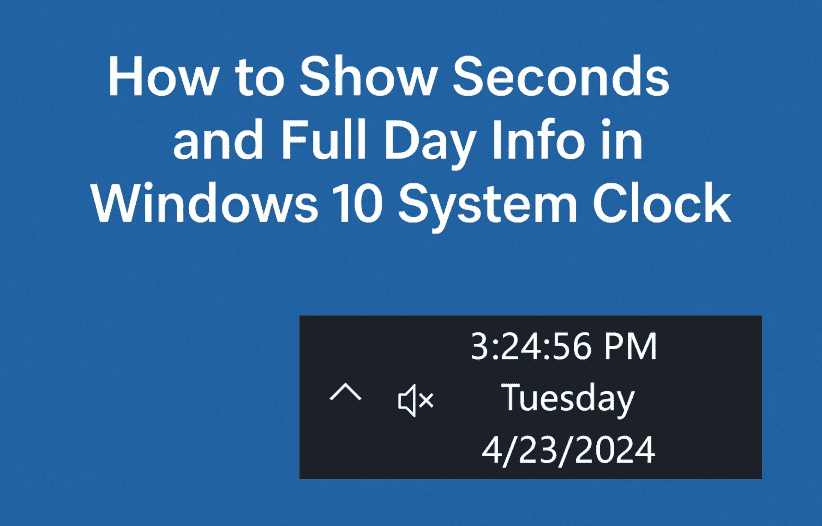
If you’re someone who likes having precise control over time on your computer — down to the second — you’re going to love this quick but powerful Windows 10 tweak. By default, Windows 10 only shows the hour and minutes in the system tray clock. But what if you want to also see seconds, the full date, and the day of the week?
Well, with a simple tweak using Windows Registry Editor, you can do just that.
Let’s walk through the entire process step-by-step, adding a human touch and real explanations along the way.
🕒 Why Enable Seconds and Full Day View?
By default, Windows keeps things simple — but sometimes too simple. For system admins, developers, or just productivity geeks, having precise time can be essential. Here’s what this tweak gives you:
- The clock will show HH:MM:SS
- The full date format will become something like Thursday, 6 October 2025
It’s clean, professional, and most importantly — accurate.
So far so good? Let’s move to the next step!
🧰 Step 1: Enable Seconds in the Taskbar Clock
To begin, we’ll need to access the Windows Registry Editor. This is a built-in tool that allows users to modify hidden settings in Windows. It’s powerful — so always be cautious.
🔧 Here’s how to do it:
- Click on the Start Menu and type
regeditinto the search bar. - Click Registry Editor and hit Yes when prompted by User Account Control.
Now let’s navigate to the correct path.
- In the left pane, go to:
HKEY_CURRENT_USER\Software\Microsoft\Windows\CurrentVersion\Explorer\Advanced
- Right-click on the Advanced folder.
- Select New > DWORD (32-bit) Value.
- Name the new value:
ShowSecondsInSystemClock
(Make sure the capitalization and spacing are exact.)
- Double-click on this new entry and set the Value data to
1. - Click OK and close the Registry Editor.
- Now sign out of your Windows account (Right-click Start > Sign Out) and sign back in.
✅ You should now see seconds appear in your taskbar clock.
📅 Step 2: Show the Full Day Name and Long Date Format
So now we can see seconds — that’s great! But how about also showing the full name of the day, like “Monday”, “Friday”, etc.?











To do that, we’ll tweak another registry setting. Let’s move ahead.
🔧 Follow these steps:
- Open Registry Editor again (
regeditin Start menu). - Navigate to:
HKEY_CURRENT_USER\Control Panel\International
- In the right panel, look for the value named:
sShortDate
- Double-click on it.
You’ll likely see a format like:
dd/MM/yyyy
Now we want to add the day name at the beginning of this format.
- Change it to:
ddd, dd/MM/yyyy
Or if you’re in the US and prefer the month first:
ddd, MM/dd/yyyy
- Click OK and close the Registry Editor.
- Once again, sign out and sign back in to apply changes.
✅ You’ll now see something like:
Thu, 16/07/2025 08:45:32
Now that’s a complete clock!
🧠 Bonus Tip: Adjust Regional Date Format Easily
If you prefer doing it through a more user-friendly interface, you can also:
- Right-click the clock in the bottom right.
- Click on Adjust date/time.
- Scroll down and choose Date, time & regional formatting.
- Click Change data formats.
- Modify the Short date and Long date options to display your preferred format.
❓Frequently Asked Questions (FAQ)
Q1: Is modifying the registry safe?
A: Yes, if you follow instructions precisely. Always back up your registry or create a restore point if you’re unsure.
Q2: Can I remove seconds later if I don’t like them?
A: Absolutely. Just go back to the same registry key and delete the ShowSecondsInSystemClock entry or set its value to 0.
Q3: Does this work in Windows 11 too?
A: This guide is for Windows 10. Windows 11 has a redesigned taskbar and requires different steps (or third-party tools) to show seconds.
🧾 Tags:
windows clock settings, show seconds in windows 10, full date in taskbar, windows registry hacks, time format tweaks, taskbar customization
📢 Hashtags:
#Windows10 #TaskbarClock #ShowSeconds #DateFormat #WindowsRegistry #TechTips #Customization #WindowsTweaks #ProductivityHack
⚠️ Disclaimer:
This guide involves editing the Windows Registry. While it’s safe if done correctly, incorrect edits can cause system issues. Proceed with caution and back up your registry beforehand.
And that’s it — your Windows 10 clock is now more useful than ever! If you found this guide helpful and want more power-user tips like this, don’t forget to bookmark or share this article with others. Let me know if you’d like a downloadable .reg file for quick automation of these settings!








