The bookmarks bar (referred to as the Favorites Bar in Microsoft Edge) offers a convenient way to access your most-visited websites with a single click. Whether you prefer a minimalist interface or quick access to your favorite links, Microsoft Edge gives you multiple ways to show or hide this toolbar.
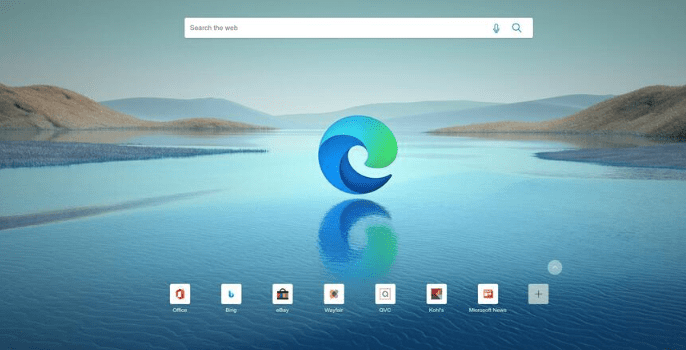
This blog will walk you through three easy methods to display or remove the favorites bar in Microsoft Edge on a Windows desktop PC. We’ll also include keyboard shortcuts, step-by-step instructions, and an FAQ section to cover common questions.
✅ What Is the Favorites Bar in Microsoft Edge?
In Microsoft Edge, the Favorites Bar is equivalent to the Bookmarks Bar in most other browsers. It appears just below the address bar and allows you to quickly access your saved web pages.
🔧 Method 1: Using a Keyboard Shortcut
The fastest way to toggle the visibility of the favorites bar is via a keyboard shortcut.
👉 Steps:
- Open Microsoft Edge on your desktop.
- Press
Ctrl + Shift + Bon your keyboard.
- This will hide the favorites bar if it’s currently visible.
- Pressing
Ctrl + Shift + Bagain will show the bar.
🖥️ Mac users can try
Command + Shift + B, although keyboard shortcuts may vary depending on the system.
🔧 Method 2: Right-Click Menu in the Favorites Bar Area
If you prefer using the mouse, you can toggle the favorites bar from the interface itself.
👉 Steps:
- Open Microsoft Edge.
- Right-click on any empty space within the bookmarks/favorites bar area.
- Hover over the option “Show favorites bar”.
- Choose one of the following:
- Always – Displays the bar on all tabs.
- Never – Hides the bar completely.
- Only on new tabs – Shows the bar only when opening a new tab.
You’ll also notice that the context menu displays the keyboard shortcut (Ctrl + Shift + B) for convenience.
🔧 Method 3: Using the Settings Menu
For more control, you can toggle the favorites bar through Edge’s main settings.
👉 Steps:
- Open Microsoft Edge.
- Click the three-dot menu (⋯) at the top-right corner.
- Scroll down and click on “Favorites.”
- In the small pop-up window, click the three-dot menu again within that box.
- Click on “Show favorites bar.”
- Select your preferred option:
- Always
- Never
- Only on new tabs
- Close the popup once done.
❓ Frequently Asked Questions (FAQs)
Q1: What’s the difference between “Favorites” and “Bookmarks”?
Nothing, essentially. Microsoft Edge calls them Favorites, while other browsers like Chrome and Firefox refer to them as Bookmarks.
Q2: Will hiding the favorites bar delete my saved websites?
No. Hiding the bar only removes it from view. All your saved favorites remain in the browser’s memory and can be accessed anytime via the Favorites menu.
Q3: Can I sync favorites across multiple devices?
Yes, if you sign into Microsoft Edge with a Microsoft account and enable sync, your favorites will sync across all devices.








📝 Conclusion
Microsoft Edge gives users multiple convenient ways to show or hide the favorites bar based on their personal preferences. Whether you want a clean look or quick link access, you can easily control the toolbar using:
- A simple keyboard shortcut (
Ctrl + Shift + B) - A right-click on the favorites area
- The browser’s three-dot menu and Favorites settings
By understanding these options, you can customize your browsing interface for a smoother, more personalized experience.
🔗 Helpful Resource:
- Microsoft Edge Official Site: https://www.microsoft.com/edge
🏷️ Tags:
Microsoft Edge tutorial, favorites bar Edge, bookmarks Edge browser, hide favorites bar, show bookmarks bar, Edge browser settings, browser customization
📢 Hashtags:
#MicrosoftEdge #FavoritesBar #EdgeTips #BookmarksBar #BrowserTutorial #WindowsTips #ProductivityTips
Need more help with browser customization or Edge settings? Leave your questions in the comments and we’ll cover them in future articles!





