In today’s work-from-anywhere environment, having multiple screens can dramatically boost your productivity. But what if you don’t have an external monitor handy? What if you could simply use your old laptop, tablet, or even Android phone as a second screen — wirelessly or over a LAN connection?
This is exactly what spacedesk allows you to do. It turns your primary Windows PC into a server and allows another device (Windows, Android, iOS) to connect as a display client over your home network.
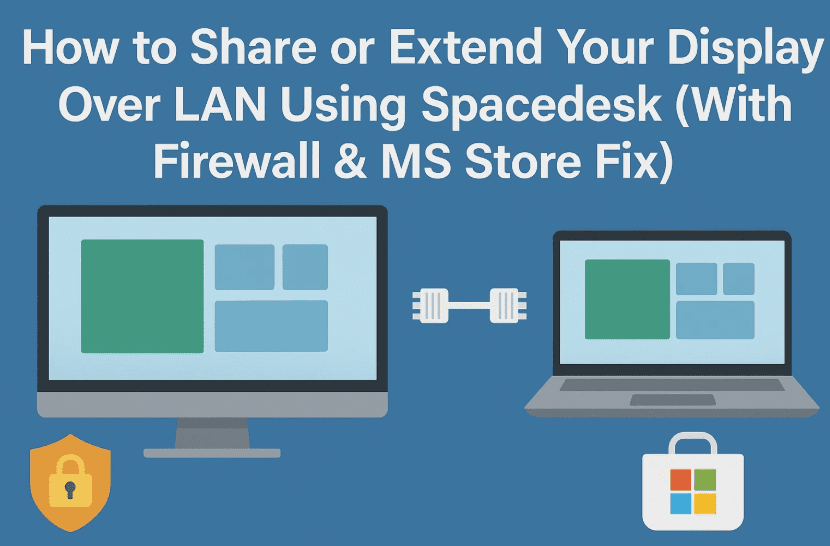
In this guide, we’ll walk you through:
- Setting up spacedesk on both server and client devices
- Solving firewall blocking issues (e.g., Avast Antivirus)
- Ensuring high-quality display performance over LAN
- Using it for extended display vs. screen mirroring
- Cross-platform compatibility and tips
Let’s begin your second screen journey!
✨ What Is spacedesk?
spacedesk is a free software that allows you to share or extend your Windows desktop screen to another device over a local network (LAN or Wi-Fi). It supports:
- Windows PCs
- Android phones and tablets
- iPads and iPhones
- Web browsers (HTML5 Viewer)
It’s perfect for students, professionals, streamers, and remote workers who need a second display without buying an extra monitor.
✅ Prerequisites
Before we set things up, make sure you have:
- A Windows PC (primary machine) running Windows 10 or 11
- A secondary device (another PC, tablet, or phone)
- Both devices connected to the same Wi-Fi or LAN network
- Administrator access on the Windows PC
🖥️ Step 1: Install spacedesk on Your Primary PC (Server)
Let’s start by installing the spacedesk Windows DRIVER on your main computer.
- Visit the official spacedesk website: https://www.spacedesk.net
- Download the latest version of spacedesk DRIVER for Windows.
- Run the installer and follow the prompts.
⚠️ Watch Out: Avast Antivirus or Other Firewalls May Block It
During installation, you might encounter a warning like this:
“spacedesk has detected third-party firewall(s): Avast Antivirus
If spacedeskService.exe is not in the allowed programs list of your firewall(s), spacedesk clients will not be able to connect.”
Let’s address this issue before continuing.




🔧 Fixing the Firewall Block (Avast Example)
If you’re using Avast Antivirus, you need to manually allow the spacedesk service to pass through its firewall. Here’s how:
🔐 Add spacedeskService.exe to Avast’s Allowed Apps
- Open Avast Antivirus.
- Go to Menu > Settings > Protection > Firewall.
- Click on View Firewall Rules.
- Select the “Application Rules” tab.
- Look for spacedeskService.exe.
- If it’s not listed, click on “Add App” and browse to:
C:\Program Files\datronicsoft\spacedesk\spacedeskService.exe
- If it’s not listed, click on “Add App” and browse to:
- Once added, click the arrow to expand its rule settings.
- Allow all options:
- Internet access
- Incoming and outgoing connections
- LAN communication
- Save and exit.
💡 You may need to restart the spacedesk service or reboot your system for the rule to take effect.
📲 Step 2: Install spacedesk on Your Client Device
Now, let’s move on to the device you want to use as your second screen.
Depending on your device, install the client app:
- Windows (Viewer): Download Windows Viewer
- Android: Google Play Store – spacedesk
- iOS: App Store – spacedesk
- HTML5 Browser: Go to viewer.spacedesk.net
🪟 What If Microsoft Store Won’t Open or Download spacedesk?
Sometimes, Windows users face issues where the Microsoft Store doesn’t open, gets stuck on loading, or fails to download the spacedesk Viewer app. This can happen due to system corruption, Store cache issues, region settings, or even network restrictions.
But don’t worry — spacedesk has a standalone Viewer version that works outside the Microsoft Store. It’s even compatible with Windows 7, Windows 10, and Windows 11.
Here’s how you can get and use it:
🔄 How to Install spacedesk Viewer Without Microsoft Store
If you’re unable to install spacedesk Viewer from the Store, follow these steps:
✅ Step-by-Step Instructions:
- Visit the official spacedesk website:
👉 https://www.spacedesk.net - Scroll to the Download section and find:
- spacedesk Viewer for Windows 7 (EXE Installer)
- This installer works perfectly on Windows 7, 10, and 11.
- Download the installer:
- File name is usually something like:
spacedeskWindowsVIEWER_Win7.msi - It’s lightweight and requires no Store integration.
- File name is usually something like:
- Run the installer and follow the on-screen instructions.
- Once installed, launch the spacedesk Viewer app manually from your Start menu.
- Make sure your devices are on the same LAN/Wi-Fi, and it will auto-detect your spacedesk SERVER.
- If it doesn’t, manually enter the IP address of the primary PC (visible inside the spacedesk DRIVER control panel).
🧠 Why This Method Is Useful
- Works on older Windows systems (7 and 8.1) where Microsoft Store is not available.
- Solves Store errors like:
- “Store won’t open”
- “Pending downloads stuck”
- “Error Code 0x80073CF9”
This also gives you flexibility in controlled environments (schools, offices) where Microsoft Store access is disabled by Group Policy.
⚠️ Important Note for Microsoft Store Users
If you’re determined to use the Microsoft Store version but it’s misbehaving:
- Run this command to reset the Store: bashCopyEdit
wsreset.exe - Or reinstall Microsoft Store using PowerShell: powershellCopyEdit
Get-AppxPackage -allusers Microsoft.WindowsStore | Foreach {Add-AppxPackage -DisableDevelopmentMode -Register "$($_.InstallLocation)\AppXManifest.xml"}
But again, the EXE viewer is the best fallback — reliable, lightweight, and no Store required.
🌐 Step 3: Connect the Devices Over LAN or Wi-Fi
- Launch spacedesk Viewer on your secondary device.
- It should automatically detect the primary PC on the network.
- If not, enter the IP address of your server (can be found in the spacedesk SERVER app on your PC).
- Click Connect.
You should now see your Windows desktop mirrored or extended on the second device.
🔄 Step 4: Switch Between Mirroring and Extending Display
Once connected, Windows treats the second screen like a real monitor.
To change display mode:
- Press
Win + Pon your keyboard. - Choose from:
- Duplicate – Mirror your main screen.
- Extend – Use the second device as an additional display.
- Second screen only – Display only on your extended screen.
📝 Tip: If the second screen feels laggy, make sure both devices are on 5GHz Wi-Fi or wired LAN for best performance.
🧠 Advanced Tips for Better Performance
Here are a few things you can do to enhance the experience:
- Use LAN instead of Wi-Fi if you need low latency (e.g., for drawing tablets or gaming dashboards).
- Lower the resolution or refresh rate if you notice lag.
- Make sure the firewall is not blocking UDP or TCP ports used by spacedesk (default is port 28252).
- Avoid connecting multiple viewers to the same server if not needed — this increases bandwidth usage.
❓FAQs: Spacedesk and Display Over LAN
Q1: Can I use spacedesk over the internet?
No. spacedesk is intended for local networks only. For remote desktop access, use alternatives like AnyDesk or Chrome Remote Desktop.
Q2: What is the resolution limit?
It depends on your network speed. Over LAN, spacedesk can handle Full HD (1080p) and even 4K at usable frame rates.
Q3: Is spacedesk safe to use?
Yes, spacedesk is a secure and widely used application. Just ensure you’re downloading from the official website: https://www.spacedesk.net
Q4: Is it free?
Yes, spacedesk is completely free for personal use.
🧩 Bonus: What If My USB-C Device Needs to Connect to HDMI Over Long Distance?
If you’re trying to extend a display from a USB-C port (like on a MacBook or thin laptop) to an HDMI screen that’s far away (up to 100ft) — a different solution is required.
Use a USB-C to HDMI extender over Ethernet, like the BK EX100-CK, which:
- Supports up to 4K @ 120Hz
- Works over Cat 6 or Cat 7 Ethernet cables
- Requires no software setup
- Compatible with Windows and macOS as long as the USB-C port supports DisplayPort Alt Mode or Thunderbolt
This is ideal for digital signage, advertisements, long presentations, or setups where devices are physically far apart.
🧾 Final Thoughts
Spacedesk is a powerful, free, and highly customizable solution for those who want to extend their display without additional hardware. Whether you’re a remote worker wanting a dual-screen setup or a student using a tablet as a second monitor, it delivers — provided you handle firewall issues properly.
Remember:
- Always allow
spacedeskService.exethrough firewalls (especially Avast). - Use wired LAN for ultra-smooth performance.
- And yes, that old tablet in your drawer can become your new second screen.
So go ahead, give your productivity the upgrade it deserves — one screen at a time!
Tags:
display sharing, LAN screen extension, spacedesk setup, spacedesk firewall fix, spacedesk avast, multiple monitors, second screen on tablet, screen mirroring, spacedesk configuration
Hashtags:
#Spacedesk #DisplayOverLAN #SecondMonitor #ScreenSharing #MultiDisplay #FirewallFix #TechTips #Windows11 #AvastAntivirus #LANDisplay








