Sharing files across multiple devices can be a real headache—especially when they span different platforms. If you’re juggling between Windows PCs, macOS, iPhones, Android devices, and even Linux machines, you know the struggle. Native solutions like AirDrop (Apple) and Quick Share (Android) work great—but only within their own ecosystems.
But what happens when you need to move files between all your devices quickly, securely, and without internet access or third-party cloud services? That’s where LocalSend comes in.
LocalSend is an open-source, cross-platform application that allows you to share files between devices over your local network. It works without the internet, is fully encrypted, and doesn’t rely on any cloud middleman. It’s fast, private, and available on all major platforms.
Let’s walk through how to install and use LocalSend on various devices—and even test its reliability with a large file transferred across multiple operating systems.
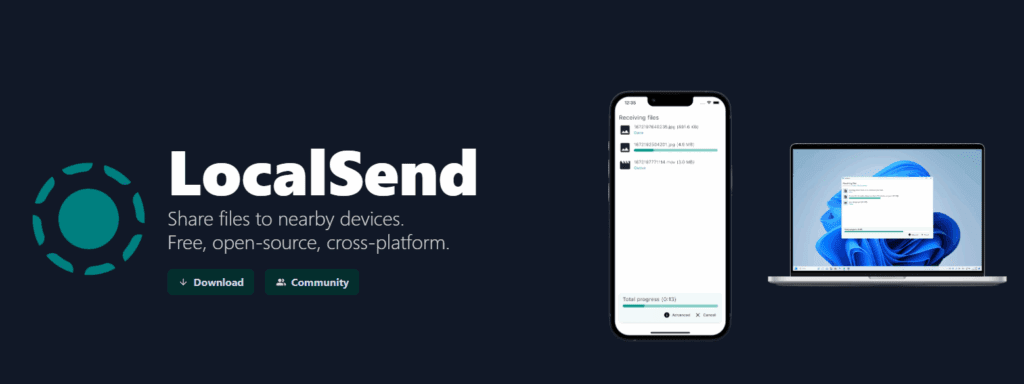
Why Use LocalSend?
- ✅ No internet required
- ✅ End-to-end encrypted (TLS certificates generated on the fly)
- ✅ Fully open-source
- ✅ Cross-platform: Works on Windows, macOS, Linux, Android, and iOS
- ✅ No third-party servers or logins required
Step-by-Step: Setting Up LocalSend on All Your Devices
1. Installing LocalSend on Windows
Since LocalSend isn’t available in the Microsoft Store, you’ll need to install it using a method like winget, Scoop, Chocolatey, or directly via MSI installer. Let’s use winget:
- Open Windows Terminal.
- Run the following command:
winget install localsend.localsend - Once installed, launch LocalSend from the Start menu.
- On first launch, Windows will prompt you to allow network access—click Allow.
- LocalSend assigns a random device name (e.g., Clean Onion). Go to Settings > Device name and rename it to something recognizable, like Windows 11.
- Restart the app for the new name to take effect.
2. Installing LocalSend on iPhone (iOS)
- Open the App Store and search for LocalSend.
- Download and open the app.
- Allow LocalSend to discover devices on your local network.
- Rename the device (e.g., to iPhone) in Settings and restart the app.
- Your Windows device should appear automatically.
Note: The app must remain in the foreground to detect other devices.
3. Installing LocalSend on Android
- Go to the Google Play Store and search for LocalSend.
- Install and open the app.
- Rename the default device name (e.g., Smart Melon) to Android.
- Restart the app to apply the new name.
- Your Android should now be visible from your other devices.
4. Installing LocalSend on Linux
- Visit the LocalSend GitHub page or official site.
- Download the appropriate installer for your Linux distro. For Ubuntu, grab the
.debfile. - In terminal:
sudo dpkg -i localsend_x.x.x_amd64.debIf you encounter missing dependencies:sudo apt install -f - Launch LocalSend, rename the device to Linux, and restart the app.
5. Installing LocalSend on macOS
There are multiple options:
- From the App Store
- Via DMG file
- Using Homebrew (recommended for CLI users):
brew tap localsend/localsend brew install localsend
Once installed, rename your device to Mac OS in Settings and restart the app.
Transferring Files Across Devices
Let’s take a 642MB 4K video file and transfer it across all devices to test integrity and speed.
1. Windows → iPhone
- From your Windows machine, choose Send > Select File > Choose iPhone.
- Accept the transfer on iPhone. File is received and plays correctly.
2. iPhone → Android
- On iPhone, choose the received file and send it to Android.
- Accept it on Android. File arrives and plays fine.
3. Android → Linux
- On Android, choose Send > Select File > Choose Linux.
- Accept the transfer on Linux and verify the file in Downloads.
4. Linux → macOS
- On Linux, send the file to Mac OS. Accept it and play the video.
5. macOS → Windows (Full Round Trip)
- On Mac OS, send the file back to the original Windows machine.
- Accept and verify that the file remained intact.
Conclusion
LocalSend successfully transferred a large video file across all major platforms without any data corruption, internet access, or cloud dependency. It’s easy to set up, secure by design, and performs well.
So if you’re tired of cloud uploads, tangled cables, or platform-specific limitations—give LocalSend a try.







You can install it from your respective App Store or directly from the LocalSend GitHub page.
Tags and Hashtags
Tags: file transfer, local file sharing, open source tools, cross platform apps, local send, airdrop alternative, android file transfer, ios file transfer, linux file sharing, windows file sharing, mac file transfer, secure file sharing, offline file transfer, flutter apps
Hashtags:
#LocalSend #FileTransfer #OfflineSharing #CrossPlatform #OpenSource #PrivacyFirst #AndroidToiOS #LinuxToWindows #MacToWindows #TechTools #SecureTransfer #FlutterApps #NoInternetNeeded








