If you use two different phone numbers—one for personal use and one for business—you might want to run two separate WhatsApp accounts on your iPhone. Fortunately, this is completely possible by using WhatsApp Messenger and WhatsApp Business together.
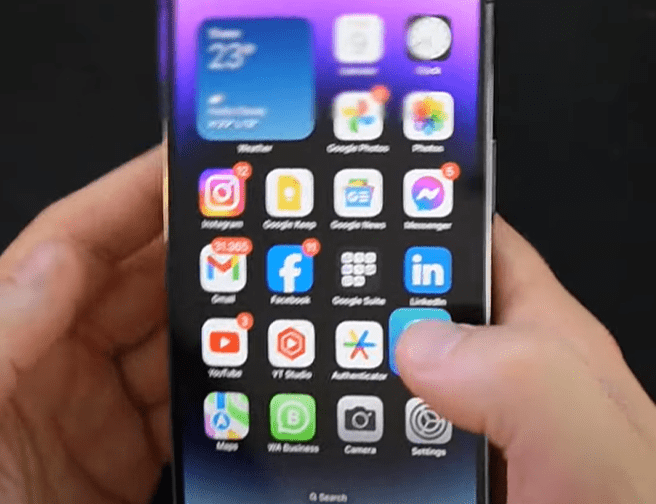
In this article, we’ll walk you through the step-by-step guide on how to set up both apps on the same iPhone, allowing you to manage two WhatsApp accounts with ease.
✅ Why Use Two WhatsApp Accounts?
Many people manage separate phone numbers for different purposes. Whether you’re running a small business or just want to keep your personal and professional lives separate, using two WhatsApp accounts on the same iPhone offers flexibility, better organization, and peace of mind.
📲 Step-by-Step Guide to Set Up Two WhatsApp Accounts on iPhone
Step 1: Download WhatsApp Messenger and WhatsApp Business
- Open the App Store on your iPhone.
- Search and install WhatsApp Messenger.
- Then search and install WhatsApp Business (if you haven’t already).
Tip: If you already have WhatsApp Messenger installed, just install WhatsApp Business, or vice versa.
Step 2: Set Up WhatsApp Business with Your First Number
- Open WhatsApp Business.
- Set it up using your first mobile number.
- Complete the setup and restore your backup (if available).
- This will now serve as one of your two WhatsApp accounts.
Step 3: Set Up WhatsApp Messenger with Your Second Number
- Open the standard WhatsApp Messenger app.
- Tap Agree and Continue.
- If it suggests using a previously registered number, tap Use a different number.
- Enter your second mobile number.
If you’re transferring your WhatsApp from another phone (e.g., Android), enter the verification code sent to that device.
Step 4: Complete the Setup and Restore Messages
- If your second number was already used with WhatsApp on another phone, you’ll be prompted to restore your chat history.
- Tap Restore to recover all messages and media from your previous device.
- Once the setup is done, you’ll have two fully functional WhatsApp accounts on the same iPhone—each tied to a different number.
📁 How to Use Both Accounts
- You can now switch between WhatsApp Messenger and WhatsApp Business anytime.
- Both apps work independently and can run in parallel.
- Notifications, chats, and contacts will remain separate.
This setup is perfect for keeping your personal and work lives separate, especially for freelancers, entrepreneurs, or anyone managing multiple roles.
✨ Final Thoughts
Running two WhatsApp accounts on a single iPhone is now easier than ever. With WhatsApp Messenger and WhatsApp Business, you don’t need to jailbreak your device or use any complicated tricks. Just follow the steps above, and you’re good to go!
Remember, to receive the verification code during setup, make sure each number is active and accessible via SMS or call.
If you need help transferring your WhatsApp data from Android to iPhone, there are additional tools and guides available to assist you with that process as well.
Tags: whatsapp dual account, whatsapp on iphone, whatsapp business, dual sim iphone, whatsapp setup, ios messaging apps, how to use two whatsapp, iphone whatsapp tricks, mobile tips
Hashtags:
#WhatsApp #iPhoneTips #WhatsAppBusiness #DualWhatsApp #MobileHacks #TechTips #iOSGuide #MessagingApps #ProductivityTips #TipsToFix