RetroArch is a powerful, all-in-one emulation platform that allows you to play classic games from various consoles, including the Sega Genesis (Mega Drive). One of the best cores for Genesis emulation is Genesis Plus GX, known for its accuracy and performance.
In this guide, we’ll walk you through the steps to install RetroArch, set up the Genesis Plus GX core, load your ROMs, and enhance your gaming experience with cover art and overlays.
Step 1: Downloading and Installing RetroArch
- Visit the Official RetroArch Website
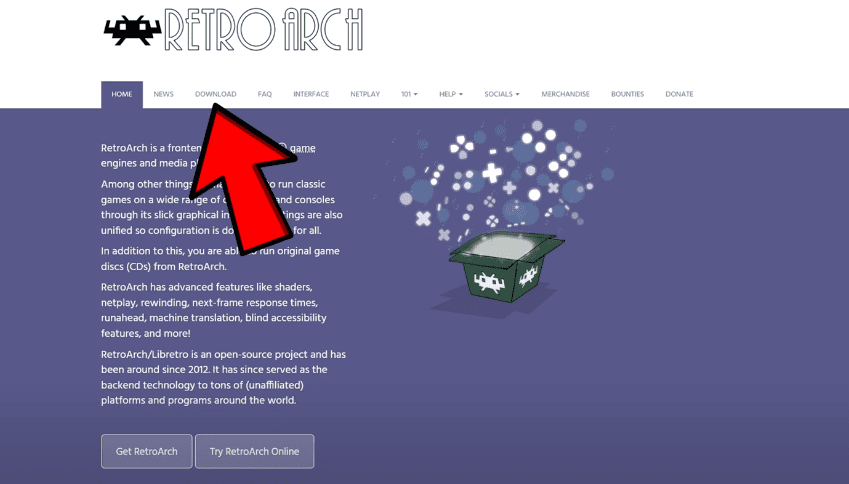
- Go to RetroArch’s official website.
- Click on “Download” and select the Nightly version (or the latest stable release).
- Run the Installer
- Once downloaded, open the setup file.
- If prompted by User Account Control (UAC), click “Yes” to allow the installation.
- Accept the license agreement and choose an installation location (SSD, external drive, or default location).
- Select Additional Components
- Ensure DirectX 9.0 is checked (required for proper functionality).
- Uncheck “Create Start Menu shortcuts” if you prefer a cleaner setup.
- Click “Install” and wait for the process to complete.
- Install DirectX (If Prompted)
- If a DirectX installer appears, accept the agreement.
- Uncheck “Install Bing Bar” (optional but recommended).
- Click “Next” and then “Finish”.
- Launch RetroArch
- After installation, locate the RetroArch executable (or shortcut if created).
- Open the application to proceed with core setup.
Step 2: Downloading the Genesis Plus GX Core
- Load Core
- In RetroArch, go to “Load Core” > “Download a Core”.
- Find the Genesis Plus GX Core
- Scroll down to the Sega section.
- Select “Genesis Plus GX” (avoid the “Wide” version, as it artificially stretches the display and may cause glitches).
- Wait for the Download
- The core will download and install automatically.
Step 3: Importing and Scanning ROMs
- Navigate to “Import Content”
- From the main menu, select “Import Content” > “Scan Directory”.
- If you don’t see this option, check under “Scan Directory” directly.
- Locate Your Genesis ROMs
- Browse to the folder where your Sega Genesis ROMs are stored (e.g.,
C:\Users\YourName\Desktop\ROMs\Genesis). - Click “Scan This Directory” to add them to RetroArch’s library.
- View Your Games
- Return to the main menu.
- Under “Mega Drive/Genesis”, you’ll now see your ROMs listed.
Step 4: Adding Cover Art (Optional but Recommended)
- Update Playlist Thumbnails
- Go to “Online Updater” > “Playlist Thumbnails Updater”.
- Select “Mega Drive/Genesis” and wait for the download to complete.
- View Your Games with Box Art
- Return to the game list—hovering over a title will now display its cover art.
Step 5: Configuring Controller and Display Settings
- Connect Your Controller
- RetroArch supports most controllers (Xbox, PlayStation, etc.).
- Plug in your controller (e.g., Xbox Series X controller), and RetroArch will detect it automatically.
- Adjust Display Overlays (Optional)
- Press F1 to open the Quick Menu.
- Navigate to “Onscreen Overlay” > “Overlay Preset” > “Borders”.
- Select an animated border (e.g., “Mega Drive Animated Border”) to enhance visuals.
- Launch a Game
- Select a game, choose “Run”, and confirm Genesis Plus GX as the core.
Frequently Asked Questions (FAQ)
Q: Is Genesis Plus GX the best core for Sega Genesis emulation?
A: Yes! It’s highly accurate and optimized for performance.
Q: Can I use a wireless controller?
A: Absolutely—RetroArch supports Bluetooth and USB controllers.
Q: Why avoid the “Wide” version of Genesis Plus GX?
A: The wide version stretches the game unnaturally, causing visual glitches. Stick with the standard core.
Q: Where can I legally obtain Sega Genesis ROMs?
A: You must own original copies of games to legally use ROMs. Check Sega’s official releases or licensed collections.
Final Thoughts
Setting up Genesis Plus GX in RetroArch is straightforward and enhances your Sega Genesis gaming experience with accurate emulation and customizable features. Whether you’re revisiting classics or discovering them for the first time, RetroArch provides a seamless way to enjoy these retro titles.
For more guides and emulation tips, stay tuned to our blog!
Tags
RetroArch, Sega Genesis, Genesis Plus GX, Emulation, Retro Gaming, ROMs, Classic Games
Hashtags
#RetroArch #SegaGenesis #RetroGaming #Emulation #GenesisPlusGX #ClassicGames
Disclaimer: This article is for educational purposes only. Ensure you own original copies of any games you emulate. We do not condone piracy.