Emulating PlayStation 3 games on your PC is easier than ever with RPCS3, a powerful open-source emulator. In this guide, we will walk you through every step of installing and setting up RPCS3 on a Windows PC, including firmware installation, graphics configuration, controller setup, and game patching for enhanced performance.

What is RPCS3?
RPCS3 is a free and open-source PlayStation 3 emulator and debugger that allows users to play PS3 games on Windows, Linux, and macOS platforms. It supports a wide range of games and features powerful configuration options for optimizing gameplay performance.
System Requirements
Before proceeding, ensure your PC meets the recommended requirements:
- 64-bit Windows 10/11
- A modern GPU with Vulkan or OpenGL support
- At least 4GB of RAM (8GB or more recommended)
- Latest graphics drivers installed
Step 1: Download Required Files
1.1 Download RPCS3 Emulator
Visit the official RPCS3 download page and choose the Windows version.
1.2 Download PS3 Firmware
You will need the official PS3 firmware to initialize the emulator:
- Go to Sony’s system software update page
- Scroll to the “How to reinstall PS3 system software” section
- Click Download PS3 Update
- If your browser blocks it, right-click the link → Save link as… → Save the file
1.3 Download 7-Zip
To extract files, download 7-Zip if you don’t have it installed.
Step 2: Extract the Emulator
- Right-click on the downloaded RPCS3 ZIP file.
- Choose Show more options > 7-Zip > Extract to rpcs3…
- A new folder will appear with all the extracted files.
- Delete the original ZIP file to clean up.
- Move the downloaded PS3 firmware file into the RPCS3 emulator folder (no extraction needed).
Step 3: Extract PS3 Game ROMs
PS3 games usually come in compressed formats. Here’s how to extract them:
- Right-click the game archive (e.g.,
Marvel_vs_Capcom_3.zip) - Select Show more options > 7-Zip > Extract here
- You’ll see folders such as
PS3_GAMEandPS3_DISC.SFB - Delete the original compressed file
Disclaimer: Downloading PS3 ROMs is only legal if you own the original game. This guide does not promote or link to any pirated content.
Step 4: Launch RPCS3 Emulator
- Open the
rpcs3.exefile. - Optional: Create a desktop/start menu shortcut and enable the Dark Theme.
- Uncheck “Show at startup” after setup and click “I have read the quick start guide” → Continue
Step 5: Install PS3 Firmware
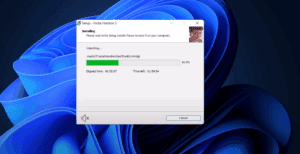
- Go to File > Install Firmware
- Select the
PS3UPDAT.PUPfile you moved into the emulator folder - Click Open — RPCS3 will install the firmware
Step 6: Graphics Configuration
Navigate to Config > GPU:
- Renderer: Keep it on Vulkan for modern GPUs. If you have an older GPU, try OpenGL.
- Graphics Device: Ensure your GPU (not CPU) is selected.
- Anisotropic Filter: Set to 16x for better visuals.
- Resolution Scale: Adjust to suit your monitor:
- 150% = 1080p
- 200% = 1440p
- 300% = 4K
- Enable SPU Loop Detection: Go to Config > CPU > Additional Settings and check the box for improved performance.
- Enable VSync: Prevent screen tearing by checking this box.
Click Apply > Save.
Step 7: Controller Setup
- Go to Pads
- Supported controllers include:
- Xbox One
- Xbox Series X/S
- PlayStation 5 DualSense
- Under Handlers, select the appropriate controller:
- DualSense for PS5
- XInput for Xbox
- RPCS3 will auto-map buttons for supported controllers
- To remap manually, click any button (e.g., Triangle), then press your desired key
- To set up Player 2–4, switch the player number and repeat
- Click Save when done
Step 8: Load and Play Games
- Go to File > Add Games
- Locate your game directory and select the folder with extracted PS3 games
- RPCS3 will index and add them to the library
- Enable Precompile Shaders to reduce game stuttering
Step 9: Apply Game Patches
- Go to Manage > Game Patches
- Click Yes to update patches
- Check Only show owned games
- Select available patches like:
- Infinite ammo
- Unlock FPS
- Disable motion blur
- Resolution fix
- Click Apply > Save
Step 10: Custom Game Configurations
- Right-click any game
- Select Create Custom Configuration
- Adjust CPU/GPU settings specific to that title
- Click Apply > Save Custom Configuration
Step 11: Install Game Updates
If you have game update files:




- Go to File > Install Packages
- Locate and select the update file(s)
Step 12: Interface Options
- Change to Grid View for icons
- Switch back to List View to see game compatibility info
- Resize icons as needed
How to Enter Full Screen
- Press
Alt + Enterwhile in-game to toggle fullscreen mode.
Final Thoughts
RPCS3 offers excellent PS3 game emulation with extensive customization. Once properly set up, you can enjoy smoother graphics, enhanced resolution, and even gameplay patches to improve your experience.
Tags:
RPCS3, PS3 emulator, PlayStation 3 games on PC, RPCS3 setup, how to play PS3 games on Windows, emulator configuration, 7-Zip, DualSense, Vulkan renderer, game patches RPCS3, full screen RPCS3, install firmware RPCS3
Hashtags:
#RPCS3 #PS3Emulator #PlayStation3 #GamingOnPC #PCGaming #EmulatorGuide #RPCS3Setup #OpenSourceEmulator #VulkanRenderer #PS3Games
If you need help finding legal ROMs or further assistance configuring settings for specific games, refer to the official RPCS3 documentation on rpcs3.net. Always make sure you legally own any games you emulate.








