Setting up a penetration testing environment on your personal computer is a great way to learn cybersecurity and ethical hacking. This article will walk you through a complete beginner-friendly setup of Kali Linux and Metasploitable 2 using VirtualBox. These tools help simulate real-world vulnerable machines in a safe environment, perfect for learning and testing your skills.
🔧 Prerequisites
- A computer with at least 8 GB RAM (16 GB preferred)
- A working internet connection
- Windows OS (used in this example)
- Google Chrome, Firefox, or any browser of your choice
Step 1: Download and Install VirtualBox
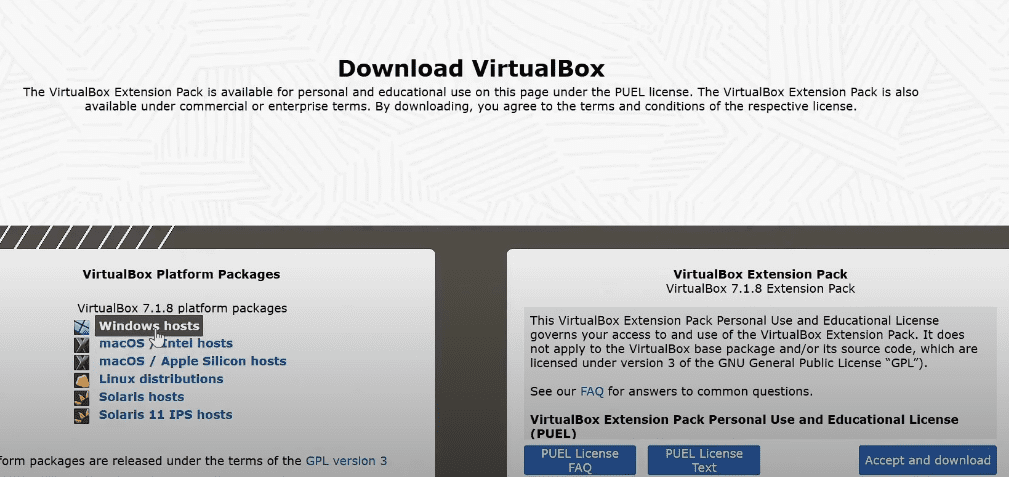
- Open your browser and search for “VirtualBox”.
- Visit the official site: https://www.virtualbox.org
- Navigate to the Downloads section.
- Click Windows hosts to download the installer.
- Run the installer, and during setup, click Next > Next > Yes > Install.
- Once done, click Finish and launch VirtualBox.
Step 2: Download Kali Linux (VirtualBox Image)
- Visit Kali Linux’s official page for VM images: https://www.kali.org/get-kali/#kali-virtual-machines
- Scroll to the VirtualBox section and download the image.
- Avoid the “Installer Images” unless you plan to dual-boot Kali with Windows.
- Save the
.ovafile somewhere easily accessible (like Downloads or C:\ drive).
Step 3: Install 7-Zip (Optional)
If the downloaded Kali file is compressed:
- Search for “7-Zip Download” or visit https://www.7-zip.org
- Download and install the appropriate version (32-bit or 64-bit).
- Right-click the compressed file and choose Extract to….
Step 4: Import Kali Linux Image into VirtualBox
- Open VirtualBox.
- Click File > Import Appliance.
- Browse to the extracted
.ovafile and click Next > Import. - After importing, select the Kali VM and click Settings.
Step 5: Basic VM Settings for Better Performance
🖥 RAM and Processor:
- Navigate to System > Motherboard, allocate at least 4 GB RAM (4096 MB) if you have 8 GB RAM.
- Go to Processor tab and allocate 2–4 cores (depending on your system).
🌐 Network:
- Go to Network > Adapter 1.
- Set the Attached to field as Bridged Adapter.
- This helps both your host (Windows) and guest (Kali) VMs use the same network for better communication.
Click OK to save settings.
Step 6: Start Kali Linux
- Select the Kali VM and click Start.
- On boot, press Enter to load Kali.
- Default login credentials:
- Username:
kali - Password:
kali
- Username:
🖱 If your mouse gets stuck inside the VM window, press Right Ctrl to release it.
Press Right Ctrl + F to toggle full screen.
Step 7: Customize Kali Appearance (Optional)
- Open a Terminal.
- Go to File > Preferences > Appearance and increase font size.
- Save settings, so all future terminals open with a readable font size.
Step 8: Update & Upgrade Kali Linux
In the terminal, run:
sudo apt update
Enter password (kali), then:
sudo apt upgrade
Type Y when prompted to install updates. This will take a few minutes depending on your internet speed and system specs.
Step 9: Download Metasploitable 2 VM
Metasploitable 2 is a vulnerable machine used for practice:
- Search for “Metasploitable 2 Download SourceForge” or visit:
https://sourceforge.net/projects/metasploitable/files/Metasploitable2/ - Download the VM image (preferably the
.zip). - Extract it using 7-Zip into a new folder (e.g.,
C:\Meta2).
Step 10: Import Metasploitable 2 into VirtualBox
- Open VirtualBox, click New.
- Name it:
Metasploitable2. - Set Type as
Linux, Version asOther Linux (64-bit)orLinux 2.6. - Allocate 1 GB RAM (1024 MB) minimum.
- Under Hard disk, choose Use an existing virtual hard disk file.
- Click the folder icon > Add, then browse to the
.vmdkfile inside your extracted Meta2 folder. - Select and click Create.
Step 11: Networking for Metasploitable 2
Just like Kali:
- Go to Settings > Network.
- Set to Bridged Adapter to make both VMs operate under the same network.
Step 12: Start Metasploitable 2
- Start the Metasploitable VM.
- Login credentials:
- Username:
msfadmin - Password:
msfadmin
- Username:
- To get the IP address, run:
ifconfig
You can now use this IP from Kali Linux to begin practicing penetration testing.
⚠️ Disclaimer
This setup is intended strictly for educational and ethical purposes. Do not attempt to use these tools or techniques on any network or system without proper authorization. Unauthorized access to computer systems is illegal and punishable under cyber laws.







✅ Conclusion
You have now successfully set up Kali Linux and Metasploitable 2 in VirtualBox. This lab environment allows you to explore real-world security vulnerabilities in a completely safe manner. Be sure to always stay on the ethical side of cybersecurity and use your knowledge for good.
🔗 Useful Links
Tags:
VirtualBox, Kali Linux, Metasploitable 2, Ethical Hacking, Penetration Testing, Cybersecurity Lab, Windows, Virtual Machine Setup
Hashtags:
#KaliLinux #VirtualBox #EthicalHacking #CyberSecurity #Metasploitable #VMSetup #PenetrationTesting #CTFLab #LinuxTools #InfoSec
Let me know if you’d like a downloadable PDF version of this blog post or want to add screenshots and images to create a visually rich article.








