If you’re running paid campaigns on Facebook, you know how essential Facebook Pixel tracking is for conversion measurement, retargeting, and optimization. But with increasing privacy restrictions, browser-level tracking protections, and ad blockers, client-side Facebook Pixel tracking is no longer enough.
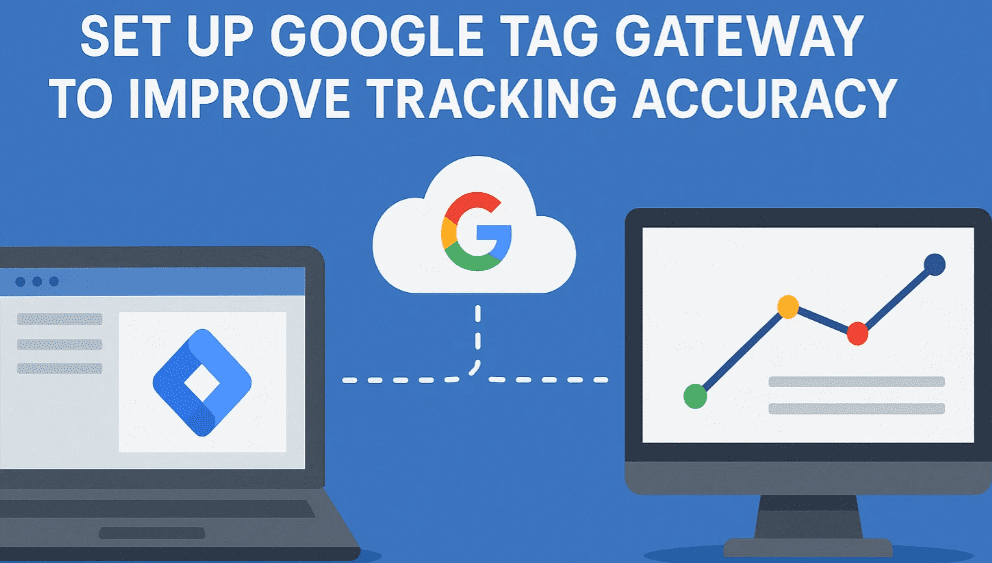
The solution? Full Server-Side Tagging (SST) using Google Tag Manager Server Container (GTM-S) and Google Cloud Platform (GCP). This guide will walk you through the step-by-step process of setting up Facebook Pixel via server-side tagging using your custom subdomain and GTM infrastructure.
🔧 Prerequisites
Before we begin, you’ll need:
- A Google Tag Manager account (Web and Server containers)
- A Facebook Business Manager account with Pixel access
- A Google Cloud Platform (GCP) account
- A custom subdomain (e.g.,
tag.yourdomain.com) - Basic knowledge of GTM and DNS configuration
✅ Step-by-Step Guide to Facebook Pixel Server-Side Setup
Step 1: Create a Server Container in GTM
- Go to Google Tag Manager
- Click “Create Account” if you haven’t already.
- Choose Server as container type (not Web).
- Name your server container (e.g., “FB-SST-Container”)
- Click Create, then click Start Deployment
Step 2: Deploy the Server Container on Google Cloud
- On the deployment screen, choose “Manually provision tagging server”
- Open Google Cloud Console
- Create a new project or select an existing one
- Enable the App Engine Admin API, Cloud Build API, and Cloud Run API
- In GTM, download the Docker image and follow the instructions to deploy using Cloud Run
Use this command (modify with your details):
gcloud run deploy gtm-server \
  --image=gcr.io/automated-tagging/server \
  --platform=managed \
  --region=us-central1 \
  --allow-unauthenticated
- Once deployed, note your Cloud Run URL
Step 3: Map Your Subdomain to the Cloud Run URL
To improve first-party data reliability:
- Go to your DNS provider (e.g., Cloudflare, GoDaddy)
- Create a CNAME record for
tag.yourdomain.compointing to your Cloud Run URL (e.g.,gtm-server-abc123.a.run.app) - Add an A record and TXT record if necessary
- Set up SSL via Cloudflare or Google-managed SSL
Step 4: Configure the Server Container
- Open your Server GTM container
- Add a new custom HTTP endpoint
- Install Facebook Conversion API (CAPI) via a custom template
- Find this community template here
- Import the tag template into your Server Container
- Create a new Facebook CAPI tag
- Add your Facebook Pixel ID
- Add access token (from Facebook Events Manager → Settings)
- Map the incoming event data (name, email, IP, event type, etc.)
Step 5: Modify the Web GTM Container
- Go to your Web GTM container
- Replace the traditional Facebook Pixel tag with a custom event tag that sends data to your server endpoint (e.g.,
https://tag.yourdomain.com/collect) - Use fetch/XHR or HTTP Request Tag to push events like:
PageViewAddToCartPurchase
Make sure your payload matches what your server expects.
Step 6: Enable User Data Forwarding
Facebook Conversion API works best when enriched with user data:
- Add parameters such as:
client_user_agentuser_ip_addressem(email),ph(phone),fn(first name),ln(last name)
You can hash PII using SHA-256 on the client before sending or let the server container do it securely.
Step 7: Verify the Setup
- Go to Facebook Events Manager
- Select your Pixel → Settings → Test Events
- Trigger events on your site
- You should see real-time data flowing through Server and Web channels
- Enable event deduplication by passing
event_idin both client and server events
🛡️ Bonus: Privacy, GDPR & Event Deduplication
Privacy Compliance Tips:
- Always show a cookie consent banner
- Only send Facebook events after explicit consent
- Store logs securely and avoid saving raw PII
Deduplication Tip:
- Use a consistent
event_idacross both client and server events to prevent double-counting
⚡ Performance & Cost Optimization
- Use Cloud Run autoscaling to control costs
- Set request limits and only trigger server requests on high-value events
- Optionally, host the tagging server on Vercel, AWS Lambda, or your own VM
🧠 Final Thoughts
Setting up server-side Facebook Pixel using GTM and GCP is an advanced but powerful method for overcoming modern tracking restrictions. You’ll gain better data accuracy, improved privacy compliance, and deeper insight into user behavior.
If you’re serious about performance marketing and want to future-proof your analytics stack, full server-side tagging is the way forward.
Disclaimer
This tutorial is intended for educational purposes only. Always consult your legal team to ensure full compliance with local data protection laws (e.g., GDPR, CCPA). Misuse of tracking without user consent can result in penalties.










Tags:
facebook pixel server-side, gtm server container, google cloud setup, facebook conversion api, server-side tagging, tag manager, google cloud run, data privacy, event deduplication, facebook capi
Hashtags:
#FacebookPixel #ServerSideTagging #GTM #GoogleCloud #ConversionAPI #CAPI #WebAnalytics #AdTracking #DataPrivacy #DigitalMarketing








