Emulating PlayStation 3 games on an Android device has become increasingly viable thanks to RPCSX, a mobile port of the popular RPCS3 emulator. Though still in early development, RPCSX lets you experience PS3 titles on the go. This detailed guide walks you through the installation, configuration, and performance optimization of RPCSX on Android.
What is RPCSX?
RPCSX is the Android version of RPCS3, a widely recognized PS3 emulator for desktop platforms. While the Android port is still in its early stages, it allows users to run PS3 games with surprisingly good performance on high-end Android devices.
🔗 Visit the official GitHub page for RPCSX.
Device and Controller Used
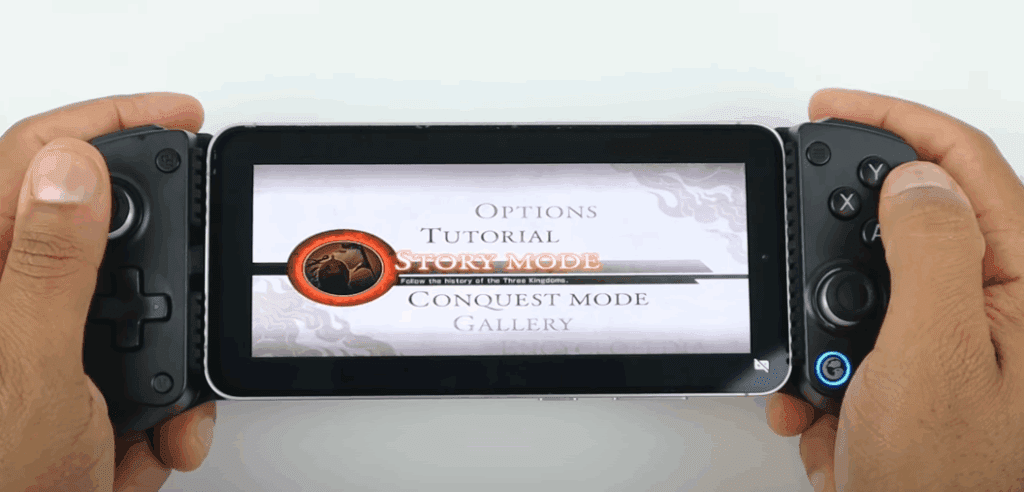
For reference, the device used in this setup is the Samsung Galaxy S24 FE, powered by the Exynos 2400 chipset with 8GB of RAM. The controller used is the Gamester X5 Lite, though you can use any Bluetooth-compatible controller or rely on on-screen controls if preferred.
Step-by-Step Installation Guide
1. Download RPCSX APK
- Visit the RPCSX GitHub releases page.
- Scroll down to the latest version and download the APK file listed under Assets.
- If prompted with a warning like “This file may be harmful”, proceed by selecting Download anyway.
2. Install the APK
- Open your My Files or File Manager.
- Navigate to your Downloads folder.
- Tap on the RPCSX APK file and choose Install.
- Once installed, open the app and allow notification access when prompted.
Setting Up the Emulator
3. Add PS3 Firmware
You’ll need the official PS3 firmware (BIOS) to get started.
- Visit the official PlayStation firmware download page.
- Download the latest firmware (currently 4.92).
- On RPCSX:
- Tap the three lines menu (top left) and go to Firmware.
- Locate your firmware file (saved earlier) using your file manager.
- Tap on the file and then Done to load it into the emulator.
4. Add PS3 Games (ROMs)
⚠️ Disclaimer: This guide does not support piracy. Only use PS3 games you legally own. We cannot link to ROM sources.
- Place your PS3 ROMs in a dedicated folder (e.g.,
PS3 ROMs) on your phone. - Ensure ROMs are extracted using a tool like 7-Zip if downloaded in compressed formats (.zip, .rar, .7z).
- On RPCSX:
- Tap the + icon on the bottom right.
- Tap the folder icon and locate your ROM folder.
- Tap Use this folder and Allow access.
- Wait a few seconds for the games to load.
Emulator Configuration Tips
5. Video Settings
- Tap on the three lines and go to Settings > Advanced Settings > Video.
- Set Renderer to Vulkan for better performance.
- Adjust Resolution based on your device’s capability. If games lag or stutter, lower the resolution.
- Enable VSync to prevent screen tearing.
- Enable Stretch to Display Area to fill the screen.
6. Core Settings (PPU Threads)
- Navigate to Settings > Core.
- Set PPU Threads based on your CPU cores. A safe rule is half your total cores.
- Example: If you have a 10-core CPU, set this to 4 or 5.
Controller Setup
- Connect your controller via Bluetooth (e.g., Gamester X5 Lite).
- Once connected, RPCSX will request permission to access the controller. Tap OK.
- The emulator automatically maps your controller, so no manual configuration is required.
- To hide on-screen touch buttons, tap the controller icon on the bottom right.
Final Notes
RPCSX is still in development, so don’t expect every game to run flawlessly. However, for many titles, performance is quite good on powerful devices with the right configuration.
🛠️ Expect future updates and performance improvements as the developers continue refining the emulator.
Tags
ps3 emulator for android, rpcsx setup, how to play ps3 games on android, rpcsx guide, android gaming emulator, rpcsx vs rpcs3, best ps3 android emulator, playstation 3 firmware setup
Hashtags
#RPCSX #PS3Emulator #AndroidGaming #EmulatorGuide #RPCS3 #MobileGaming #Exynos2400 #GamesterX5 #AndroidEmulator #PS3ROMs
Disclaimer
This article is intended for educational purposes only. Downloading copyrighted game files without ownership is illegal in many countries. Please ensure you are using your own legally acquired game backups when using any emulator.