Have you ever thought your data is safe just because your Windows PC or laptop is locked with a password?
Well, think again.
A Windows login password does not prevent someone from deleting your data if they have physical access to your system. All it takes is a bootable USB drive with Windows setup files, and they can completely wipe your PC—even without knowing your password.
In this blog post, we’ll walk through how attackers can exploit this vulnerability, and more importantly, how to fully secure your PC or laptop by using BIOS settings to disable USB boot and enable a BIOS admin password.
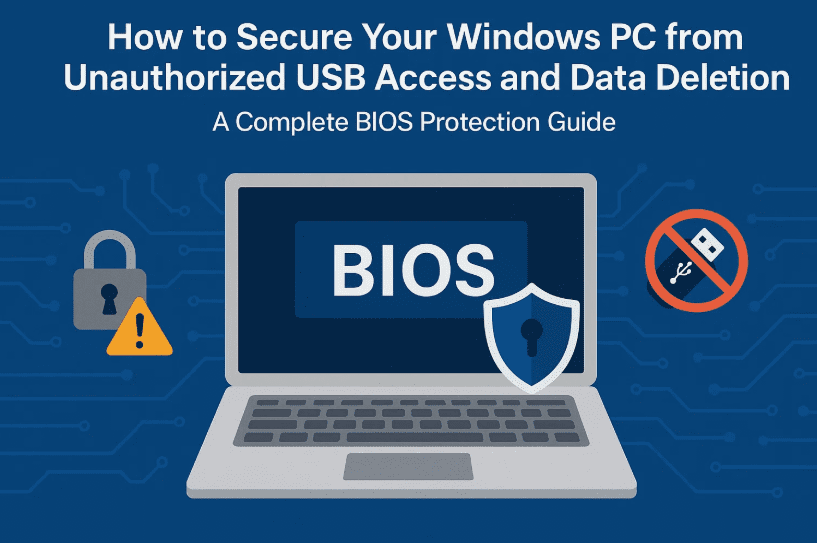
Let’s begin step-by-step with a real-world example and then move on to securing your system permanently.
🧨 The Problem: Anyone Can Wipe Your Data Without Your Password
Let’s imagine this scenario:
- Your laptop is locked with a Windows password.
- An attacker plugs in a bootable USB with Windows 10 or 11.
- They restart your PC, enter the boot menu, and select the USB drive.
- Once booted, they access the Windows installation screen, and from there, the “Delete Partition” option.
- With a few clicks, your entire C drive and personal data are gone, and your system is no longer bootable.
Yes, all this can happen without logging in or cracking your password.
So how do we prevent it?
Let’s move to the next step.
🔒 The Solution: BIOS Protection and USB Boot Control
To secure your device from this kind of attack, you have two powerful options:
- Disable USB boot from BIOS
- Set a BIOS Administrator Password
You can use either of these, or for best protection, use both together.







⚙️ Step-by-Step: How to Disable USB Boot from BIOS
First, let’s make sure no one can boot into another OS using a USB stick.
1. Restart Your Computer and Access BIOS
- From the login screen or desktop, restart your PC.
- While the system is restarting, press your BIOS key.
Common keys include:- HP:
F10 - Dell:
F2 - Lenovo:
F1orF12 - Asus:
F2orDEL
- HP:
A small message like “Press F10 for BIOS Setup” usually appears for a few seconds on the screen.
2. Find the USB Boot Option
- Once inside the BIOS interface, look for:
- System Configuration
- Or Boot Options (depends on the brand)
- Locate “USB Boot” or “Boot from USB devices”.
- If it says Enabled, select it and press Enter.
- Choose Disabled and press Enter again.
This disables booting from USB devices.
🛡️ Step-by-Step: How to Set BIOS Admin Password
This is the most powerful layer of protection. Once enabled, no one can make changes to BIOS or boot from another device without entering the correct password.
1. In BIOS, Go to the Security Tab
- Navigate to the “Security” section.
- Look for Administrator Password, BIOS Admin Password, or Setup Password.
2. Set a New BIOS Password
- Select the Administrator Password option.
- Enter a strong password when prompted.
- Confirm it and save.
⚠️ Important Warning:
If you forget the BIOS password, you may not be able to access your system again without professional help. So:
- Write it down on paper.
- Store it safely.
- Never share it unless absolutely necessary.
✅ Final Save & Exit
Once you’ve:
- Disabled USB boot
- Set the BIOS admin password
…navigate to the “Exit” or “Save & Exit” tab.
- Choose Save Changes and Exit or press the relevant key shown on-screen.
- Your computer will restart.
Now, the next time someone tries to:
- Access BIOS settings
- Boot from a USB drive
They’ll be prompted for a BIOS password. If they can’t provide it, they can’t delete your data.
Mission accomplished. Your PC is now much more secure.
❓ Frequently Asked Questions (FAQs)
Q1. Will BIOS protection prevent my data from being stolen if the laptop is lost or stolen?
It greatly reduces the risk, but physical theft still allows someone to remove the hard drive. Consider using BitLocker encryption for full data protection.
Q2. Can I re-enable USB boot later?
Yes, simply re-enter the BIOS with your password, and change the USB Boot option back to Enabled.
Q3. Is BIOS password foolproof?
For casual threats—yes. For advanced attackers, they may try to reset CMOS, but this requires hardware-level tampering.
Q4. Does this affect using USB for normal file transfer?
No. This only blocks booting from USB devices, not using USB drives within Windows.
🛑 Disclaimer
This guide is for educational purposes only. BIOS settings are sensitive and may vary across different PC brands and models. Setting a BIOS password improperly can lock you out of your system permanently. Follow instructions carefully and back up important data.
🏷️ Tags & Hashtags
Tags:
Windows security, BIOS password protection, disable USB boot, secure your PC, prevent USB boot access, laptop data protection, Windows boot security
Hashtags:
#PCSecurity #BIOSProtection #USBBootDisable #WindowsTips #LaptopSecurity #DataProtection #SecureBoot
🧠 Final Thoughts
So, the next time you lock your PC and walk away, remember—a password isn’t enough to protect your files from deletion. But with just a few BIOS settings, you can add a serious security layer to your Windows machine.
Stay secure, stay smart. If this guide helped you protect your PC or laptop, consider sharing it with friends or colleagues—they’ll thank you for it!
And don’t forget to explore more security tips in future posts. Until next time, take care and stay protected.








