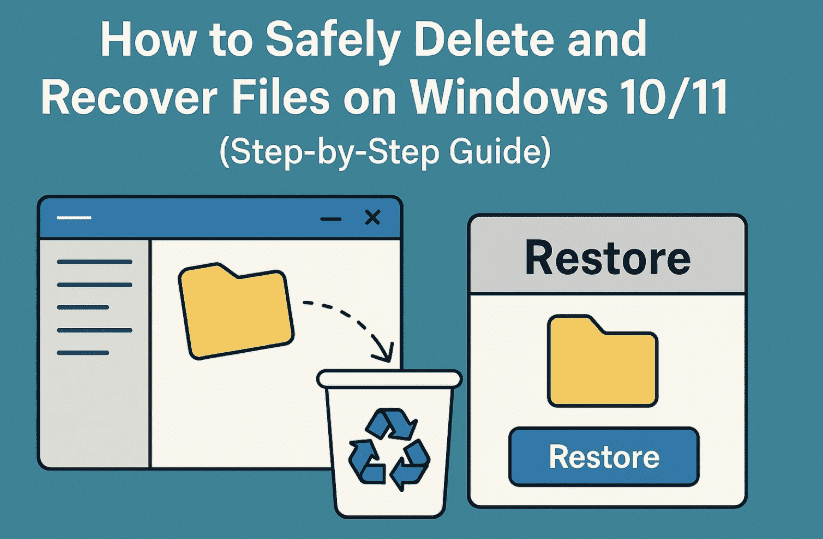
Managing your digital files properly is an essential skill—whether you’re cleaning up clutter or recovering accidentally deleted documents. In this guide, we’ll walk you through the entire process of deleting files, recovering them from the Recycle Bin, and even using third-party tools when files are permanently deleted.
Let’s get into the details!
🗑️ Part 1: How to Safely Delete Files on Windows
✅ Step 1: Delete a File via File Explorer
- Open File Explorer (Press
Windows + E). - Navigate to the location of the file you want to delete (e.g., Documents).
- Right-click on the file (e.g., a ZIP or Word document).
- Click Delete.
A confirmation prompt usually appears: “Are you sure you want to move this file to the Recycle Bin?” If you don’t see this confirmation…
✅ Step 2: Enable Delete Confirmation Prompt
- Right-click on the Recycle Bin icon on your desktop.
- Click Properties.
- Check the box that says “Display delete confirmation dialog.”
- Click Apply > OK.
This ensures that Windows asks before permanently deleting any file.
🔄 Part 2: How to Recover Deleted Files
🧩 Method 1: Restore from Recycle Bin
- Double-click the Recycle Bin icon on your desktop.
- Find the file you just deleted.
- Right-click on the file and click Restore.
- The file will return to its original location (e.g., Documents folder).
📌 Note:
Deleted files are not removed from your PC immediately. They go to the Recycle Bin unless deleted permanently or emptied.
☁️ Part 3: Recover Files Deleted from OneDrive
If the file was in a OneDrive-synced folder, then:
- It goes to both your local Recycle Bin and OneDrive’s cloud Recycle Bin.
- Even if it’s removed locally, you can restore it from OneDrive Online Recycle Bin.
So even if you’re using another device, you can still access and restore deleted files from the cloud.
🧹 Part 4: What If You Emptied the Recycle Bin?
When the Recycle Bin is emptied, the files are no longer accessible via regular Windows tools. But there’s still hope!
🛠️ Part 5: Recover Permanently Deleted Files Using Third-Party Software
One powerful tool is Recuva by CCleaner. It helps restore files deleted from Recycle Bin or formatted drives.
✅ Steps to Use Recuva:
- Download Recuva:
👉 Download from official site - Install and Launch Recuva
- Double-click to launch it.
- Click “Yes” if prompted for permission.
- Select File Type
- Choose the type of file (e.g., documents, pictures, etc.).
- Click Next.
- Choose Location
- Select “In the Recycle Bin” if that’s where it was deleted from.
- Click Next.
- Start Scan
- Click Start to scan for recoverable files.
- Review and Recover Files
- Once scanning is complete, you’ll see a list of files.
- Select the files you want to recover.
- Click “Recover”.
- Choose the location to restore them to (e.g., Documents).
- Done!
- Recuva will notify you when the recovery process is complete.
🧪 Free version has some limitations, but it’s perfect for basic recovery needs.
❓ Frequently Asked Questions (FAQ)
Q1: Can I recover a file after I emptied the Recycle Bin?
Yes, but you need to use a recovery tool like Recuva. Just make sure you haven’t overwritten the data by creating new files on the same drive.





Q2: Does deleting a file from OneDrive remove it forever?
No. It’s first moved to the OneDrive Recycle Bin, which can be accessed online. You can restore it within 30 days (or less depending on storage policy).
Q3: Is Recuva safe to use?
Yes. It’s a trusted tool developed by Piriform (the creators of CCleaner). Always download from the official website to avoid fake versions.
Q4: Can I recover files from a USB drive or SD card?
Yes. Recuva supports scanning removable devices. Just plug them in and select the correct drive during the scan setup.
📌 Final Tips
- Always double-check before emptying your Recycle Bin.
- Use OneDrive or Google Drive for file versioning and cloud backup.
- For very important files, consider creating backups or using version control.
- Don’t install recovery software on the same drive where the files were deleted—it could overwrite the data.
🏷️ Tags
delete files, recover deleted files, recycle bin, file recovery, Windows 10, Windows 11, Recuva, restore files, file explorer, document recovery, OneDrive cloud
🔖 Hashtags
#FileRecovery #WindowsTips #RecycleBin #OneDrive #Recuva #TechGuide #Windows11 #DeleteFiles #RecoverData #HowToRecoverFiles
Disclaimer: This guide includes third-party software (Recuva) for educational purposes. Always download such software from official sources. The recovery success rate may vary depending on whether the data has been overwritten.
If you’ve ever lost an important file, you know how stressful it can be. Thankfully, with the right steps and tools, recovery is often possible—even after the Recycle Bin is emptied. Practice safe file deletion habits and use recovery tools smartly to stay protected.








