Imagine an operating system that offers complete online freedom—no ads, no surveillance, no censorship, and no tracking from government agencies. Now imagine this level of privacy being absolutely free, running entirely from a USB drive, and usable on almost any computer. Sounds too good to be true? Meet Tails OS.
Tails (The Amnesic Incognito Live System) is a portable operating system that protects your privacy and anonymity. It helps you stay invisible online by routing your traffic through the Tor network, making it nearly impossible for anyone to track your activity.
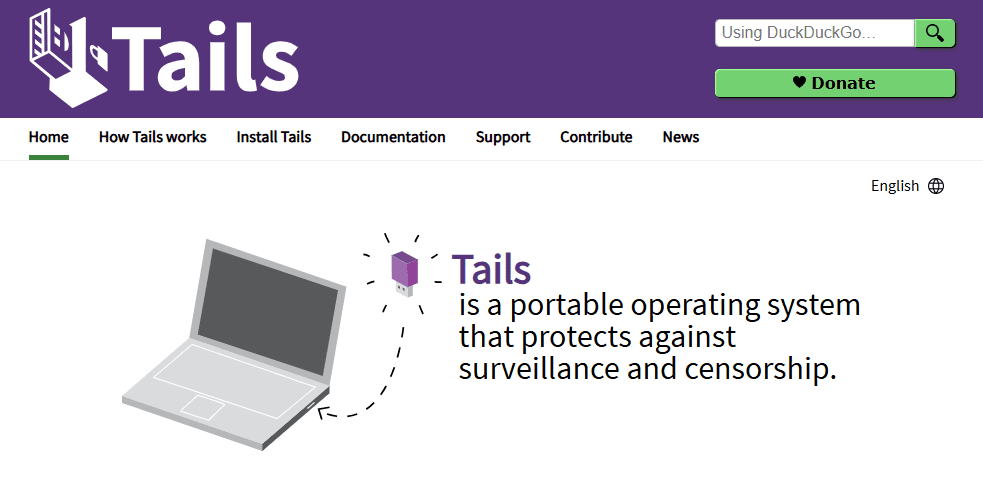
In this article, we’ll walk you through the complete process of downloading, installing, and running Tails OS from a USB drive.
What is Tails OS?
Tails is a Debian-based live operating system. It’s designed to preserve your privacy and anonymity and helps you:
- Use the internet anonymously and circumvent censorship.
- Leave no trace on the computer you’re using.
- Use cryptographic tools to encrypt your files, emails, and instant messaging.
Whether you’re an activist, journalist, ethical hacker, or someone who values online privacy, Tails is a great tool to have in your cybersecurity toolkit.
Who Should Use Tails OS?
Tails is useful for:
- Activists: To communicate securely and hide identity.
- Journalists: To protect sources and sensitive information.
- Whistleblowers: Like Edward Snowden, who famously used Tails.
- Everyday users: Wanting anonymity and freedom online.
- Ethical hackers: For secure and private testing environments.
What You’ll Need
Before you begin, make sure you have the following:
- A USB drive (minimum 8GB, recommended 16GB or more)
- A PC or laptop with a 64-bit processor
- Internet access
- Around 1 hour of your time (the actual process is faster)
Step-by-Step Guide to Installing and Running Tails OS
Step 1: Download Tails OS
- Open your preferred browser (e.g., Firefox or Chrome).
- Go to the official Tails OS website: https://tails.net
- Scroll down and click on “Install Tails”.
- Download the Tails ISO image for your system.
Step 2: Download Balena Etcher
Tails recommends using Balena Etcher to flash the OS to your USB drive.
- Visit https://www.balena.io/etcher
- Download and install the application.
- Open Etcher after installation.
Step 3: Create a Bootable USB Drive
- Launch Balena Etcher.
- Click “Flash from file” and select the downloaded Tails ISO image.
- Plug in your USB drive and click “Select target” to choose it.
- Click “Flash” to start the process.
- Wait for the flashing and validation to complete (usually takes 5–10 minutes).
Important: Do not skip the validation step—it ensures your USB image isn’t corrupted.
Step 4: Boot from Tails OS
Once flashing is complete:
- Restart your computer.
- Enter BIOS/boot menu by pressing the boot key (usually F12, F10, or ESC depending on the device).
- Select your USB drive as the boot device.
- Tails will launch directly from the USB.
Note: Tails doesn’t install anything on your PC. It runs completely from the USB drive and leaves no trace after shutdown.









Step 5: Configure and Use Tails OS Securely
- When Tails boots, it will show a Welcome Screen.
- Click on Start Tails.
- Wait a few moments as the desktop environment loads.
- You can now access the internet via the Tor Browser.
- You can also explore tools like:
- KeePassXC (password manager)
- OnionShare (share files over Tor)
- GnuPG (encryption)
- Electrum (Bitcoin wallet)
Always follow proper practices:
- Don’t save any personal information.
- Avoid logging into personal accounts.
- Use Tails only for secure, anonymous tasks.
Tips for Enhanced Security
- Maintain multiple USBs with different OS environments (e.g., one with Tails, one with Kali Linux).
- Use a VPN along with Tor for double-layered security.
- Keep your Tails USB updated regularly.
Final Words
Tails OS is a powerful privacy-focused tool designed for users who want to take control of their online security. Whether you’re concerned about censorship, tracking, or just want to browse freely, Tails is a game-changer. Follow the steps in this article, and you’ll have a portable, secure operating system right in your pocket.
Tags: Tails OS, anonymous browsing, secure operating system, install Tails, privacy tools, Tor browser, bootable USB, cyber security, online anonymity, whistleblower tools
Hashtags: #TailsOS #PrivacyMatters #CyberSecurity #AnonymousBrowsing #TorNetwork #EthicalHacking #LinuxTools #BootableUSB #WhistleblowerSupport #DarkWebSafe








