Running Linux on your Windows PC has never been easier, thanks to WSL (Windows Subsystem for Linux). If you’re a developer, power user, or tech enthusiast who wants to explore Linux without setting up a virtual machine or dual-boot environment, WSL is the perfect solution. This article walks you through the entire process—from installation to running graphical Linux apps inside Windows.
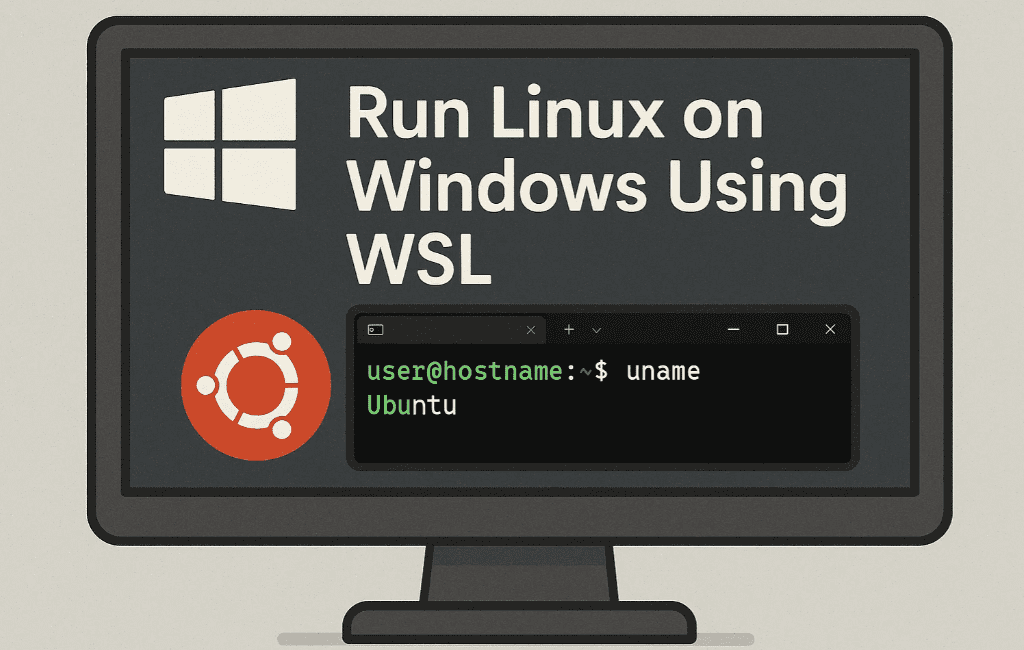
💡 What is WSL?
WSL (Windows Subsystem for Linux) is a compatibility layer developed by Microsoft that allows you to run Linux binaries natively on a Windows machine. You can execute Linux commands, run shell scripts, use package managers, and even launch graphical Linux applications like file managers or mail clients directly within Windows.
With WSL, you don’t need to worry about setting up dual-boot or using resource-heavy virtual machines. Everything runs seamlessly alongside your Windows environment.
🛠️ How to Install WSL on Windows
Installing WSL is simple and requires just a few commands. Here’s how to do it:
Step 1: Open PowerShell as Administrator
- Press
Windows + S, search for PowerShell, right-click it, and select Run as administrator.
Step 2: Install WSL
In the terminal, type the following command:
wsl --install
This will:
- Enable the required Windows features
- Download and install Ubuntu as the default Linux distribution
- Set up WSL automatically
If Ubuntu is already installed, this step will be skipped.
👤 Set Up User Account for WSL
When you run Ubuntu (or any Linux distro) for the first time inside WSL, you’ll be prompted to:
- Enter a username
- Choose a password
This login is specific to the Linux environment and is separate from your Windows credentials.
💻 Run Basic Linux Commands
Once logged in, you can run basic Linux commands:
ls     # List files
pwd    # Show current directory
apt update   # Fetch latest package info
Since Ubuntu uses the APT package manager, you can update or install apps easily:









sudo apt update
sudo apt install <package_name>
📦 Installing GUI Apps in WSL
Yes, graphical applications are supported in WSL. For example, to install the Nautilus file manager:
sudo apt install nautilus
Once installed, simply type:
nautilus
This launches the GUI file manager within Windows using the built-in WSLg (Windows Subsystem for Linux GUI) support.
📥 Installing Other Linux Distributions
WSL supports multiple Linux distributions like:
- Ubuntu
- Debian
- Kali Linux (for cybersecurity)
- Arch Linux
- openSUSE
- Fedora
To view all available distributions:
wsl --list --online
To install a specific one, use:
wsl --install -d <DistributionName>
For example:
wsl --install -d Arch
📋 Check Installed Distros
To list installed distros on your system:
wsl --list
To switch between distributions, just type the distro name in your terminal:
wsl -d Ubuntu
📤 Exit WSL
To return to the Windows command line (PowerShell or CMD), simply type:
exit
🧪 Running Other Graphical Apps
If one app doesn’t run (e.g., Nautilus), try installing alternatives. For example, Evolution (an email client) can be installed and launched:
sudo apt install evolution
evolution
✅ Summary
WSL is an excellent solution for users who want to:
- Run Linux and Windows side by side
- Avoid virtual machines
- Explore Linux commands and GUI apps
- Work with multiple Linux distributions
- Stay in a developer-friendly, lightweight environment
Whether you’re learning Linux or using it for development, WSL provides a fast, simple, and powerful way to do it all from your Windows PC.
🔗 Useful Links
- 🔗 Official Microsoft WSL Documentation (opens in new tab)
📌 Tags
WSL, Windows Subsystem for Linux, Ubuntu on Windows, Run Linux on Windows, WSL Ubuntu installation, Graphical Linux apps in WSL, Arch Linux WSL, Install Kali Linux on Windows
🔖 Hashtags
#WSL #LinuxOnWindows #WindowsSubsystemForLinux #Ubuntu #ArchLinux #KaliLinux #LinuxCommands #DeveloperTools #Windows10 #Windows11
⚠️ Disclaimer
This article is for educational purposes only. While WSL is an official feature provided by Microsoft, installation and modification of system-level components should always be done with care. Backup your important data before making significant system changes.







