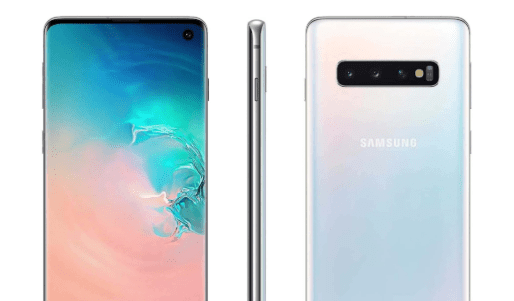
Rooting your Samsung device unlocks its full potential, allowing you to install custom ROMs, remove bloatware, and gain superuser access. If you own a Galaxy S series, A series, M series, or even a Fold model, this guide will walk you through two proven methods to root your device safely.
⚠ Disclaimer:
- Rooting voids warranty and can brick your device if done incorrectly.
- It erases all data, so back up important files before proceeding.
- Proceed at your own risk—this guide is for educational purposes only.
Prerequisites
Before starting, ensure:
✔ Bootloader is unlocked (How to Unlock Bootloader)
✔ Developer Options & USB Debugging enabled
✔ Samsung USB Drivers installed on PC (Download Here)
✔ Odin Tool (Download Here)
✔ Magisk (Download Here)
✔ TWRP Recovery (for Method 2) (Official Site)
Method 1: Rooting via Stock Firmware & Magisk
Step 1: Download the Correct Firmware
- Go to Settings > About Phone > Software Information and note the Build Number.
- Visit SAMFW.com → Enter your model number & region.
- Download the exact firmware matching your build number.
Step 2: Extract & Patch the AP File
- Extract the downloaded firmware (use WinRAR or 7-Zip).
- Locate the AP file (e.g.,
AP_[Model_Number].tar.md5). - Transfer the AP file to your phone’s internal storage.
Step 3: Patch the AP File with Magisk
- Open Magisk App → Tap Install > Select and Patch a File.
- Choose the AP file you copied earlier.
- Wait for Magisk to generate a patched file (
magisk_patched.tar). - Move the patched file back to your PC.
Step 4: Flash Patched Firmware via Odin
- Open Odin on your PC.
- Load the files:
- BL →
BL_[Model].tar.md5 - AP →
magisk_patched.tar(the patched file) - CP →
CP_[Model].tar.md5 - CSC →
HOME_CSC_[Model].tar.md5(to keep data)
- Boot your phone into Download Mode:
- Power off → Hold Vol Up + Vol Down + Power.
- Press Vol Up to confirm.
- Connect to PC → Click Start in Odin.
- Wait for PASS! message → Device will reboot.
Step 5: Verify Root Access
- Install Magisk App if not pre-installed.
- Open Magisk → Check if root is active.
- Use Root Checker App (Play Store Link) to confirm.
Method 2: Rooting via TWRP Recovery
Step 1: Install TWRP Recovery
- Download TWRP for your model (Official Site).
- Flash via Odin:
- Open Odin → Load TWRP.tar in AP slot.
- Boot into Download Mode → Flash.
- Boot into Recovery Mode (Hold Vol Up + Power).
Step 2: Flash Magisk via TWRP
- Download Magisk ZIP (Latest Version).
- Transfer it to an SD Card/USB OTG (if internal storage is encrypted).
- In TWRP:
- Tap Install → Select Magisk.zip.
- Swipe to confirm.
- Reboot → Complete setup.
Step 3: Finalize Root Setup
- Open Magisk App → Let it update if needed.
- Reboot once more.
- Verify root with Root Checker.
FAQs
Q: Will rooting delete my data?
A: Yes, unless you use HOME_CSC in Odin (data may still be wiped).
Q: Can I unroot later?
A: Yes → Flash stock firmware via Odin or use Magisk Uninstaller.
Q: Does rooting work on Android 14/One UI 6.1?
A: Yes, both methods work on the latest Samsung firmware.
Q: What if Odin gets stuck?
A:
- Reboot PC & phone.
- Use a different USB port/cable.
- Ensure Samsung Drivers are installed.
Q: Is Knox tripped after rooting?
A: Yes, Samsung Knox will be permanently voided.
Final Thoughts
Rooting your Samsung device in 2025 is straightforward if you follow these steps carefully.
- Method 1 (Magisk + Stock Firmware) → Best for beginners.
- Method 2 (TWRP + Magisk) → Ideal for custom ROM users.
🔹 Pro Tip: Always backup your data before proceeding!
Tags:
Samsung root, Magisk, TWRP, Android rooting, Samsung Galaxy, One UI 6.1, Odin tool







Hashtags:
#AndroidRoot #SamsungRoot #Magisk #TWRP #TechGuide #AndroidHacks
Disclaimer: This guide is for educational purposes. We are not responsible for any damage to your device. Root at your own risk.
Now that you’re rooted, explore custom ROMs, ad-blocking, and performance tweaks! 🚀








