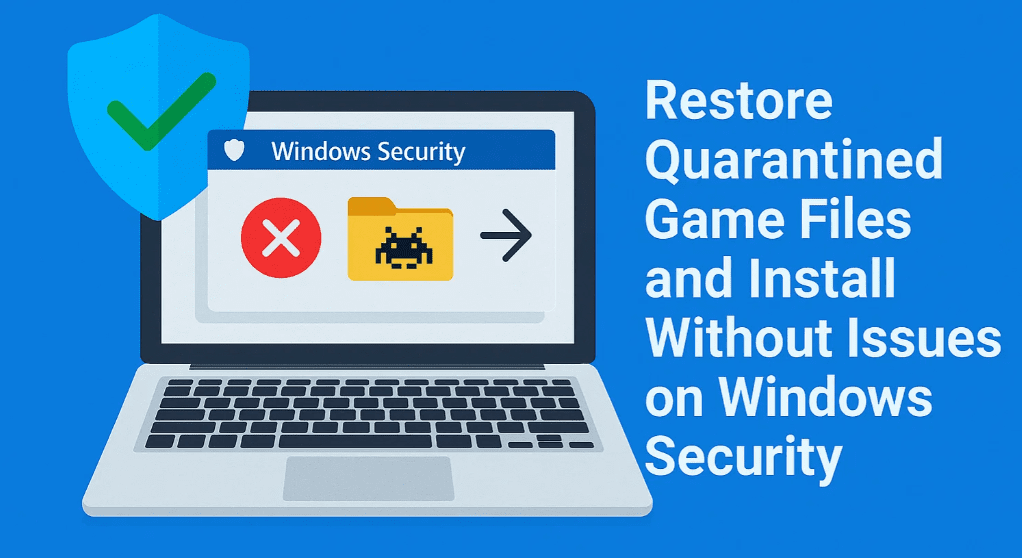
Installing certain games on Windows can sometimes lead to a frustrating issue where the setup file goes missing or doesn’t launch. This usually happens because Windows Security mistakenly identifies some game files as threats and quarantines them. In this article, we’ll walk you through the step-by-step process to restore the quarantined files, complete the installation, and prevent future issues by adding exclusions in Windows Security.
Why Does This Happen?
Windows Security (formerly known as Windows Defender) comes with Real-time Protection which actively monitors and blocks suspicious files. Game setup files, especially those from unofficial or repacked sources, may be flagged and automatically quarantined—even if they are safe.
Step-by-Step Guide to Fix Missing Game Setup Issue
✅ Step 1: Open Windows Security
- Press the Windows key and search for Windows Security.
- Click on Open to launch the dashboard.
✅ Step 2: Turn Off Real-Time Protection Temporarily
- From the left panel, select Virus & Threat Protection.
- Click on Manage Settings under Virus & Threat Protection settings.
- Toggle off the switch for Real-Time Protection.
⚠️ This will temporarily disable the antivirus, allowing you to restore the setup file. Don’t forget to turn it back on later!
✅ Step 3: Check Quarantine History
- Go back to Virus & Threat Protection.
- Scroll down and click on Protection History.
- Here, you’ll find items that were recently quarantined.
- Look for your game’s setup file or any related files marked as threats.
✅ Step 4: Restore the Quarantined Files
- Click on the quarantined item.
- Select Actions > Restore.
- If prompted for confirmation, click Yes.
Repeat this step for all other game-related files that may have been quarantined.
✅ Step 5: Install the Game
- Now go back to your game folder.
- Double-click the setup file to start the installation process.
- Proceed through the setup wizard to complete the installation.
✅ Step 6: Add the Game Folder to Windows Security Exclusions
Once the game is installed, it’s important to add it to the exclusions list to prevent future issues.
- Reopen Windows Security if it was minimized.
- Scroll down and click Manage Settings under Virus & Threat Protection settings.
- Click on Add or Remove Exclusions.
- Confirm with Yes if prompted.
- Click Add an Exclusion > Folder.
- Navigate to your game installation folder.
- Select the folder and confirm by clicking Select Folder.
Your game folder is now safe from being scanned or flagged in the future.
✅ Step 7: Turn Real-Time Protection Back On
- Go back to the Manage Settings page.
- Toggle Real-Time Protection back to On.
- Close Windows Security.
Frequently Asked Questions (FAQs)
❓ Why is my game setup file missing after download?
Answer: Windows Security may have flagged and quarantined it during the download or extraction process. It does this to prevent the installation of potentially harmful software.
❓ Is it safe to restore quarantined game files?
Answer: If you’re confident that the game source is trustworthy, restoring the files is generally safe. However, always use caution with unofficial or cracked game versions.
❓ What happens if I don’t add the game folder to exclusions?
Answer: Windows Security may quarantine files again, breaking the game or preventing it from launching. Adding exclusions prevents this issue.
Final Thoughts
Restoring quarantined files and adding the game folder to the Windows Security exclusions list is a reliable way to solve missing setup file issues. Always remember to turn real-time protection back on after the setup is complete to keep your system protected. This method works well for many games that are incorrectly flagged by antivirus programs.
Software Mentioned
- Windows Security (Windows Defender)
🔗 https://support.microsoft.com/en-us/windows/windows-security-help
Disclaimer
⚠️ Disclaimer: Disabling antivirus protection and restoring quarantined files can pose a risk if the files are actually malicious. Only proceed if you’re confident in the source of the game files. We do not endorse pirated or cracked game installations.





Tags:
windows security, restore quarantined files, windows defender, missing setup fix, add exclusion windows, game installation issue, antivirus quarantine, restore setup file, pc gaming tips
Hashtags:
#WindowsSecurity #GameInstallationFix #WindowsDefender #QuarantinedFiles #PCGamingTips #MissingSetupFix #AddExclusionWindows #AntivirusBypass
Let me know if you’d like to convert this into a downloadable PDF, add images for illustration, or prepare a Hindi version of the blog.








