Ever noticed that your Windows 11 PC has been “on” for days, even though you shut it down last night? If you check your system’s uptime in Task Manager and see it still counting up from dozens of hours, you’re not alone.
That’s because of a feature called Fast Startup, which keeps your PC in a hybrid state—something between a shutdown and hibernation. While it’s helpful for boot speed, it doesn’t actually reset your PC’s uptime counter.
In this detailed guide, we’ll walk you through how to properly reset your PC’s uptime by disabling Fast Startup and performing a full shutdown.
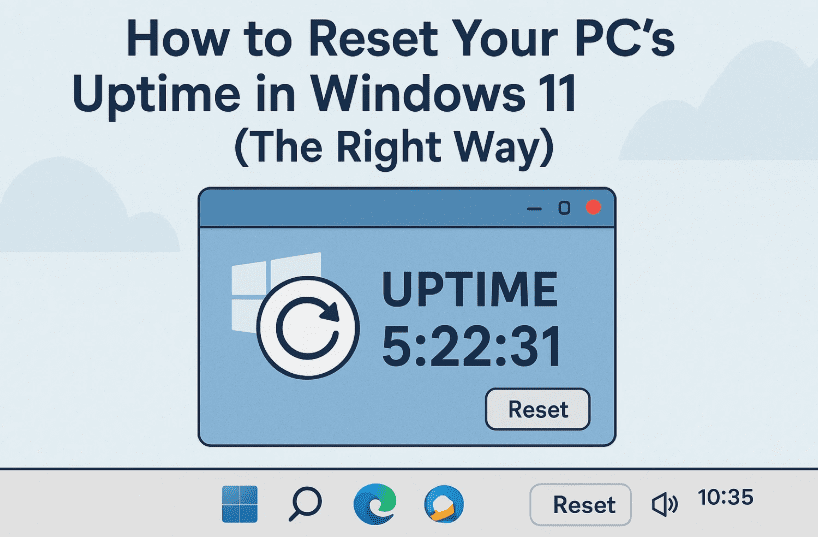
Let’s get started and give your system a truly fresh start!
💡 What Is Uptime, and Why Should You Care?
Before diving into the steps, let’s understand what “uptime” really means.
Uptime is the amount of time your system has been continuously running without a full shutdown. If your PC shows 20+ hours of uptime despite shutting it down last night, that’s Fast Startup at play.
Why reset uptime?
- 🛠 For troubleshooting performance or memory issues
- 🧹 To fully clear RAM and system processes
- 🔌 For accurate system monitoring or IT audits
Now let’s reset that counter properly.
✅ Step-by-Step Guide to Reset Uptime in Windows 11
We’ll break it down into easy-to-follow steps. If you’re someone who likes to keep things tidy and efficient, you’ll love how simple this is.
🧭 Step 1: Check Current Uptime
Let’s first confirm how long your PC has been running.
- Press Ctrl + Shift + Esc to open Task Manager
- Click the Performance tab
- Look at Uptime under the CPU section
This shows how long your PC has been on (without a full shutdown). If it says 20+ hours, your system has been in a semi-hibernated state.





Now, let’s move forward and change that.
⚙️ Step 2: Disable Fast Startup from Control Panel
This is the key step! Fast Startup prevents a complete shutdown. Disabling it allows Windows to shut down completely, resetting the uptime.
Here’s how to do it:
- Press Windows + S and search for Control Panel
- Open Control Panel and go to Power Options
- On the left panel, click Choose what the power buttons do
- Now click Change settings that are currently unavailable
- Under Shutdown settings, uncheck the option Turn on fast startup (recommended)
- Click Save changes
🎉 Great job so far! You’ve just turned off the setting that keeps your PC half-awake.
⏹️ Step 3: Fully Shut Down Your PC
Now it’s time to shut down your computer the proper way.
- Click the Start menu
- Click the Power icon
- Select Shut down
Let your system power off completely. Wait a few seconds before restarting it.
🔁 Step 4: Recheck Uptime After Boot
Once your PC is back on, let’s see if the counter reset worked.
- Again, open Task Manager (Ctrl + Shift + Esc)
- Go to the Performance tab
- Check the Uptime
It should now show just a few minutes or seconds—starting from zero. This confirms that the system performed a full shutdown, and Fast Startup is no longer interfering.
❓ FAQ: Resetting Uptime in Windows 11
Q: What is Fast Startup in Windows 11?
Fast Startup is a hybrid shutdown feature that keeps part of your system in hibernation to boot up faster. While useful for speed, it doesn’t fully shut down your PC.
Q: Will disabling Fast Startup slow down my boot time?
Slightly, yes. But it ensures a proper shutdown and reset of system memory and processes.
Q: Can I re-enable Fast Startup later?
Absolutely. Just follow the same steps and check the box again to turn Fast Startup back on.
Q: Does restarting the PC reset uptime?
Yes. Restarting does reset the uptime—even with Fast Startup enabled.
🧹 Final Thoughts
And that’s it! You’ve successfully learned how to reset your PC’s uptime in Windows 11 by disabling Fast Startup and shutting down properly.
This tiny change can make a big difference in how your system behaves—especially when troubleshooting issues or monitoring uptime stats.
If this guide helped, consider sharing it with others who might be wondering why their uptime never resets. Little tweaks like these keep your Windows experience clean, transparent, and smooth.
Stay curious, stay in control—and stay Passionate About Tech! 💻✨
Tags: reset uptime windows 11, windows 11 fast startup, disable fast startup, full shutdown windows, task manager uptime, control panel power options, windows troubleshooting, uptime fix
Hashtags:
#Windows11 #UptimeReset #TechTips #FastStartup #TaskManager #WindowsFix #ControlPanelSettings
📝 Disclaimer: Disabling Fast Startup may increase your boot time slightly but allows for a complete system shutdown, which is beneficial for certain maintenance and troubleshooting scenarios.








