Forgetting your MacBook password can be frustrating, especially if you’re locked out of your device. Fortunately, Apple provides a built-in method to reset your password without losing data. Follow this step-by-step guide to regain access to your MacBook.
Step 1: Shut Down Your MacBook
- Click the Apple logo in the top-left corner.
- Select Shut Down.
- Wait for the MacBook to power off completely.
Step 2: Boot into Recovery Mode
- Press and hold the Power button (Touch ID button on newer models).
- Keep holding until you see “Loading startup options”.
- When the Startup Options screen appears, select Options and click Continue.
Step 3: Open Terminal in Recovery Mode
- Once in macOS Recovery, go to the top menu bar.
- Click Utilities > Terminal.
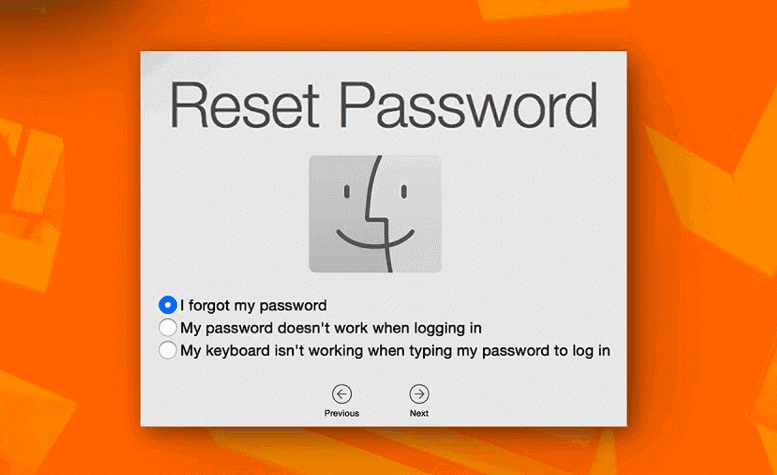
Step 4: Reset the Password via Terminal
- In the Terminal window, type:
resetpassword - Press Enter.
- Close the Terminal window.
Step 5: Deactivate Mac (If Required)
- Click Deactivate Mac (this ensures security checks).
- Confirm by clicking Deactivate again (requires an internet connection).
Step 6: Create a New Password
- Enter a new password and confirm it.
- (Optional) Add a password hint to avoid forgetting it again.
- Click Next to save changes.
Step 7: Restart and Log In
- Restart your MacBook.
- Log in using your new password.
Additional Tips
- If you use FileVault encryption, you may need your Apple ID to reset the password.
- For older macOS versions, you might need to use Single-User Mode (Command + S at startup).
Conclusion
Resetting a forgotten MacBook password is straightforward using Recovery Mode. If you encounter issues, ensure you have an internet connection and follow the steps carefully.
Tags:
MacBook password reset, forgot Mac password, macOS recovery, Terminal reset, Apple support
Hashtags:
#MacBook #PasswordReset #MacOSTips #AppleSupport #TechHelp
Disclaimer: This method works for local user accounts. If your Mac is managed by an organization or uses iCloud FileVault, additional steps may be required. Always back up your data before making system changes.