If you’re facing errors, glitches, or problems with your Windows 11 device, resetting the system settings can be a simple and effective solution. Whether it’s due to a wrong configuration or a recurring issue, resetting the settings to default often fixes many problems without affecting your personal files.
In this article, we’ll guide you through how to reset Windows 11 settings in 2025 in a clear, step-by-step manner.
Let’s get started!
Why Should You Reset Windows 11 Settings?
Sometimes, while tweaking your system settings or installing new programs, unexpected issues can arise. You may encounter:
- System errors
- Configuration problems
- Slow performance
- Unexpected behavior
Resetting the settings can help by restoring Windows 11 to its original default configuration, fixing most problems without losing your important personal data.
How to Reset Windows 11 Settings
Follow these easy steps to reset your Windows 11 settings:
1. Open Personalization Settings
- Right-click on the desktop.
- Select Personalize from the context menu.
This will open the Windows Settings panel where you can access deeper system options.
2. Navigate to the Recovery Option
- In the Settings window, click on System in the sidebar.
- Scroll down and locate the Recovery option.
Depending on your Windows 11 version, it might also appear as Reset This PC. Both lead you to the reset process.
3. Begin the Reset Process
- Click on Recovery.
- Under the Reset this PC section, you will see a button labeled Reset PC. Click it.
You will now see two options:
- Keep my files: Resets the settings but keeps your personal files safe.
- Remove everything: Deletes all files, apps, and settings for a completely fresh start.
Since we only want to reset the settings without losing personal data, select “Keep my files.”
4. Proceed with Reset
- After selecting “Keep my files,” click on Next.
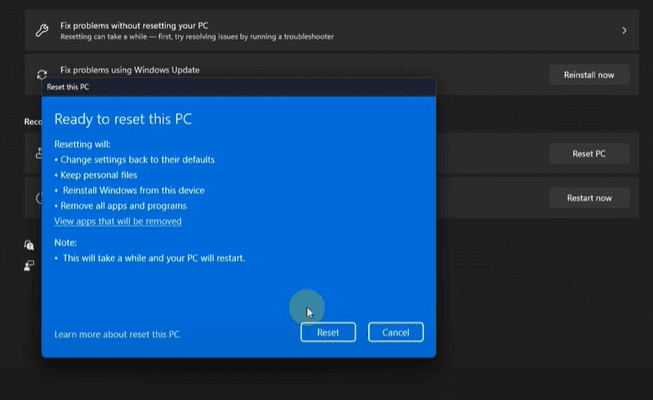
- You will see a summary indicating that all settings will return to default, apps and programs will be removed, but your personal files will stay intact.
If you want to check which apps will be removed:











- Click on View apps that will be removed to see the list.
- You can make a note of these apps if you want to reinstall them later.
5. Finalize the Reset
- Click Reset to begin the process.
Your system will reboot, and Windows will start resetting the settings. Once complete, your device will feel like new — with all errors and glitches hopefully resolved!
Important Things to Note
- Personal files like documents, photos, and videos will not be deleted.
- Installed apps and programs will be removed. You will need to reinstall them after the reset.
- System settings will revert back to their factory defaults.
- Make sure your device is plugged into a power source to avoid interruption during the reset.
Conclusion
Resetting Windows 11 settings is a powerful way to fix persistent issues without losing your important files. Whether you’re troubleshooting a stubborn problem or just want a cleaner, faster system, following the simple steps outlined above can save you a lot of time and hassle.
If you face any difficulties or have further questions about the process, feel free to leave a comment below!
Tags: Windows 11, Reset Windows Settings, Fix Windows Errors, Windows Troubleshooting, Keep Personal Files, Windows Recovery, Reset This PC, Windows 2025
Hashtags: #Windows11 #ResetWindows #WindowsTroubleshooting #FixWindowsErrors #TechGuide #WindowsReset #WindowsTips #PCMaintenance







