Sometimes your PC or laptop starts slowing down, showing errors, or misbehaving despite your best efforts. In such situations, one of the most effective fixes is to reset Windows. But here’s the catch—Windows offers multiple reset options, and choosing the wrong one could either leave problems unresolved or erase important files you wanted to keep.
In this detailed guide, we’ll go step by step through:
- Why you may need to reset your PC.
- The different reset options available in Windows 10 and Windows 11.
- When to use Keep my files vs. Remove everything.
- The difference between Local Reinstall and Cloud Download.
- How to wipe your PC completely before selling it.
- What to do if you’re stuck on the login screen.
- An advanced method: using a bootable USB for a fresh format.
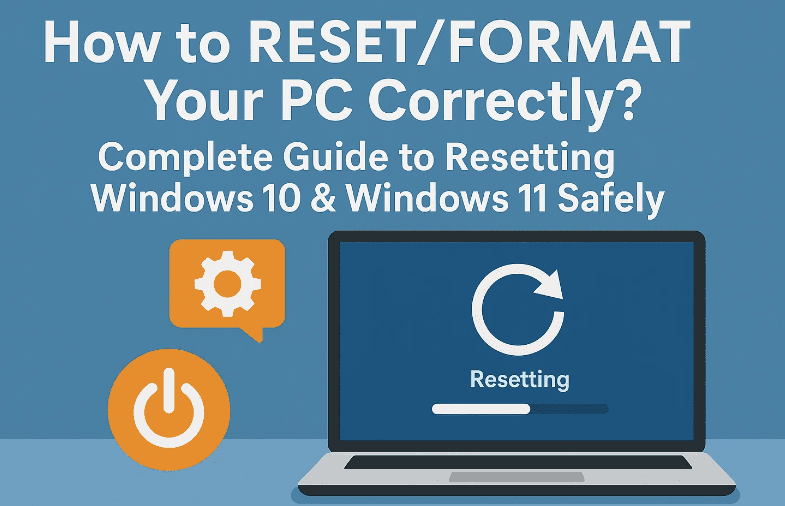
By the end, you’ll know exactly which reset option to use depending on your situation.
1. 🔎 Why Resetting Your PC May Be Necessary
Before we dive into the “how,” let’s understand the “why.” Resetting is not just about wiping data—it’s about solving different scenarios:
- General performance issues: If your PC has become slow, laggy, or unresponsive over time.
- Fixing errors: When apps crash frequently, or Windows throws unknown errors.
- Virus or malware cleanup: Resetting ensures hidden malicious files are removed.
- Fresh start: If you want a clean Windows installation without reinstalling from scratch.
- Selling your PC: You must erase all files securely before handing over the system.
Now that we know the reasons, let’s move to the different reset options and when to use them.
2. ⚙️ How to Access Reset Options from Desktop
If you can log in to your Windows desktop, resetting is simple.
Step 1: Open Reset Tool
- Click the Start menu and search for Reset this PC.
- Select the result and it will take you to reset options.
Step 2: Choose Between “Keep My Files” and “Remove Everything”
This is the first major decision.
- Keep my files:
- Removes apps and settings.
- Keeps personal files (documents, pictures, etc.).
- Best if you just want to fix system issues without losing data.
- Remove everything:
- Deletes all personal files, apps, and settings.
- Best if you want a complete reset or are preparing to sell the device.
👉 Example: If your laptop is misbehaving but you still need your files, choose Keep my files. If you want a fresh start, go with Remove everything.
3. 🌐 Local Reinstall vs. Cloud Download
After choosing your reset type, Windows will ask how you’d like to reinstall:
- Local Reinstall:
- Uses existing system files on your device to reinstall Windows.
- Faster and doesn’t use internet data.
- But if your current Windows installation is corrupted, problems may return.
- Cloud Download:
- Downloads a fresh copy of Windows (over 4 GB).
- Requires internet connection.
- Recommended because it ensures a clean, updated Windows installation.
💡 Pro Tip: Always choose Cloud Download if you have stable internet. It eliminates issues caused by a corrupted local image.
Learn more from Microsoft’s official guide.
4. 🛡️ Additional Settings Before Reset
Once you proceed, you’ll see Additional Settings:
- Clean Data (Yes/No):
- No (default): Quickly removes files but data may still be recoverable using special tools.
- Yes: Wipes drives more securely, making file recovery very difficult. Takes longer (hours).
- Use this if you’re selling or giving away your PC.
- Reinstall from Device or Cloud:
- From device: Uses local files.
- Download Windows: Fresh copy from Microsoft servers.
This is where you should carefully review your choices. The summary will show exactly what will be removed.
5. ⏳ Reset Time and What to Expect
How long a reset takes depends on:
- Whether you chose Local Reinstall or Cloud Download.
- Whether you enabled Clean Data.
- The speed of your PC and internet.
- Quick reset: 20–45 minutes.
- Clean + Cloud reinstall: 1–3 hours or more.
During this process, your PC will restart multiple times. Don’t power it off—just wait patiently until Windows reboots into the setup screen.
6. 🔐 Resetting from the Login Screen (If You’re Locked Out)
Not everyone can access the desktop. If you’re stuck at the login screen, here’s what to do:
- On the bottom-right corner, click the Power icon.
- Hold down the Shift key on your keyboard.
- While holding Shift, click Restart.
- Windows will reboot into the Advanced Startup Options menu.
- Select Troubleshoot → Reset this PC.
- Choose Keep my files or Remove everything.
This method is a lifesaver if you’ve forgotten your password or your system crashes before reaching the desktop.
7. 💽 Advanced Option: Full Format with Bootable USB
Sometimes a reset isn’t enough, especially if you want to fully wipe and reinstall Windows. In that case, you can perform a fresh installation using a bootable USB.
Step 1: Create Bootable USB
- Download the Media Creation Tool from Microsoft’s website.
- Use it to create a bootable USB drive with Windows 10 or 11.
Step 2: Boot from USB
- Insert the USB drive into your PC.
- Restart and enter BIOS/boot menu (usually F12, Esc, or Del during startup).
- Select the USB drive to boot.
Step 3: Format and Reinstall
- Proceed with Windows installation.
- At the partition screen, delete or format all partitions (including recovery).
- Install Windows on the unallocated space.
This ensures your system is completely fresh with no old files or configurations left behind.
8. ❓ Frequently Asked Questions (FAQs)
Q1. Will resetting Windows delete my personal files?
- Only if you choose Remove everything. “Keep my files” preserves personal data.
Q2. Is Cloud Download better than Local Reinstall?
- Yes, because it downloads a fresh copy of Windows. Local reinstall may keep hidden corruption.
Q3. How long does a reset take?
- Quick reset: under an hour.
- Clean + cloud reinstall: several hours.
Q4. Can I stop the reset once it starts?
- No, interrupting may corrupt Windows. Wait until the process completes.
Q5. What’s the safest option before selling my laptop?
- Choose Remove everything → Cloud Download → Clean Data (Yes). This wipes personal files securely.
9. ⚠️ Disclaimer
Resetting Windows may result in permanent data loss depending on the chosen option. Always back up important files before proceeding. If you are unsure, consult Microsoft’s official recovery documentation.
10. ✅ Conclusion
Resetting Windows 10 or 11 can fix errors, improve performance, and give your system a fresh start. But the right method depends on your goal:
- Fix minor issues? Use Keep my files.
- Start fresh? Use Remove everything with Cloud Download.
- Selling your PC? Use Remove everything + Clean Data.
- Need a complete wipe? Use a bootable USB for clean installation.
Now you know exactly which path to take to reset or reinstall your PC safely.
Tags
reset windows 10, reset windows 11, cloud download windows reset, local reinstall windows, keep my files vs remove everything, format pc windows 11, reinstall windows using usb, troubleshoot login screen reset
Hashtags
#Windows11 #Windows10 #PCReset #Troubleshooting #CloudDownload #ReinstallWindows #MicrosoftSupport








