Windows 11 introduces many changes, and not all of them are welcome by every user. One such controversial update is the integration of Microsoft Paint with Copilot features—features that many users find unnecessary or intrusive. If you’re someone who misses the simplicity of Classic Microsoft Paint and want to restore it on your Windows 11 system, this step-by-step guide is for you.
💡 Note: This method works on both Windows 10 and Windows 11, including version 24H2.
Why Replace the New Paint?
The updated Paint app now includes various AI features like Copilot, turning a simple tool into a bloated application. While innovation is great, many users prefer the clean, fast-loading, and distraction-free environment that Classic Paint offers.
Fortunately, there’s a way to bring back that beloved simplicity.
Step-by-Step Guide to Install Classic Paint on Windows 11
✅ Step 1: Download Classic Paint
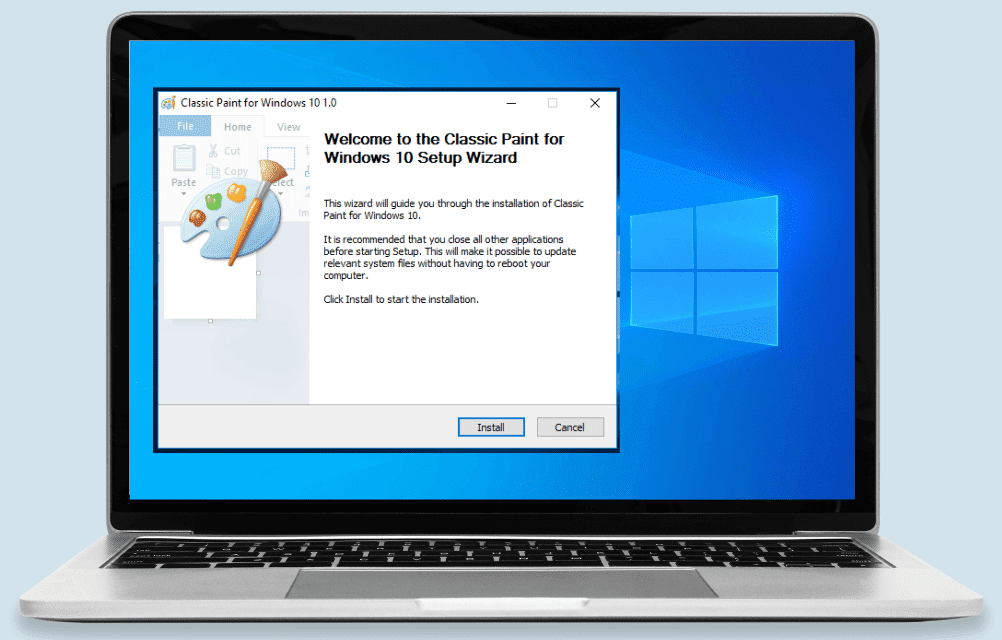
You need a custom installer that contains the Classic Paint application. Download it from a trusted source. One such option is:
- Classic Paint Installer from WinAero:
👉 https://winaero.com/download-classic-paint-windows-10/
Make sure to download and extract the ZIP file to your desired location.
✅ Step 2: Install Classic Paint
- Navigate to the extracted folder.
- Double-click on the executable file (usually
classicpaintsetup.exe). - A User Account Control (UAC) prompt will appear. Click Yes.
- Follow the setup wizard:
- Click Next.
- Click Next again.
- Select Create Desktop Icon and optionally Install for All Users.
- Click Install.
✅ Step 3: Disable Paint App Aliases
Once the setup completes:
- Click Open Settings when prompted.
- Navigate to:
- Settings > System > For Developers > App Execution Aliases.
- Find and disable:
paint.exemspaint.exepaintbrush.exe
These aliases redirect commands to the modern Paint with Copilot. Disabling them ensures Classic Paint opens instead.
✅ Step 4: Uninstall Modern Paint (Optional)
If you want to completely remove the bloated version:
- Go to Settings > Apps > Installed Apps.
- Search for Paint.
- Click on the three-dot menu next to it.
- Select Uninstall.
This will remove the Copilot-integrated Paint. You can always reinstall it from the Microsoft Store if needed.
✅ Step 5: Set Classic Paint as Default
To make Classic Paint your go-to for image editing:







- Right-click any image file (e.g., JPG, PNG).
- Choose Open With > Choose Another App.
- Click More Apps, then click Look for another app on this PC.
- Browse to the location where Classic Paint was installed.
- Select it and check Always use this app.
✅ Step 6: Pin Classic Paint for Easy Access
You can pin the Classic Paint shortcut for quick access:
- To Start Menu:
- Open Run box (
Windows + R). - Type:
shell:common start menu - Paste the Classic Paint shortcut into the Programs folder.
- Right-click it and choose Pin to Start.
- Open Run box (
- To Taskbar:
- Right-click on the Classic Paint desktop icon and choose Pin to Taskbar.
Now Classic Paint will be available just like any built-in app.
Bonus: Try Paint.NET for Advanced Features
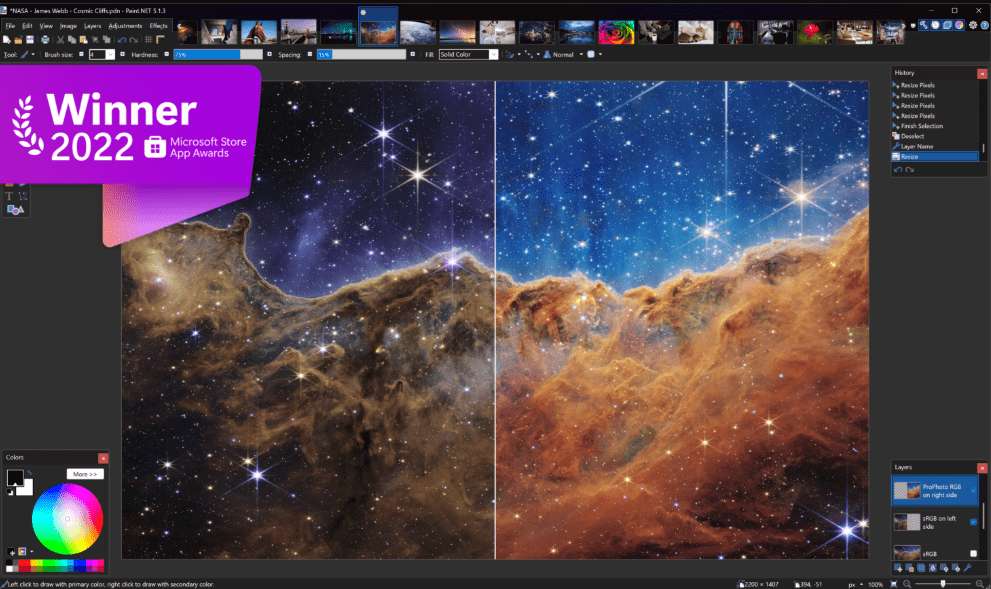
If Classic Paint feels too limited but you still want a lightweight experience, consider using Paint.NET.
- Website: https://www.getpaint.net/
- It offers advanced tools, layers, and plugin support while remaining free and user-friendly.
Final Thoughts
With these steps, you’ve successfully removed the bloated Copilot version of Paint and restored the classic, clean version we all grew up using. Whether for quick edits, pixel work, or basic image creation, Classic Paint is still a favorite for a reason.
Disclaimer
This article provides instructions for using third-party installers to modify built-in Windows functionality. Proceed at your own discretion and always download software from trusted sources. Neither this blog nor its author is affiliated with Microsoft or responsible for any system issues resulting from unofficial software installation.
Tags
windows 11, microsoft paint, classic paint, uninstall copilot, remove bloatware, restore old paint, paint.net, windows customization, how to uninstall paint, classic apps for windows
Hashtags
#Windows11 #ClassicPaint #MicrosoftPaint #PaintNET #UninstallCopilot #WindowsCustomization #RemoveBloatware #TechTips #WindowsApps








