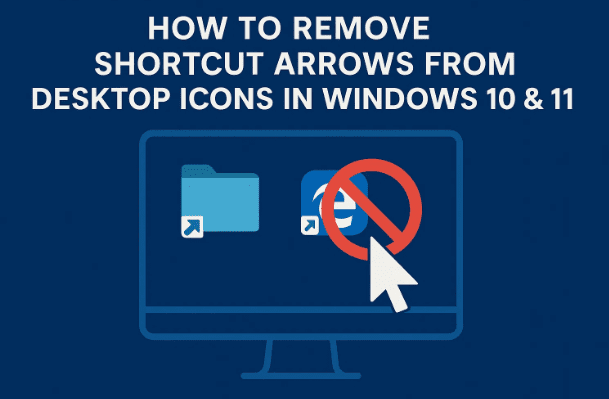
If you’ve ever noticed those little arrow icons on your desktop shortcuts, you’re not alone. By default, Windows adds a small arrow overlay to every shortcut icon — it’s meant to help users distinguish shortcuts from real files or programs.
However, if you’re someone who prefers a cleaner, more aesthetic desktop, those arrows can be distracting. Fortunately, there’s a way to remove them completely using a safe registry edit.
This guide will show you how to remove the shortcut arrow icon in Windows 10 and Windows 11, step-by-step. We’ll also cover how to bring the arrows back later if you change your mind.
⚠️ Disclaimer:
Editing the Windows Registry incorrectly can cause system issues. Please follow every step carefully and create a backup before making changes. This guide is safe if done correctly, but proceed responsibly.
Let’s dive right in.
1. Understanding Why Shortcut Arrows Exist
Before we start tweaking anything, it’s good to know why these arrows exist in the first place.
Windows uses small overlay icons to visually differentiate between original files and shortcuts.
- A shortcut is just a pointer to the actual file or program — deleting it doesn’t remove the real file.
- The arrow overlay helps users avoid confusion, especially for beginners.
That said, if you know your way around Windows and want a minimalist desktop, removing the arrows can give your system a much cleaner look.
Let’s move on to the next step and start removing them safely.
2. What You’ll Need
This method doesn’t require any third-party software — everything can be done using built-in Windows tools.
You’ll only need:











- Administrator privileges on your computer.
- The Registry Editor (built into all versions of Windows).
- A few minutes of your time.
Now that you’re ready, let’s begin the process step-by-step.
3. Step 1 – Open the Windows Registry Editor
The Registry Editor allows you to manually configure system settings that aren’t available in normal menus. This is where we’ll make the change that removes the shortcut arrow.
Follow these steps carefully:
- Click the Search bar (on the taskbar) or press Windows + S.
- Type regedit.
- Click Registry Editor from the results.
- When prompted by the User Account Control window, click Yes.
You’ll now see the Registry Editor window open. On the left-hand side, you’ll find a folder-like structure — that’s where you’ll navigate through the registry keys.
4. Step 2 – Navigate to the Correct Registry Path
Now, we’ll need to locate the exact part of the Windows Registry that controls the shortcut overlay icons.
You can find it here:
HKEY_LOCAL_MACHINE\SOFTWARE\Microsoft\Windows\CurrentVersion\Explorer
Here’s how to get there manually:
- In the left panel of Registry Editor, click the small arrow (▶) next to each folder name to expand it.
- Expand HKEY_LOCAL_MACHINE.
- Scroll down and expand SOFTWARE.
- Then expand Microsoft.
- Scroll again and find Windows — expand that as well.
- Click on CurrentVersion.
- Finally, locate and click on Explorer.
You’re now inside the Explorer key — this is where we’ll create a new custom key to modify the shortcut overlay behavior.
5. Step 3 – Create a New Key Called “Shell Icons”
Inside the Explorer folder, we need to add a new subkey (like a new folder) that will store our custom icon settings.
Here’s what to do:
- Right-click the Explorer folder in the left panel.
- Hover over New and select Key.
- Name the new key:
Shell Icons(Make sure “S” and “I” are capitalized, and include a space between the words.) - Press Enter to save.
You’ve now created a new section where we can define our custom rule for shortcut icons.
6. Step 4 – Create a String Value to Modify Shortcut Arrows
Now that the Shell Icons key exists, we’ll add a string value that tells Windows to replace (or remove) the shortcut arrow.
- Right-click inside the right-hand side of the Registry Editor window.
- Hover over New, then choose String Value.
- Name this new string exactly as:
29 - Press Enter to confirm.
The number “29” corresponds to the specific overlay icon used for shortcuts in Windows.
Now, let’s assign the correct data value to remove it.
7. Step 5 – Enter the Correct Value Data
Double-click the new 29 string you just created. A dialog box will appear titled Edit String.
In the Value data field, copy and paste this exact text:
%windir%\System32\shell32.dll,-50
This value tells Windows to replace the shortcut overlay with a blank (invisible) icon.
Let’s break it down quickly so you understand what it means:
%windir%refers to your Windows installation folder (usuallyC:\Windows).System32\shell32.dllis a system file that contains many of Windows’ default icons.- The
-50index points to a blank icon inside that file.
When applied, this makes Windows display no overlay at all on shortcuts.
Click OK once done.
8. Step 6 – Apply the Changes by Restarting Windows Explorer
So far, we’ve edited the registry, but Windows won’t show the effect until we reload Explorer (the process that handles your desktop and taskbar).
You can do this without restarting your whole computer. Here’s how:
- Press Ctrl + Shift + Esc to open Task Manager.
- If Task Manager opens in compact mode, click More details at the bottom.
- Scroll down the Processes list until you find Windows Explorer.
- Right-click on Windows Explorer and select Restart.
Your desktop will temporarily disappear for a few seconds, then reappear.
Look at your icons now — the shortcut arrows should be gone!
Congratulations, your desktop is now cleaner and more visually appealing.
9. Step 7 – Optional: Restart Your PC
While restarting Windows Explorer usually applies the change instantly, sometimes you may need a full system restart for it to take effect (especially on older builds).
Simply restart your computer once and check again — your desktop shortcuts should appear arrow-free.
10. How to Restore the Shortcut Arrows Later
If you ever change your mind and want to bring the shortcut arrows back, don’t worry — it’s just as simple.
Here’s how to reverse the change:
- Open Registry Editor again (as in Step 1).
- Navigate to the same path:
HKEY_LOCAL_MACHINE\SOFTWARE\Microsoft\Windows\CurrentVersion\Explorer - Click on the Shell Icons folder.
- In the right panel, right-click the 29 string and select Delete.
- Confirm the deletion.
- Restart Windows Explorer (or your computer).
Once that’s done, your shortcut arrows will return to their original state.
11. Alternative Method: Use Free Third-Party Tools
While the registry method is the most reliable and doesn’t require extra software, you can also use third-party utilities if you prefer a graphical interface.
Two popular and safe options include:
- Winaero Tweaker (https://winaerotweaker.com/)
This free tool allows you to customize many hidden Windows features, including removing shortcut arrows with just a checkbox. - Ultimate Windows Tweaker (https://www.thewindowsclub.com/ultimate-windows-tweaker-4-windows-10)
Another reliable program that lets you adjust shortcut overlays, transparency, and icon spacing safely.
💡 Tip: Always download utilities from their official websites and scan them with your antivirus before running.
However, for purists or those who prefer manual control, the registry method remains the cleanest and most lightweight option.
12. Why Use the Registry Method Instead of Software?
While software-based tools are convenient, editing the registry manually has its own advantages:
- No additional software needed — keeps your system lightweight.
- No background services or extra memory usage.
- Precise control over what’s changed.
Once you understand the registry structure, you can easily modify similar settings without relying on third-party programs.
13. Troubleshooting Common Issues
If the arrows don’t disappear after following the steps, here are a few quick things to check:
- Check the Path: Make sure you typed the path correctly — it must be
%windir%\System32\shell32.dll,-50(case-sensitive). - Restart Explorer Again: Sometimes you need to restart it twice for changes to apply.
- Reboot Your System: A full restart ensures registry changes load properly.
- Verify the Key Location: The “Shell Icons” key must be inside the
Explorerfolder, not elsewhere.
If all else fails, you can delete the “Shell Icons” key and repeat the process carefully.
14. Frequently Asked Questions (FAQ)
Q1. Is it safe to remove shortcut arrows using the registry?
Yes, if you follow the exact steps, this method is completely safe. The registry edit only changes an icon reference — it doesn’t affect program functionality.
Q2. Will this change affect system performance?
No, removing the shortcut arrow has no performance impact. It’s purely a cosmetic adjustment.
Q3. Do I need to repeat this after a Windows update?
In most cases, the change will persist after updates. However, major Windows feature updates may reset your registry, so you might need to reapply it.
Q4. Can I remove arrows for specific shortcuts only?
No, this method removes the overlay globally for all shortcuts. If you only want certain icons without arrows, you can manually replace their icons through Properties > Change Icon.
Q5. What if I accidentally delete the wrong registry key?
That’s why it’s recommended to create a Registry Backup before starting (explained below).
15. Bonus Tip: How to Backup the Registry Before Editing
Before making any registry change, it’s smart to back up the current configuration.
Here’s how:
- Open Registry Editor.
- Click File → Export.
- Choose a location (like your Desktop).
- Give it a name, e.g.,
RegistryBackup.reg. - Select All under “Export range”.
- Click Save.
If anything goes wrong later, simply double-click that saved .reg file to restore your original settings.
16. Additional Desktop Customization Ideas
Since we’re talking about making your desktop cleaner, here are a few more small tweaks you can try to improve your Windows experience:
- Hide desktop icons temporarily: Right-click the desktop → View → Uncheck “Show desktop icons.”
- Use icon packs: Replace system icons with minimal or flat-style icon sets for a fresh look.
- Reduce icon spacing: Open “Advanced system settings” → Performance → Settings → Adjust for best appearance.
- Align icons neatly: Right-click → View → Align icons to grid.
Little design details like these can make your workspace feel modern and distraction-free.
17. Conclusion — A Cleaner, Simpler Desktop
So far, we’ve done a good job walking through every step to remove shortcut arrows on Windows 10 and 11.
By now, your desktop icons should look cleaner, more consistent, and less cluttered. The change might seem small, but it gives your system a polished, professional look.
Remember — if you ever want to bring the arrows back, simply delete the 29 string value we created in the registry and restart Windows Explorer.
A minimal desktop isn’t just about style; it’s about focus and simplicity. With this little tweak, you’ve taken one step closer to a clean and organized Windows environment.
Tags: Windows 10, Windows 11, registry editor, shortcut arrows, desktop customization, shell icons, task manager, icon tweaks, clean desktop, Windows Explorer
Hashtags: #Windows11 #Windows10 #DesktopTips #RegistryEditor #IconCustomization #PCGuide #CleanDesktop #WindowsTweaks








