If your Google Chrome browser displays the message “Managed by your organization”, it’s often due to policies set by malicious software or corporate administrative controls. This can lock certain settings, prevent search engine changes, or block extension removal. Fortunately, you can manually or automatically remove these Chrome policies depending on your operating system. In this guide, we’ll walk through both manual removal steps and the use of a free one-click Chrome Policy Remover tool.
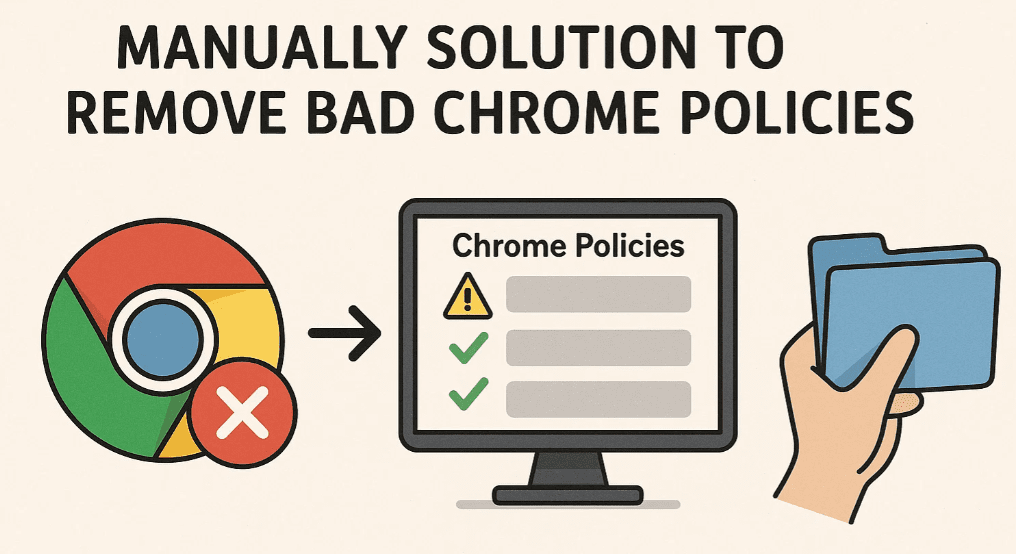
🔧 Manual Removal of Chrome Policies
💻 For Mac Users
Follow these steps to manually delete Chrome policies on macOS:
- Press
Command + Spaceto open Spotlight Search. - Type Terminal and press
Enter. - Run the following command, replacing
[policy]with the actual policy name:defaults delete com.google.Chrome [policy]Example:defaults delete com.google.Chrome ExtensionInstallForceList - Press
Enterto remove the policy.
Additionally, manually delete these files that store Chrome policy settings:
/Library/Preferences/com.google.Chrome.plist/Library/Managed Preferences/com.google.Chrome.plist~/Library/Application Support/Google/Chrome Cloud Enrollment/*
🖥️ Supported macOS Versions: macOS 10.15 to macOS 15
🪟 For Windows Users
To remove Chrome policies on Windows:
- Press
Windows + R, typeregedit, and pressEnter. - Navigate to the following path:
Computer\HKEY_LOCAL_MACHINE\SOFTWARE\Policies\Google\Chrome - In the left pane, right-click on the specific policy or the entire Chrome folder.
- Click Delete to remove the policy.
🖥️ Supported Windows Versions: Windows 7, 8, 8.1, 10, and 11
🐧 For Linux Users
On Linux, Chrome policies can be removed using the terminal:
- Open a terminal window.
- Use the
sudocommand to delete the following directories:sudo rm -r /etc/opt/chrome/policies sudo rm -r /etc/opt/chrome/policies/managed sudo rm -r /etc/opt/chrome/policies/recommended
These commands will recursively delete all managed and recommended Chrome policies.
⚙️ Automatic Chrome Policy Removal Tool (Mac & Windows)
If you’re a non-tech-savvy user or want to save time, you can use the Chrome Policy Remover tool created by Stefan Van Damme, a Chrome Product Expert.
🌟 Features of Chrome Policy Remover Tool:
- ✅ One-click operation for Windows and macOS
- ✅ Automatically closes Chrome windows
- ✅ Deletes all configuration profiles
- ✅ Removes all Chrome policies, including the ones causing the “Managed by your organization” message
This tool is completely free and open-source. You can inspect the Apple Script code used in the Mac version.
🔗 Download the Chrome Policy Remover Tool:
https://www.stefanvd.net/project/chrome-policy-remover/#downloadstore
Tag: chrome-policy-remover











💡 FAQs
❓ What is the Chrome Policy Remover?
It’s a one-click application for Windows and Mac that deletes Chrome enterprise policies commonly inserted by malware like weknow.ac, SearchMine, SearchBaron, and akamaihd.net.
❓ Is the tool free?
Yes, it’s 100% free and open-source. No payment is required to download or use it.
❓ Can I delete the tool after use?
Yes. Once it removes all bad Chrome settings and the “Managed by your organization” message is gone, you can safely delete the file.
❓ Who is this tool for?
This tool is ideal for non-technical users who find it difficult to troubleshoot Chrome browser issues manually.
❓ How can I support the developer?
Although the tool is free, you can support the creator by donating on the official website to help cover hosting and domain costs.
🆘 Need More Help?
If you’re still facing issues with Chrome, you can seek help on the Chrome Community Forum. It’s a helpful resource for resolving Chrome-related problems across all platforms.
⚠️ Disclaimer:
This article provides steps to remove Chrome enterprise policies either manually or using third-party open-source software. Please proceed with caution, especially when using commands in Terminal, Registry Editor, or sudo on Linux. Always back up important files before making system-level changes.
🔖 Tags:
chrome, google chrome, chrome policy remover, managed by your organization, chrome mac fix, chrome windows fix, remove chrome malware, browser policies, system cleanup, chrome registry, chrome plist, chrome tool mac, chrome policy tool, chrome script
📢 Hashtags:
#ChromeFix #MacSecurity #WindowsRegistry #GoogleChrome #RemoveManagedByOrganization #BrowserSecurity #ChromeMalwareFix #LinuxTips #TechHowTo #FreeTools #OpenSource







