If your YouTube video has received a copyright claim due to background music or other protected content, there’s no need to panic. YouTube Studio provides built-in tools to help you resolve such issues efficiently — without needing to delete or re-upload your video.
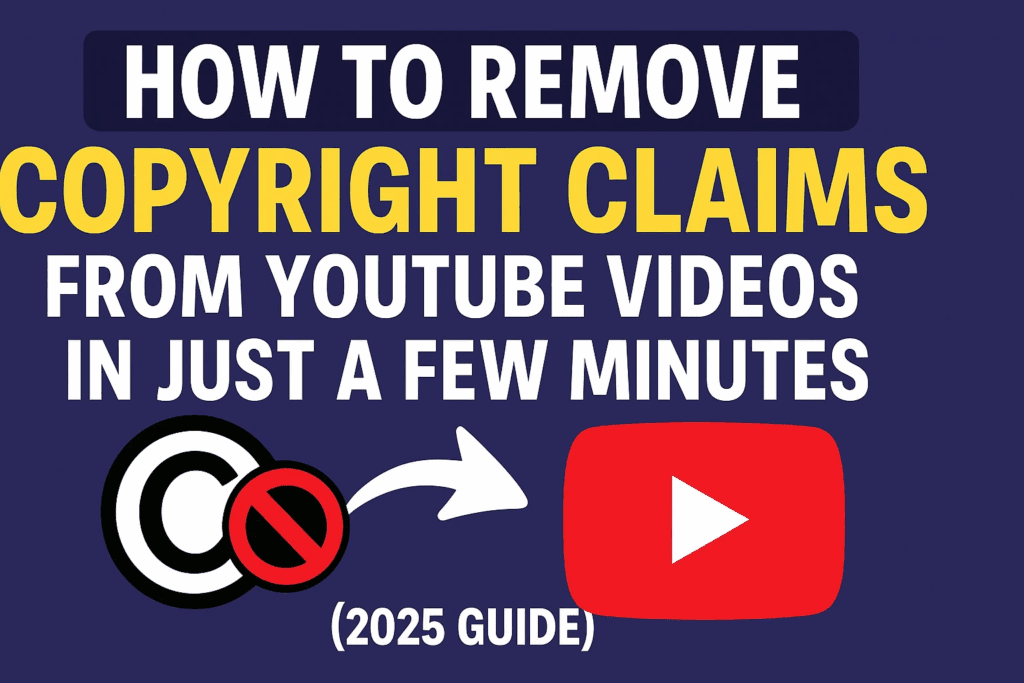
In this article, you’ll learn step-by-step how to identify and remove a copyright claim from your YouTube video using the built-in “Replace Song,” “Erase Song,” or “Trim Out Segment” features in the YouTube Studio editor.
⚠️ Disclaimer: This article is for educational purposes only. It does not promote copyright infringement. Always use copyright-free or licensed content in your videos. For no-copyright music, refer to YouTube’s Audio Library: https://studio.youtube.com/audio.
🔧 Step-by-Step Guide to Remove a YouTube Copyright Claim (Mobile-Friendly)
✅ Step 1: Open YouTube in Desktop Mode on Chrome
- Open Chrome browser on your phone.
- Go to https://youtube.com (type the address without any spaces).
- Tap the three dots at the top right corner of Chrome.
- Enable the Desktop site option.
- This will load YouTube in desktop mode, giving you full access to YouTube Studio features on mobile.
✅ Step 2: Access YouTube Studio
- Tap on your YouTube channel logo at the top-right corner.
- From the dropdown, select YouTube Studio.
- Tap “Continue to Studio” if prompted.
- You’ll now be redirected to the full YouTube Studio dashboard.
✅ Step 3: Navigate to the Content Section
- From the left sidebar, tap the Content option (second tab).
- You will now see a list of all videos uploaded to your channel.
✅ Step 4: Filter for Copyrighted Videos
- Tap the Filter icon.
- Select Copyright claims from the dropdown menu.
- This will display all videos that currently have copyright issues.
✅ Step 5: Open Copyright Details
- Locate the video with the copyright claim.
- Under the Restrictions column, click on Copyright.
- Tap See Details to view which part of the video is affected.
✅ Step 6: Choose an Action to Remove the Claim
Once you review the content identified in the claim:
- Slide to the right and tap Select Action.
- You will see four available options:
- Erase Song: Mutes only the copyrighted song, keeping the rest of the audio.
- Replace Song: Swaps the copyrighted song with free, no-copyright music.
- Trim Out Segment: Deletes the part of the video containing the copyrighted material.
- Dispute: Use this only if you own the rights or have valid permission.
💡 Most creators prefer “Replace Song” as it allows you to retain your video’s content while staying monetized.
✅ Step 7: Replace the Song (Recommended Option)
- Choose Replace Song.
- Slide right and tap Continue.
- You’ll be shown a library of No Copyright Music provided by YouTube.
- You can use the search bar or play preview of available tracks.
- Once you find a suitable track, tap on it and hit Add.
✅ Step 8: Save the Changes
- Tap Save after adding the replacement music.
- Tap Save again to confirm.
- YouTube will now begin processing your changes.
⏳ This may take 4–5 minutes. Once done, the copyright claim will be removed, and your video will be updated with the no-copyright music.
🧾 Summary
YouTube offers creators powerful tools to resolve copyright issues without deleting their content. By replacing or erasing copyrighted audio, you can keep your video live and compliant. This guide works on both desktop and mobile (via Chrome desktop mode).
🔖 Tags
youtube copyright claim removal, youtube studio tips, replace song youtube, erase song option, youtube no copyright music, youtube claim fix mobile, trim out copyright segment, youtube creator tips 2025, fix copyright issue youtube
📢 Hashtags
#YouTubeTips #CopyrightClaimFix #ReplaceSong #NoCopyrightMusic #YouTubeStudio #ContentCreatorHelp #YouTubeMobileTrick #YouTubeGuide2025 #CopyrightClaimRemoval #YTStudioFix
By following these easy steps, you can manage and resolve copyright claims quickly, allowing your content to stay live and monetized without any legal concerns.