Microsoft has been steadily evolving the classic Notepad app, and as of recent updates in 2025, it’s becoming more than just a plain text editor. With new formatting options and integrated AI features, Notepad is slowly merging into a lightweight version of WordPad—complete with tools like Copilot, Microsoft’s AI assistant.
While some users appreciate AI-powered features like rewriting suggestions and summarization, others simply want Notepad to remain clean, distraction-free, and minimal.
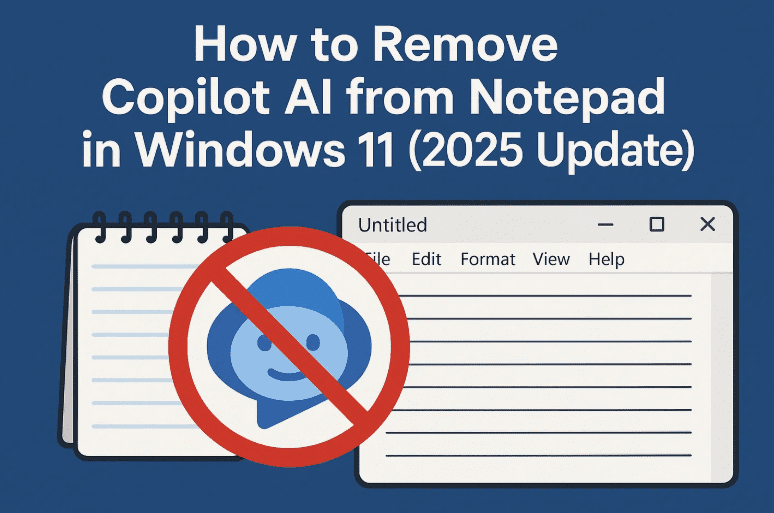
If you’re one of those users asking:
“How can I remove the Copilot icon from Notepad?”
This guide is for you.
🤖 What Is Copilot in Notepad?
Copilot is Microsoft’s AI assistant that now appears in some modern Windows apps, including Notepad. In Notepad, it may:
- Suggest rewrites
- Help you summarize text
- Offer formatting suggestions
- Display an AI icon in the top-right corner of the app
While useful for writers and developers, this feature may feel intrusive for users who want to focus without any AI suggestions.
🔧 How to Remove Copilot from Notepad (Step-by-Step)
Here’s how you can disable and hide Copilot from the Notepad app completely:
✅ Step 1: Open Notepad
- Click on Start, type
Notepad, and open the application.
✅ Step 2: Click on the Gear Icon (Settings)
- Look toward the top-right corner of Notepad.
- You’ll see a gear icon ⚙️ — click on it to open Notepad Settings.
✅ Step 3: Locate the “AI Features” Section
- Scroll down within the settings panel.
- You’ll find a section labeled “AI Features”.
✅ Step 4: Turn Off Copilot
- Under the AI Features section, you’ll see a toggle for Copilot.
- Switch it off.
Once turned off:
- The Copilot icon disappears from the top corner.
- All AI suggestions, rewrite prompts, and text assistance tools will be disabled.
- Notepad returns to its classic, minimal design.
🧘 Why You Might Want to Disable Copilot in Notepad
While Copilot offers useful features for drafting and editing, here are a few reasons you may choose to turn it off:
- ✍️ Distraction-Free Writing: Keeps the interface clean for focused work.
- 🧠 No Unwanted Suggestions: AI won’t interrupt or suggest rewrites unless enabled.
- 🖥️ Resource Efficiency: Disabling AI may slightly improve app performance on low-end systems.
- 🛑 Privacy Preference: Prevent sending content snippets to cloud-based AI services.
❓ Frequently Asked Questions (FAQ)
Q1: Will disabling Copilot affect other apps?
No. This only disables Copilot inside Notepad. Other apps like Word or Edge will retain their AI features unless disabled separately.
Q2: Can I re-enable it later?
Yes. You can always revisit the gear icon > AI Features section and toggle Copilot back on.







Q3: Does this feature require an internet connection?
Yes, most Copilot AI features are cloud-based and require an active internet connection to function.
📝 Final Thoughts
The integration of AI into everyday Windows apps is part of Microsoft’s long-term vision for productivity. But not every user wants or needs AI suggestions while typing simple text.
If you’re a traditionalist or just want Notepad to function exactly how it used to, disabling Copilot is a simple but effective way to get that classic experience back.
Take control of your workflow. Disable what you don’t need—and enjoy the simplicity of pure, distraction-free text editing.
🔗 Related Link
👉 Microsoft Notepad in Microsoft Store
🏷️ Tags
Notepad, Copilot, Windows 11 tips, AI in Notepad, disable Copilot, Notepad settings, Windows productivity, AI features, Copilot toggle, classic Notepad
🔖 Hashtags
#Windows11 #NotepadTips #CopilotAI #DisableCopilot #WindowsProductivity #MinimalWriting #Notepad2025 #AIInWindows #WindowsSettings #TextEditing
Disclaimer:
This guide is based on the latest Notepad version available in Windows 11 (2025 update). Future versions may change feature locations or availability. Always refer to Microsoft documentation for the most up-to-date instructions.








