Is your Windows 11 PC running slower than expected? The culprit might be bloatware—unnecessary preinstalled apps that consume resources. This guide will show you how to debloat Windows 11, remove unwanted software, and optimize your system for better performance.
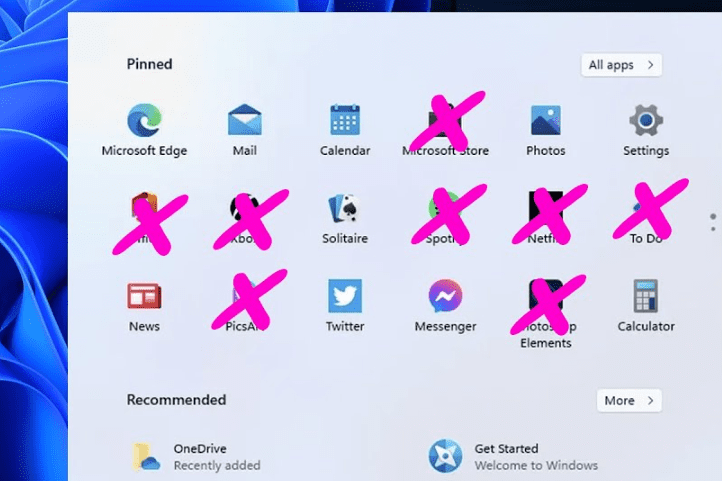
What is Bloatware?
Bloatware refers to preinstalled apps that come with Windows 11, often from manufacturers (like Dell, HP, or Lenovo) or Microsoft itself. These apps:
- Take up storage space
- Run background processes, slowing down your PC
- May include adware or trial software
Removing them can free up resources and make your PC faster.
Method 1: Uninstalling Bloatware via Settings
This is the safest method to remove unwanted apps.
Steps:
- Open Settings (
Win + I) → Go to Apps → Installed Apps. - Search for unwanted apps (e.g., “Bing Weather,” “Candy Crush,” “Microsoft Solitaire”).
- Click the three dots (⋮) next to the app → Select Uninstall.
- Repeat for all unnecessary apps.
✅ Best for: Removing individual apps safely.
Method 2: Using JunkCtrl (Advanced Bloatware Removal Tool)
For bulk removal, use JunkCtrl, a trusted third-party tool.
Steps:
- Download JunkCtrl from junkctrl.com.
- Extract the ZIP file → Right-click → “Extract All”.
- Run JunkCtrl.exe → Click “Skip & Use Portable”.
- The tool will scan and list all bloatware.
- Select apps you want to remove → Click “Move to Uninstall”.
- Confirm with “Yes” → The apps will be removed instantly.
⚠️ Warning: Avoid removing essential Windows apps (e.g., Calculator, File Explorer).
Method 3: Disabling Recommended Apps in Start Menu
Windows 11 shows unwanted recommendations in the Start Menu. Here’s how to disable them:
- Right-click the Taskbar → Select “Taskbar settings”.
- Go to Personalization → Start.
- Turn off:
- “Show recently added apps”
- “Show recommendations”
- “Show recently opened items”
- Set “More pins” (optional) for a cleaner look.
Method 4: Removing Manufacturer Bloatware (Dell, HP, Lenovo, etc.)
Some PCs come with brand-specific bloatware. To remove them:
- Open Control Panel (
Win + R→ Typecontrol). - Go to Programs and Features.
- Look for manufacturer apps (e.g., “Dell SupportAssist,” “HP Audio Switch”).
- Right-click → Uninstall.
Final Optimization Tips
- Disable Startup Apps:
Ctrl + Shift + Esc→ Startup tab → Disable unnecessary apps. - Run Disk Cleanup: Search for “Disk Cleanup” → Delete temporary files.
- Update Windows: Ensure your system has the latest performance patches.
Before & After Comparison
| Before Debloating | After Debloating |
|---|---|
| High disk & CPU usage | Smoother performance |
| Cluttered Start Menu | Cleaner interface |
| Slower boot times | Faster startup |
Conclusion
Removing bloatware can significantly improve your Windows 11 PC’s speed. Use JunkCtrl for bulk removal or manually uninstall unwanted apps via Settings.
🔹 Need help? Drop a comment below!





Tags & Hashtags
Tags: Windows 11 optimization, remove bloatware, speed up Windows 11, debloat Windows, junk software removal
Hashtags: #Windows11 #PCoptimization #RemoveBloatware #SpeedUpPC #TechGuide #WindowsTips








