If your Windows 11 system is freezing, lagging, or not performing at its best, a complete reset might seem like the only option. But what if you could repair your Windows installation without losing your installed programs, games, or personal data?
Thanks to a new feature introduced in Windows 11 version 23H2, users now have access to a powerful and seamless recovery option—Reinstall Windows using Windows Update, keeping everything intact.
Why Use This Feature?
Whether your system is bogged down by corrupted files, system glitches, or performance issues, this recovery feature allows you to reinstall your current version of Windows 11 without:
- Deleting files and documents
- Uninstalling apps and games
- Removing user settings and preferences
This makes it an ideal solution for users who want to restore their system’s health without going through the hassle of backing up, formatting, and reinstalling everything manually.
Step-by-Step Guide to Reinstall Windows 11 Without Losing Data
Step 1: Check Your Windows Version
Ensure you’re running Windows 11 23H2 or later. Here’s how to check:
- Open Settings → System → About
- Under “Windows Specifications”, verify your version and build.
If you’re not yet on 23H2, proceed with updating your system first.
Step 2: Install the Latest Windows Updates
- Open Settings → Windows Update
- Click Check for updates
- Install all available updates, including:
- Cumulative updates
- Security updates
- Feature updates
Make sure your PC remains connected to the internet and power source during this process.
Step 3: Access the Recovery Option
- Go to Settings → System → Recovery
- Under Recovery options, look for the option:
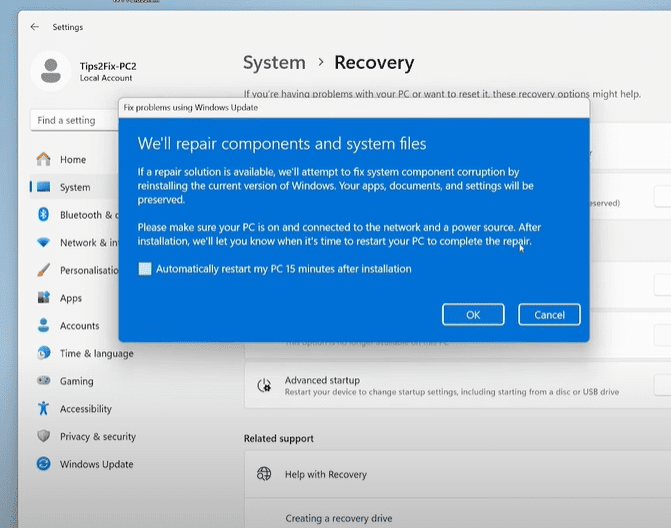
“Fix problems using Windows Update” This feature allows you to reinstall your current version of Windows without affecting your files or apps.
Step 4: Start the Repair Process
- Click Reinstall now under the “Fix problems using Windows Update” section.
- Confirm any prompts.
- Your PC will start downloading the necessary files for a repair installation.
Note: This process requires an active internet connection, as Windows will download the repair files directly from Microsoft’s servers. It is not a local recovery tool.
Step 5: Let Windows Handle the Repair
- The system will download and install a repair version of Windows 11 23H2.
- After installation, it will prompt you to restart your PC.
Click Restart now when prompted, and let the repair process complete.
Step 6: Post-Reinstallation Check
Once the system boots back up:
- All your software and apps will still be installed
- Your desktop, files, and games will remain untouched
- System performance should be noticeably improved
You can confirm the reinstall was successful by returning to Settings → System → About. You’ll see that you are still on the same version (23H2), but with a refreshed installation.











The “Fix problems using Windows Update” option will no longer be visible until another major update is available.
Important Tips
- Ensure your device is connected to the internet during the entire process.
- Keep your system plugged in to avoid interruptions.
- This feature is now also available on Windows 10, making it an excellent option for users of older versions as well.
Final Thoughts
This new repair feature in Windows 11 23H2 is a game-changer for users who want to refresh their systems without losing precious data or reinstalling countless applications. It’s safe, effective, and user-friendly—even for non-technical users.
If your PC continues to perform slowly even after the repair, check out these helpful articles:
- 15 Tricks to Speed Up Windows 11
- What to Do After Installing Windows 11
- How to Upgrade from HDD to SSD for Better Performance
Have you tried this recovery feature? Let us know how it worked for you in the comments.
Tags: windows 11, windows repair, reinstall windows, keep files, no data loss, windows update, recovery, windows 11 23h2, system repair, pc troubleshooting, reinstall without losing software
Hashtags: #Windows11 #ReinstallWindows #KeepMyFiles #WindowsUpdate #SystemRepair #PCFix #WindowsTips #NoDataLoss #WindowsRecovery #TechTips








